Create a promo code
This feature must be turned on for your account.
A promo code takes money off the price when the guest enters the code at checkout. You decide how big the discount is, when the code applies and which products it covers.
The feature must be switched on for your account.
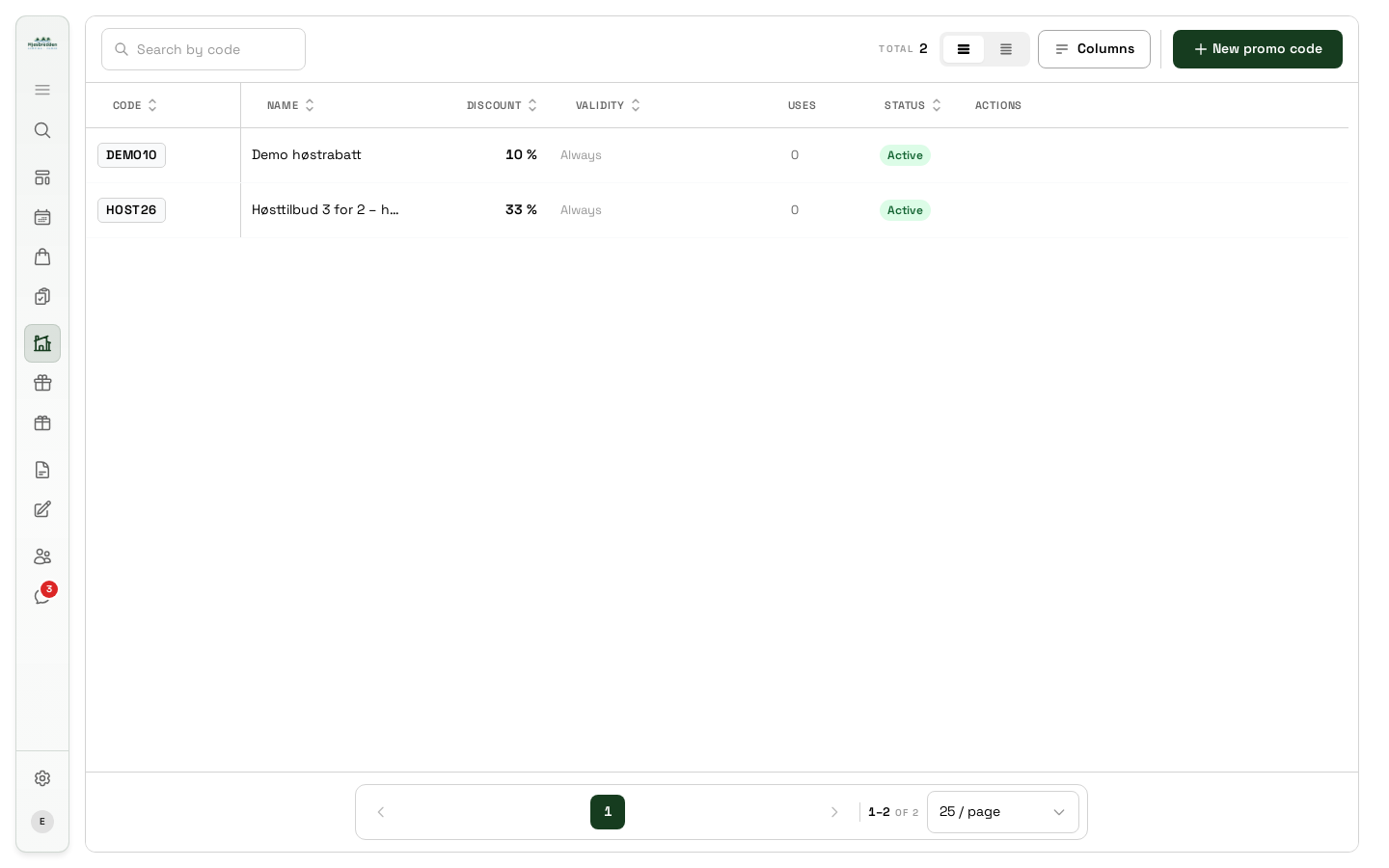
This is the Promo codes page:
How to do it
-
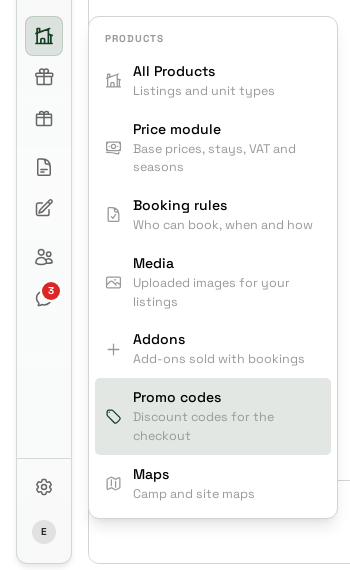
Hover over Products in the menu on the left and choose Promo codes.
-
Click New promo code at the top right.
-
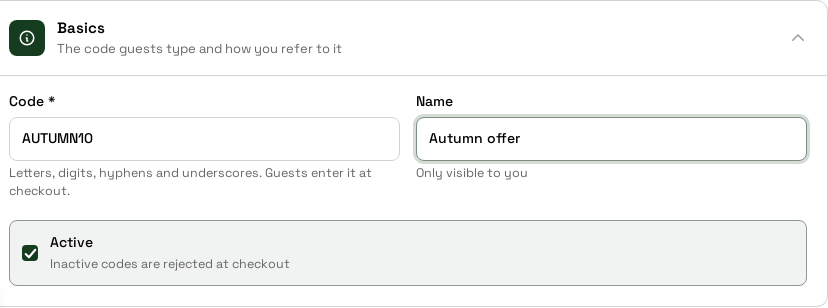
Under Basics, enter the Code guests will type. You can use letters, digits, hyphens and underscores, from 3 to 40 characters. The Name is only visible to you.
-
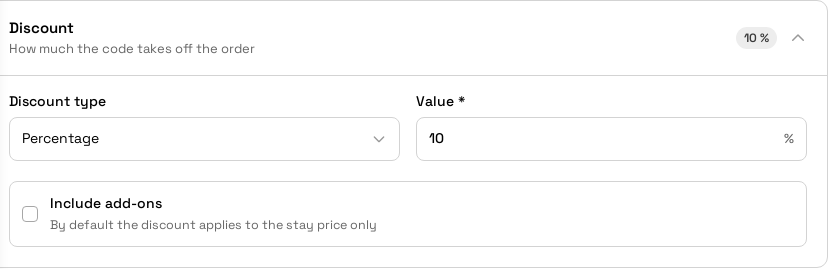
Under Discount, enter the Value.
-
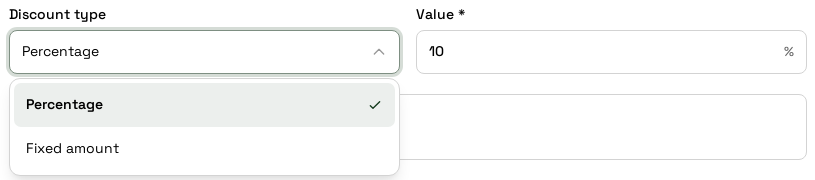
To give a fixed amount instead of a percentage, open Discount type and choose Fixed amount.
-
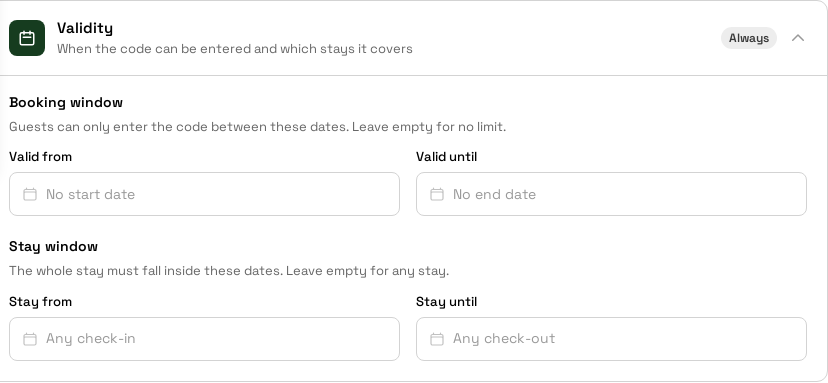
Under Validity you can limit the code. Booking window is the dates between which guests can use the code. Stay window means the whole stay must fall inside those dates. Leave the fields empty if the code should always apply.
-
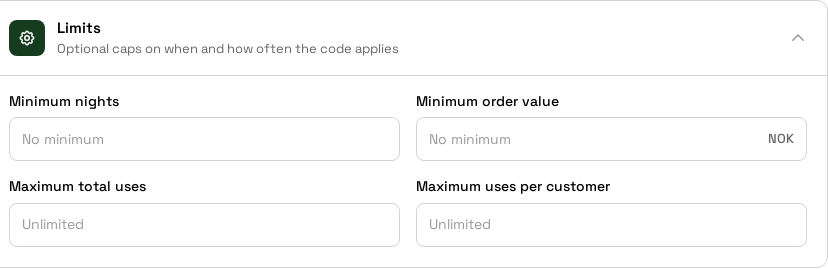
Under Limits you can set minimum nights, a minimum order value and how many times the code can be used, in total and per customer.
-
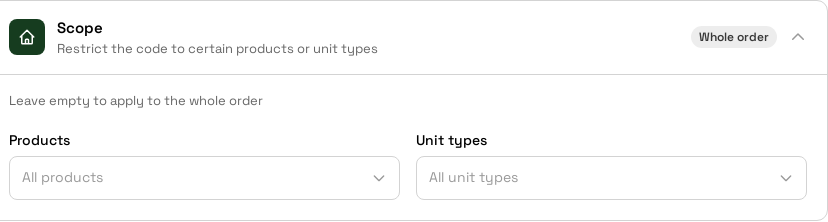
Under Scope you can restrict the code to certain products or unit types. If you leave the fields empty, the code applies to the whole order.
-
Click Create promo code at the bottom.

Check that guests can use the code
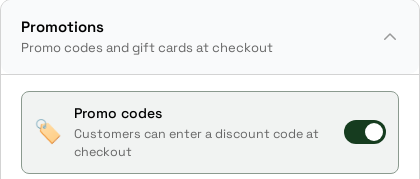
Guests can only enter promo codes at checkout when this is switched on. Go to Settings → Payments & checkout → Promotions and check that the Promo codes switch is on.
Good to know
- By default the discount applies to the stay price only. Tick Include add-ons if add-ons should be discounted too.
- To stop a code without deleting it, untick Active. Inactive codes are rejected at checkout.