Move a booking to other dates
The video was checked against the admin on 5 November 2026.
If a guest wants to come on other days, you can move the booking yourself. The price is worked out again for the new dates, and the invoice is updated when you save. The guest gets an email about the change.
How to do it
-
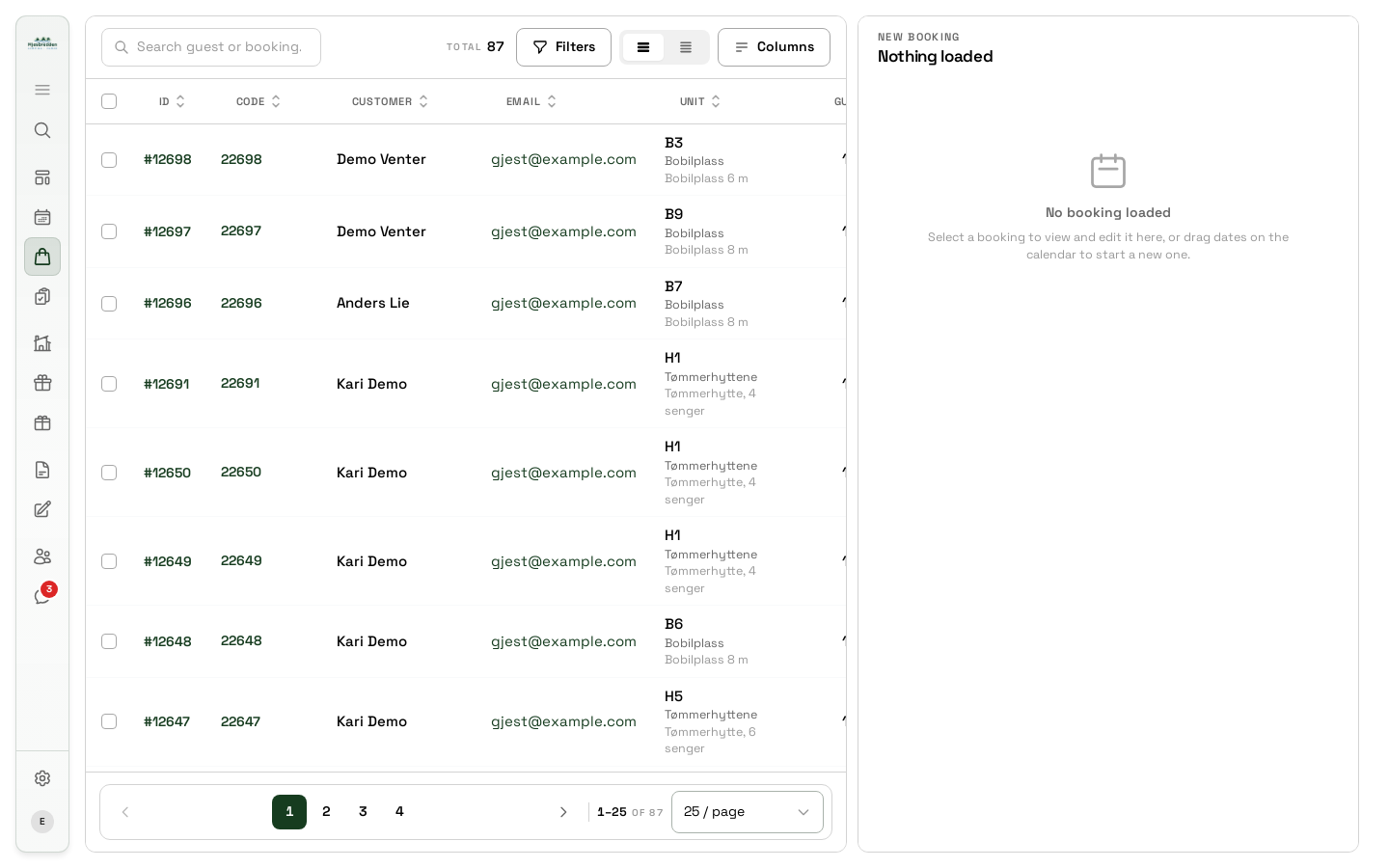
Choose Orders in the menu on the left. The list of all bookings opens.
-
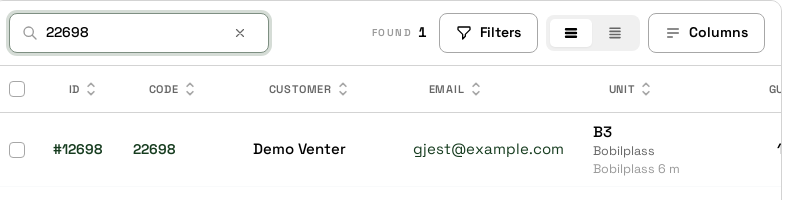
Find the booking. You can search for the guest's name or the booking code (for example 22644) in the search box at the top.
-
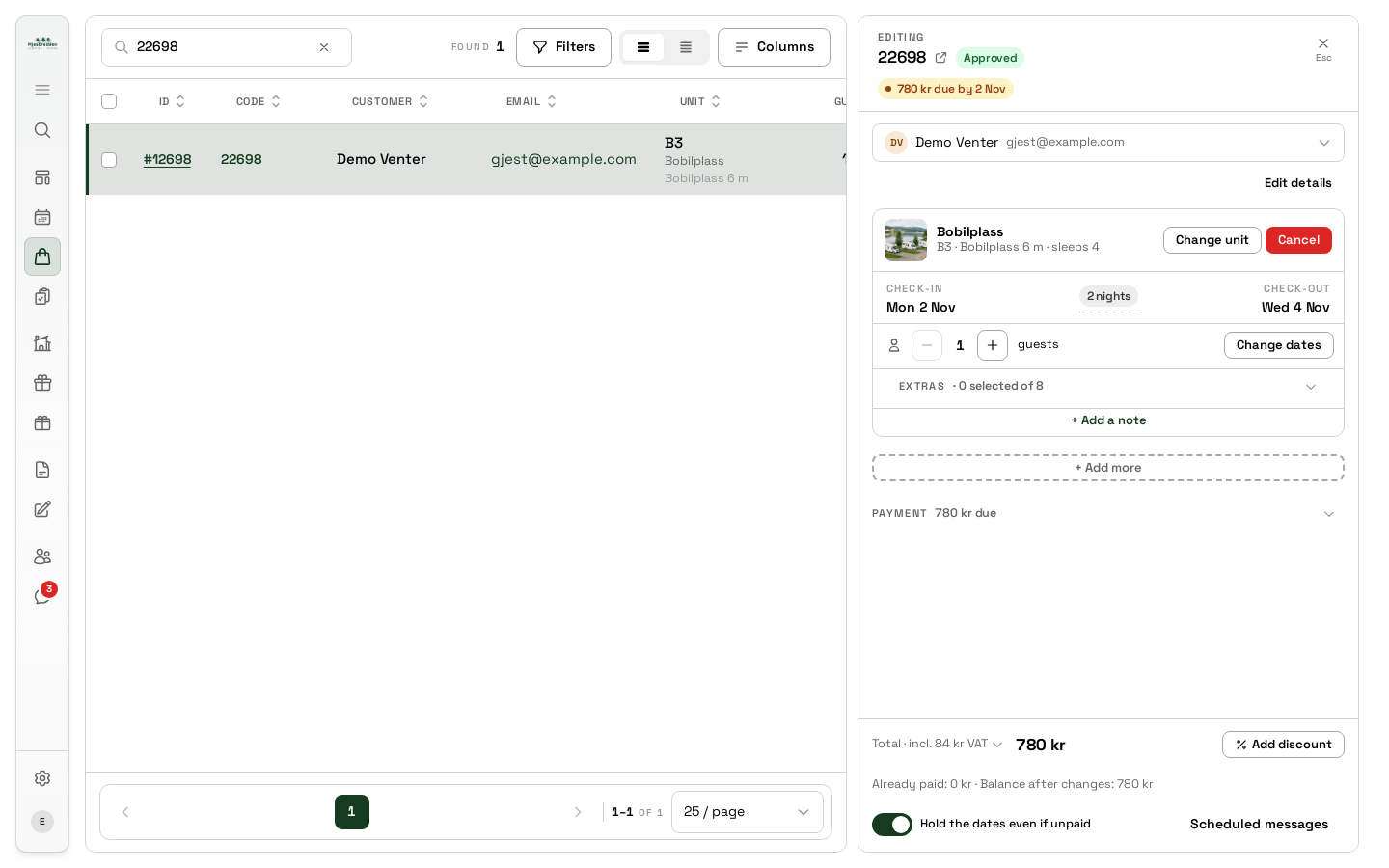
Tap the booking. It opens on the right of the screen.
-
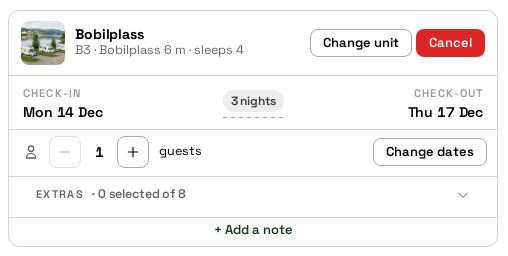
Tap Change dates. A calendar opens.
-
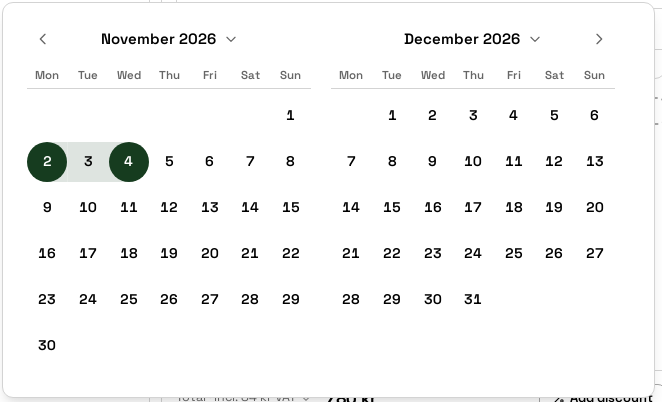
Choose the new check-in date and then the new check-out date in the calendar.
-
Check the new dates on the unit.
-
Look at the new price next to Total. Just below, you see what the guest has already paid and what is left after the change. Then tap Save. The button shows how many changes you have made, for example "Save 2 changes".
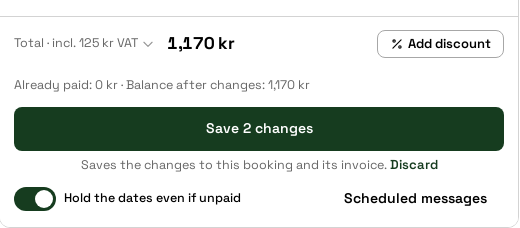
If you change your mind before saving, tap Discard.
Good to know
- If the new price is lower than what the guest has already paid, the guest gets the difference refunded automatically to the same payment method they used.
- A cancelled or refunded booking cannot be moved. The Change dates button is not shown.
- If the guest should stay in another unit, use Change unit in the same booking.
- For hourly rentals the button is called Change time instead of Change dates.
- At the bottom you find the switch Hold the dates even if unpaid. Normally the unit is released again when the payment window passes. With the switch on, the dates are held for the guest anyway.