Create tasks automatically from bookings
This feature must be turned on for your account.
With automation rules, Bokable creates tasks by itself when something happens with a booking. A common example is a cleaning task after every check-out, or only when the guest has bought final cleaning.
Operations must be switched on for your account.
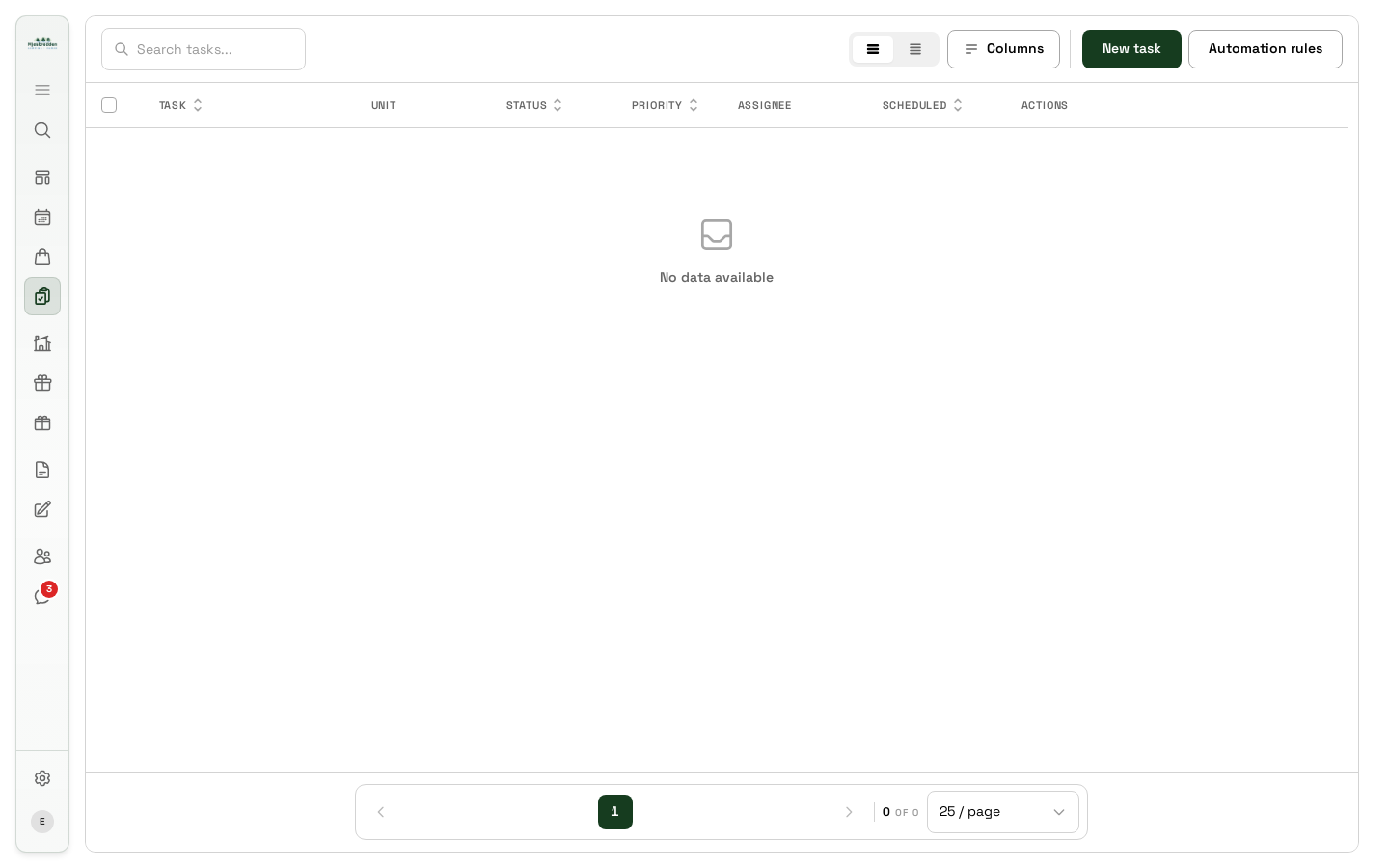
Create a rule
- Choose Operations in the menu on the left.
-
Tap Automation rules at the top right.
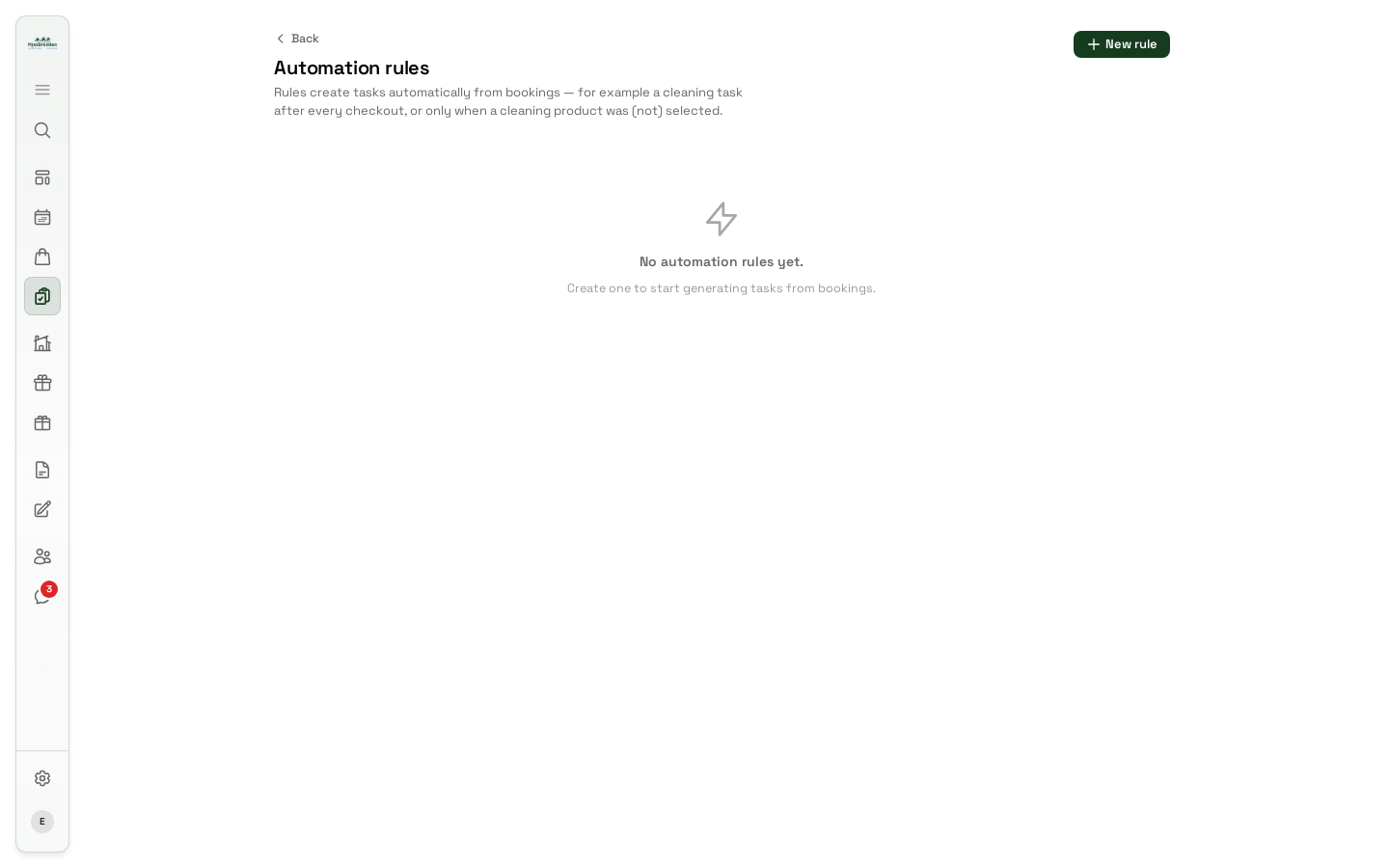
-
Tap New rule.
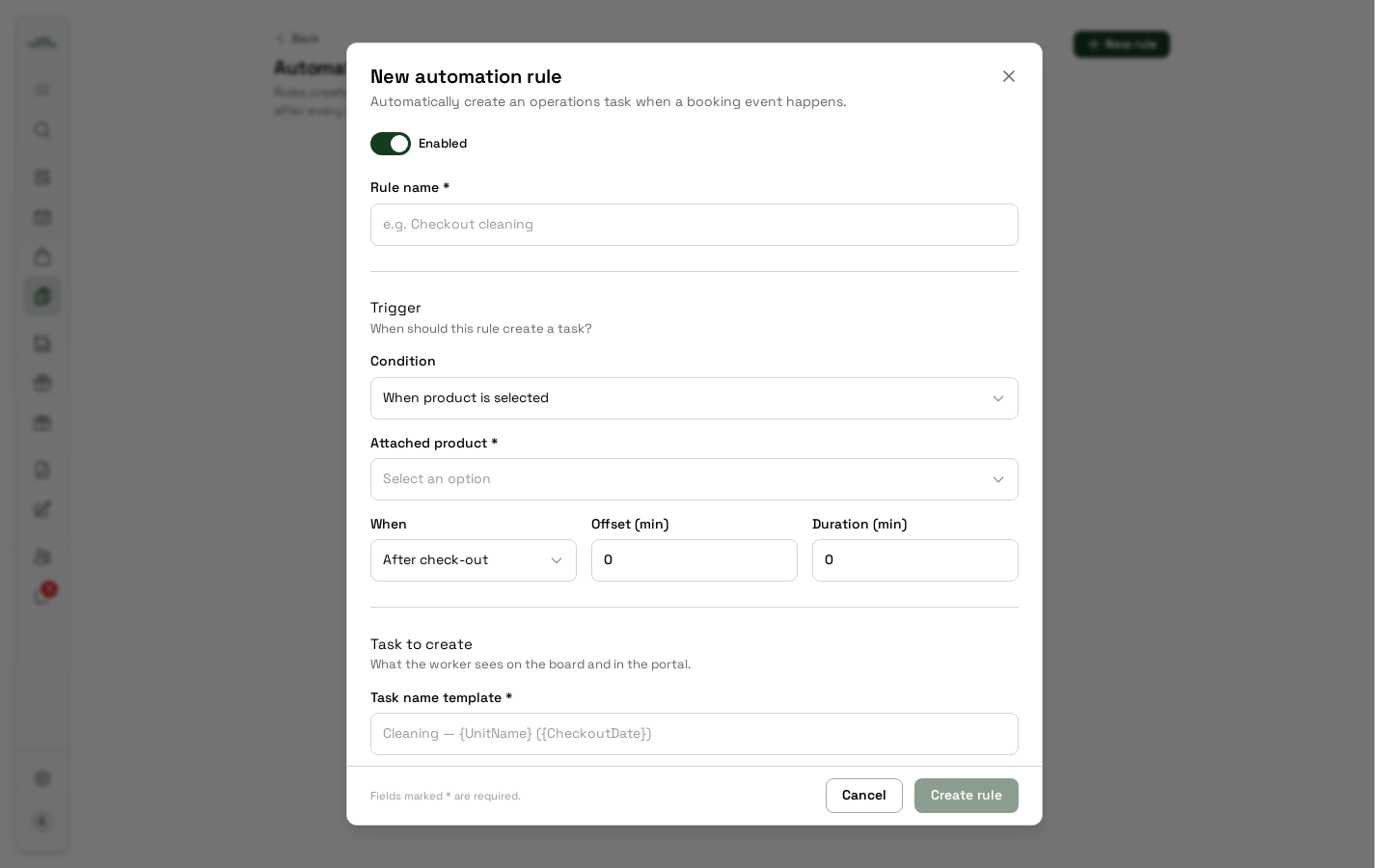
-
Give the rule a name under Rule name.

-
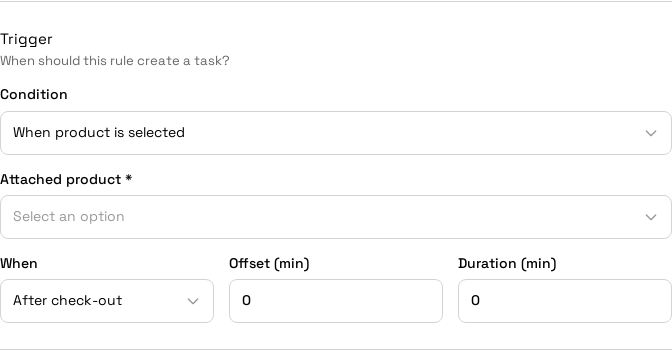
Under Trigger, choose a Condition:
- When product is selected: the rule applies when the guest has bought a specific add-on. Choose the add-on under Attached product.
- When product is NOT selected: the rule applies when the guest has not bought the add-on.
- Always (every booking): the rule applies to all bookings. You can limit it to one unit category under Limit to unit category.
-
Choose When the task is created, for example After check-out or Before check-in. Offset (min) moves the time, and Duration (min) is how long the task takes.

-
Under Task to create, type the task name in Task name template. You can use placeholders such as
{UnitName},{CheckoutDate}and{GuestName}, and the right unit, date and guest are filled in.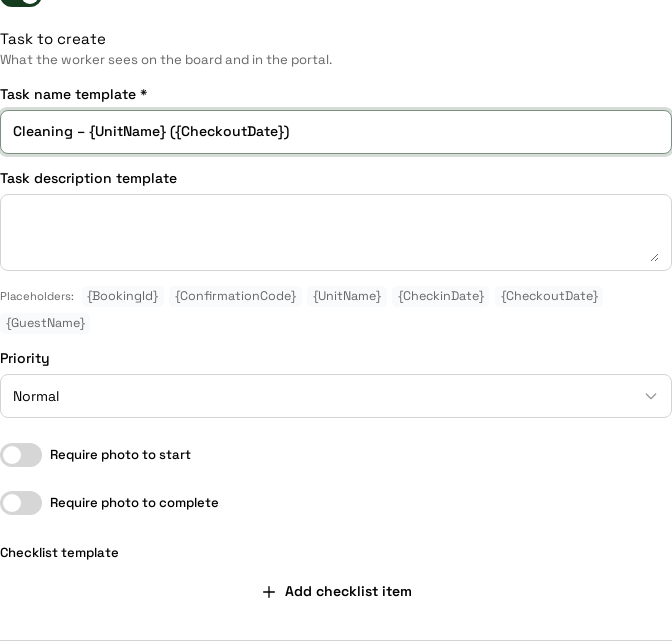
-
Choose the Priority, whether a photo is required, and add a Checklist template if you need one.

-
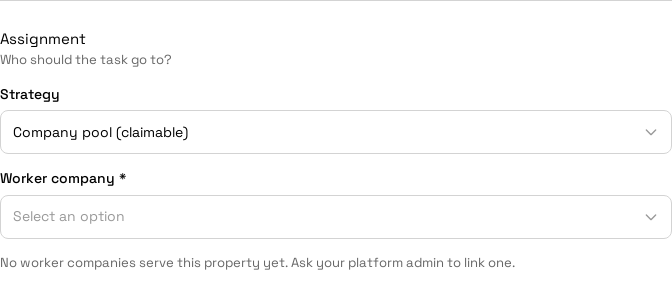
Under Assignment, choose a Strategy, meaning who the task goes to (see below).
-
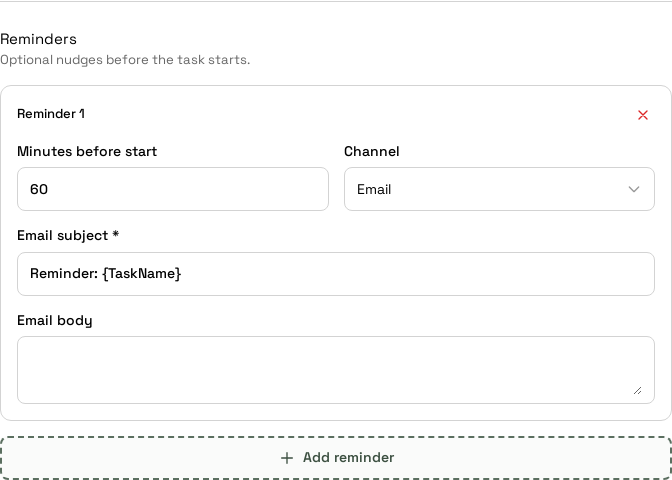
Add Reminders if you want them, by email, SMS or both, a number of minutes before the task starts.
-
Tap Create rule.

Who the task goes to
- Company pool (claimable): any worker in the company can take the task.
- Fixed worker: the task always goes to the same worker.
- Round robin: the tasks are shared between the workers in turn.
- Least loaded worker: the task goes to the worker with the least to do.
- The booking guest: the guest on the booking gets the task.
All choices except The booking guest need a worker company linked to the property. If there is none, you are told to ask your platform admin to link one.
Good to know
- The Enabled switch at the top of the rule turns the rule off and on without deleting it.
- Fields marked * must be filled in before you can create the rule.