Create a task and follow it up
This feature must be turned on for your account.
Under Operations you collect practical tasks such as cleaning, firewood or repairs. A task can be linked to a specific booking or unit, and you can give it to a worker or to the guest.
Operations must be switched on for your account.
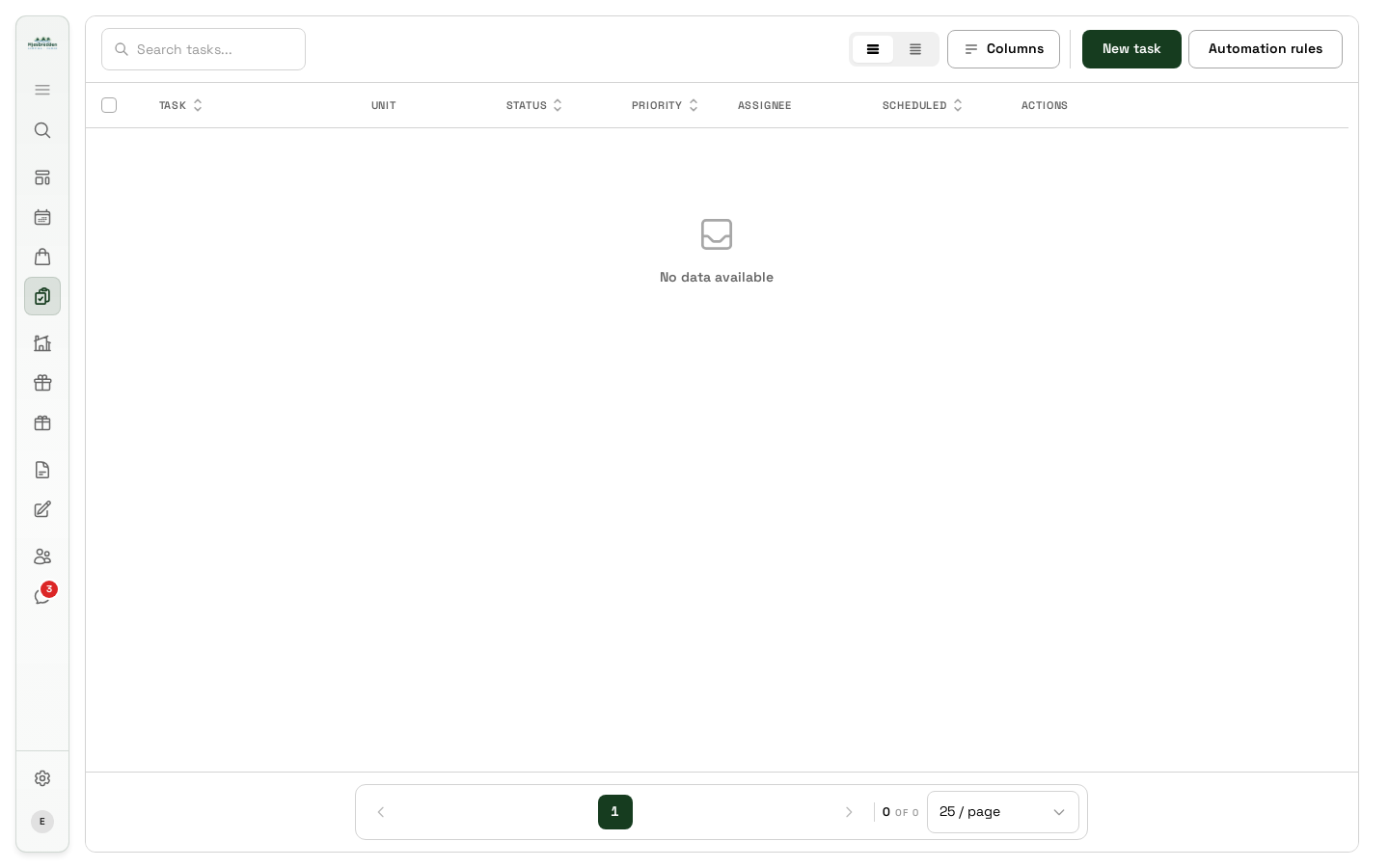
Create a new task
- Choose Operations in the menu on the left.
-
Tap New task.
-
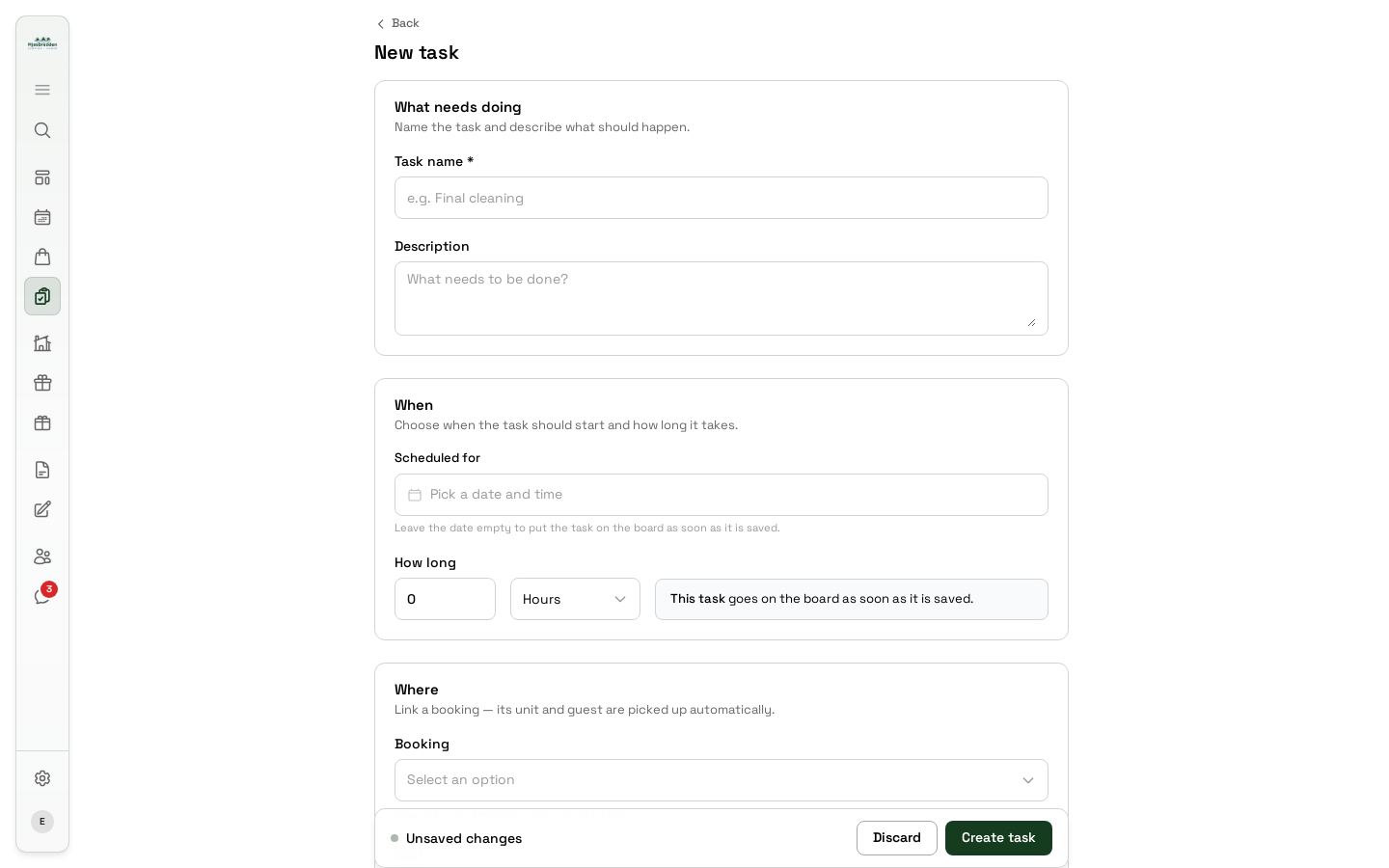
Type a name under Task name. Use Description to explain what needs doing.
-
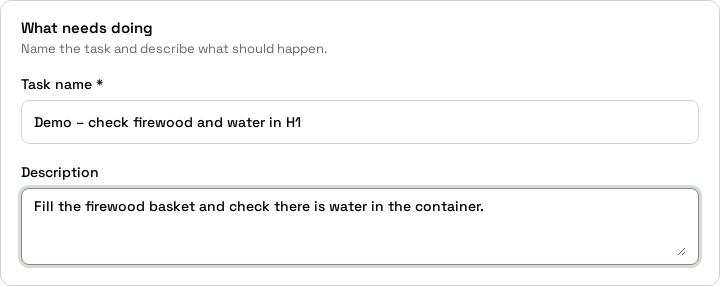
Pick a time under Scheduled for, and how long the task takes under How long. If you leave the date empty, the task goes on the board as soon as you save it.
-
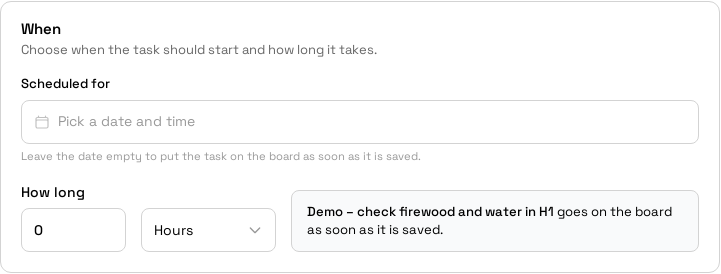
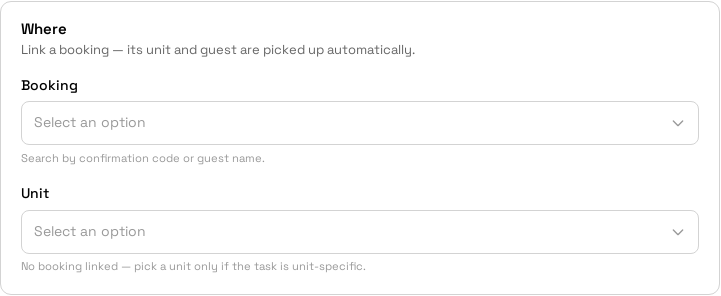
Under Where you can link the task to a Booking. The unit and guest are then filled in automatically. If the task is about a unit without a booking, choose Unit instead.
-
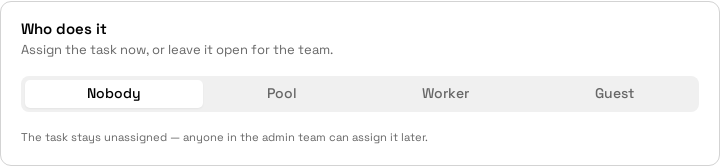
Under Who does it, choose who the task goes to (see below).
-
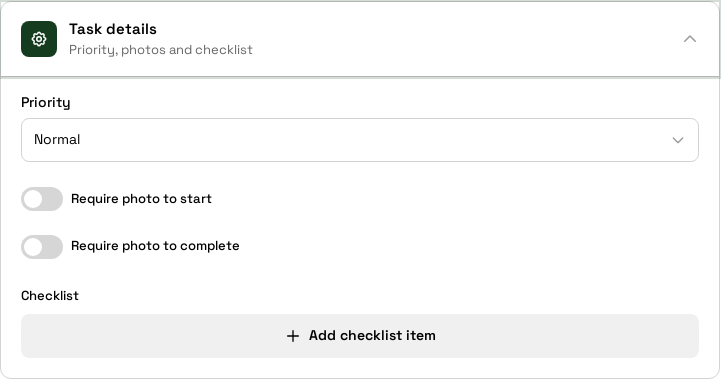
Open Task details if you want to set the Priority, require a photo to start or complete, or add a checklist.
-
Tap Create task at the bottom.

Who can do the task
- Nobody: the task has no assignee, and anyone in the admin team can assign it later.
- Pool: any worker in the company you choose can take the task.
- Worker: the task goes straight to the worker you choose.
- Guest: the guest on the booking sees and completes the task on their own guest page.
Pool and Worker need a worker company linked to the property. If you don't have one, the form tells you to ask your platform admin to link one.
Follow up a task
-
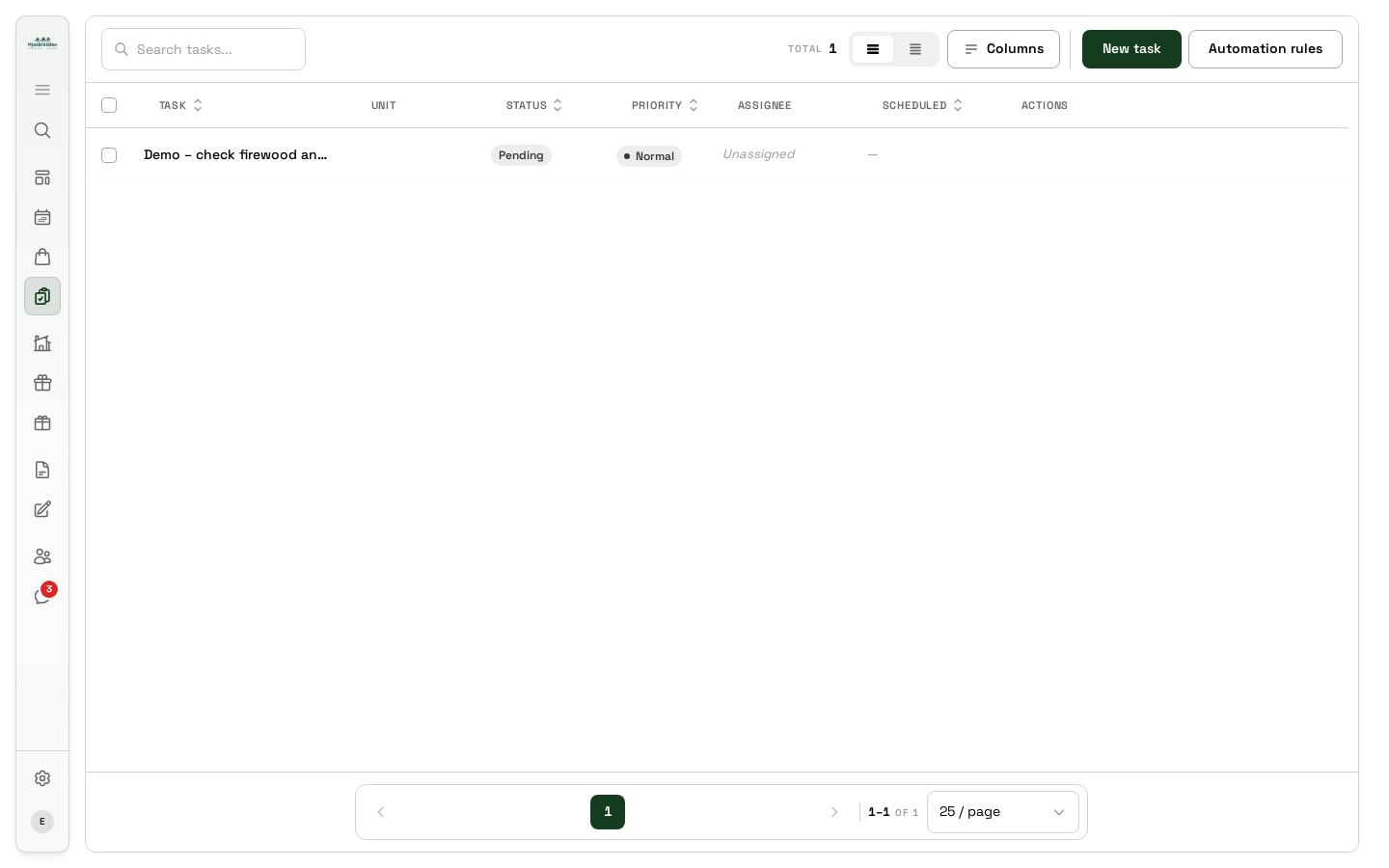
The tasks are listed under Operations, with status, priority and assignee.
-
Tap the eye under Actions to open the task.
-
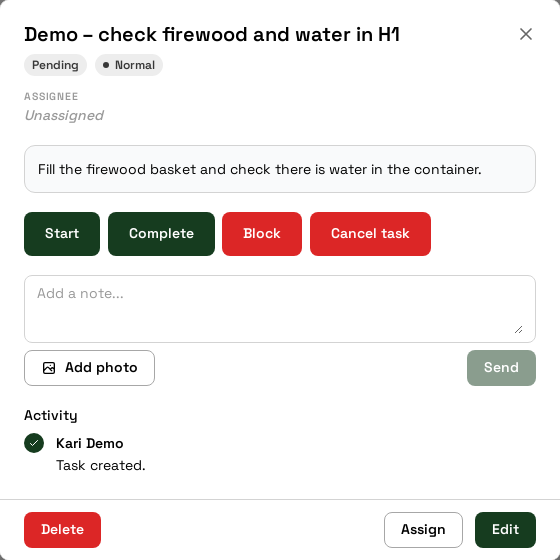
Change the status with Start, Complete, Block or Cancel task. You can also write a note and add a photo.

-
At the bottom you find Assign, Edit and Delete.

Good to know
- Under Activity in the task you can see what has happened, and who did it.
- Delete removes the task straight away, without asking if you are sure.
- If you want tasks to be created automatically from bookings, use Automation rules.