Reply to guests in the inbox
This feature must be turned on for your account.
All conversations with your guests are collected in the inbox under Messages. The same thread also shows the emails the system has sent to the guest and changes to the booking.
Messages must be switched on for your account.
How to reply to a guest
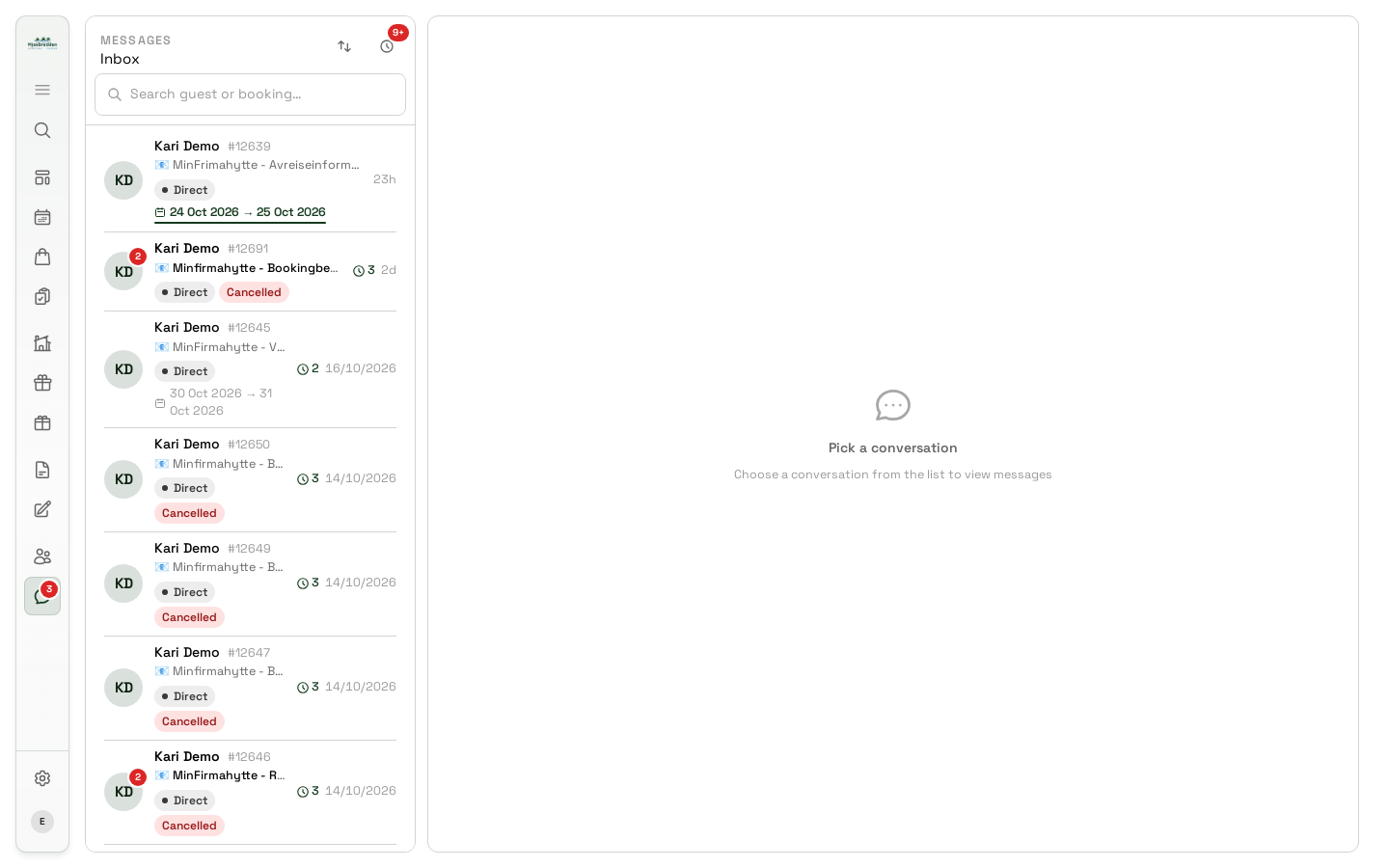
- Choose Messages in the menu on the left. A red number on the icon means you have new messages.
-
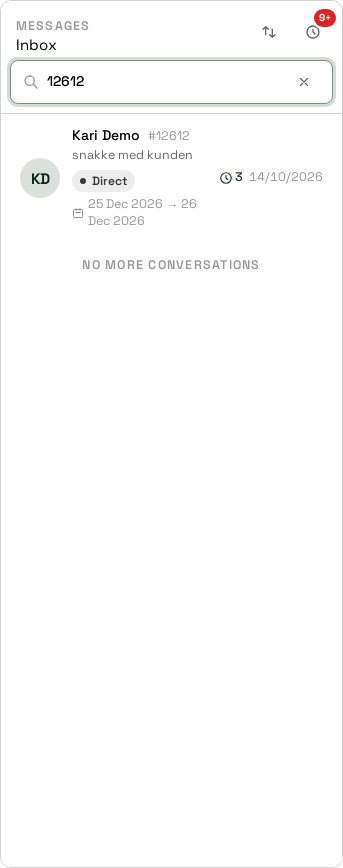
Find the conversation in the list. You can search for the guest's name or the booking number in the search box at the top.
-
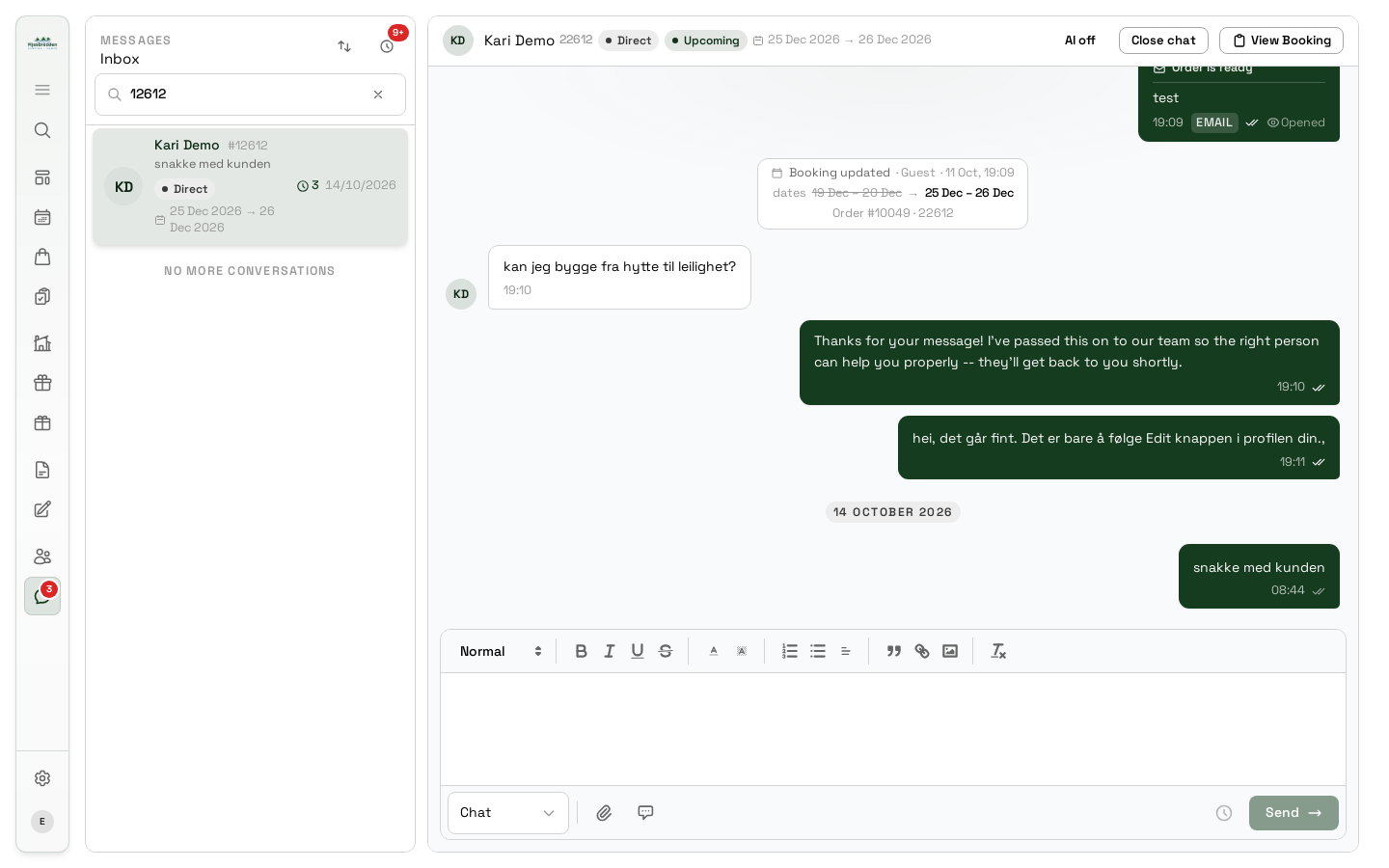
Tap the conversation. The whole thread opens on the right. At the top you see the booking's status and dates. Tap the guest's name to open their profile.
-
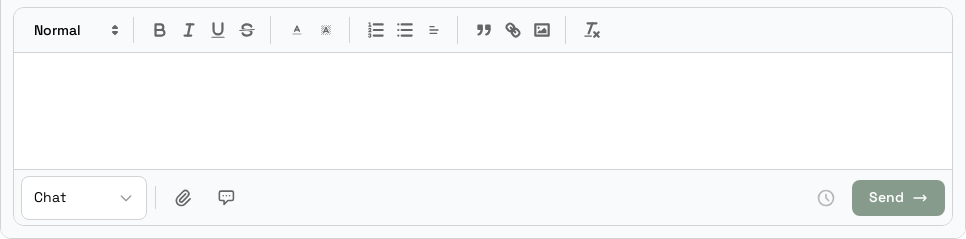
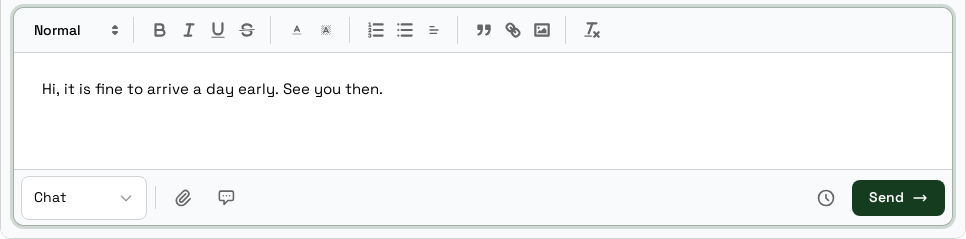
Choose how the reply is sent in the box at the bottom left: Chat, Email or SMS.
-
Write your reply in the text box.
-
Tap Send.
More you can do in a conversation
- Attach files (the paper clip) lets you send up to five files at a time: images, PDF, Word and Excel files.
- Saved replies (the speech bubble) brings in texts you use often.
- Schedule message (the clock next to Send) lets you pick a time and channel, and the message is sent then.
- View Booking opens the booking the conversation is about.
- Close chat marks the conversation as resolved. You can open it again with Reopen chat.

Good to know
- Email can only be chosen when the guest has an email address, and SMS only when the guest has a mobile number.
- An email you have sent shows Opened once the guest has opened it.