Emails to guests and alerts to you
Bokable emails your guests when they book, pay, get a refund and before they arrive. Here you choose which emails go out, change their text, and decide where you get alerts about new and cancelled bookings.
Switch guest emails on or off
-
Tap Settings (the gear) at the bottom of the left-hand menu.

-
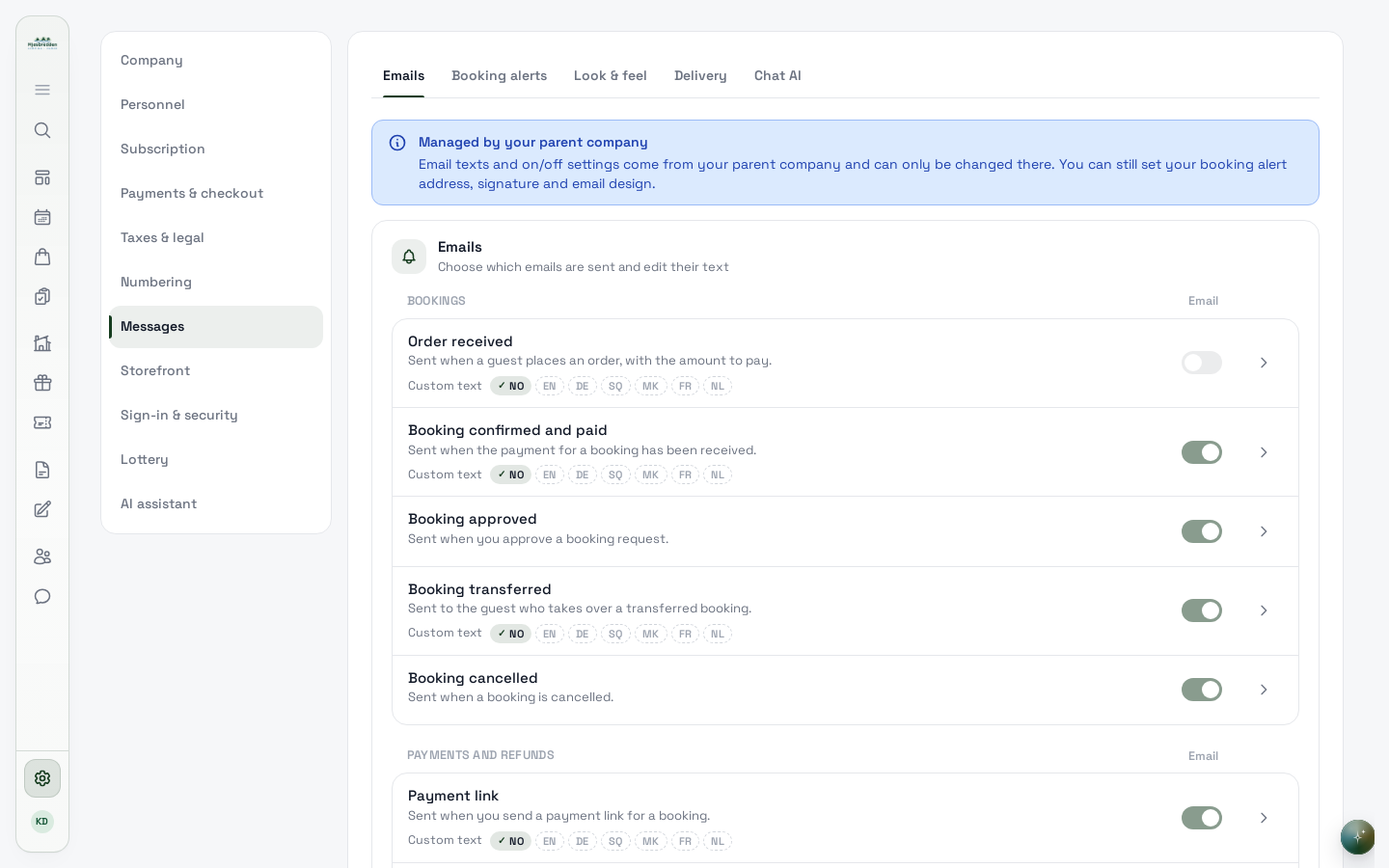
Choose Messages. On the Emails tab you see all the emails, grouped under Bookings, Payments and refunds, Before and after the stay, Guest account, Draws, Gift cards and Alerts to you. Each email has a short line saying when it is sent.
-
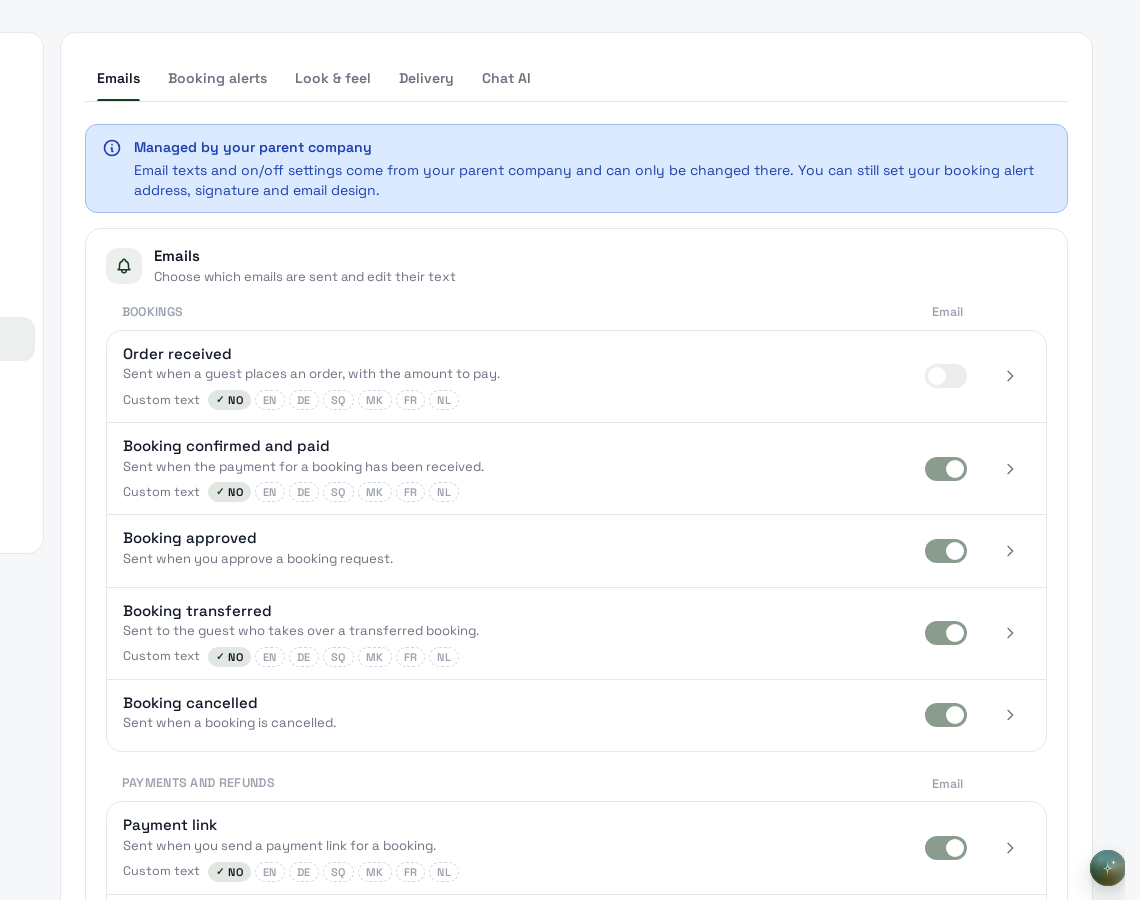
Use the switch on the right to turn an email on or off. The change is saved straight away. Emails marked Required are always sent and cannot be switched off.
Change the text of an email
- Tap the email in the list.
- Change the subject and the text. Fields such as the guest's name or dates show as small tags in the text and are filled in for each guest. Hover over a tag to see what it becomes.
- If your website has several languages, you see for each language whether the text is Written or Missing.
- For emails before and after the stay you also choose Timing, for example a number of days before check-in, at the check-in time or at a fixed time. When you save, emails already scheduled for upcoming bookings move to the new time.
- Choose with the Add signature switch whether your signature is added under this email.
- Tap Save changes.
Get alerts about new and cancelled bookings
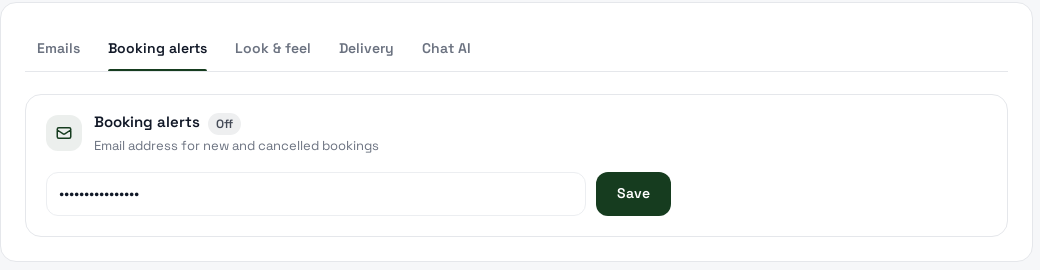
- Choose the Booking alerts tab.
- Enter the address the alerts should go to in Email address for new and cancelled bookings, and tap Save.
-
On the Emails tab, under Alerts to you, use the switches to choose alerts for new bookings, cancelled bookings or both.
The alert for a new booking is sent when a booking is confirmed: paid on the website, confirmed by your staff, or received from a sales channel.
Good to know
- If you see the notice Managed by your parent company, the texts and on/off choices are controlled by the parent company. You can still change the alert address, signature and email design yourself.
- On the Look & feel tab you choose the signature and the email design: colour, logo and footer for all emails.
- On the Delivery tab you can set up your own outgoing email server (Custom SMTP). Most companies don't need this.