Put a booking widget on your own website
If you have your own website, for example one built in Framer, you can add a small booking widget for a unit. Guests pick dates and the number of guests in the widget and go on to book with you.
How to do it
-
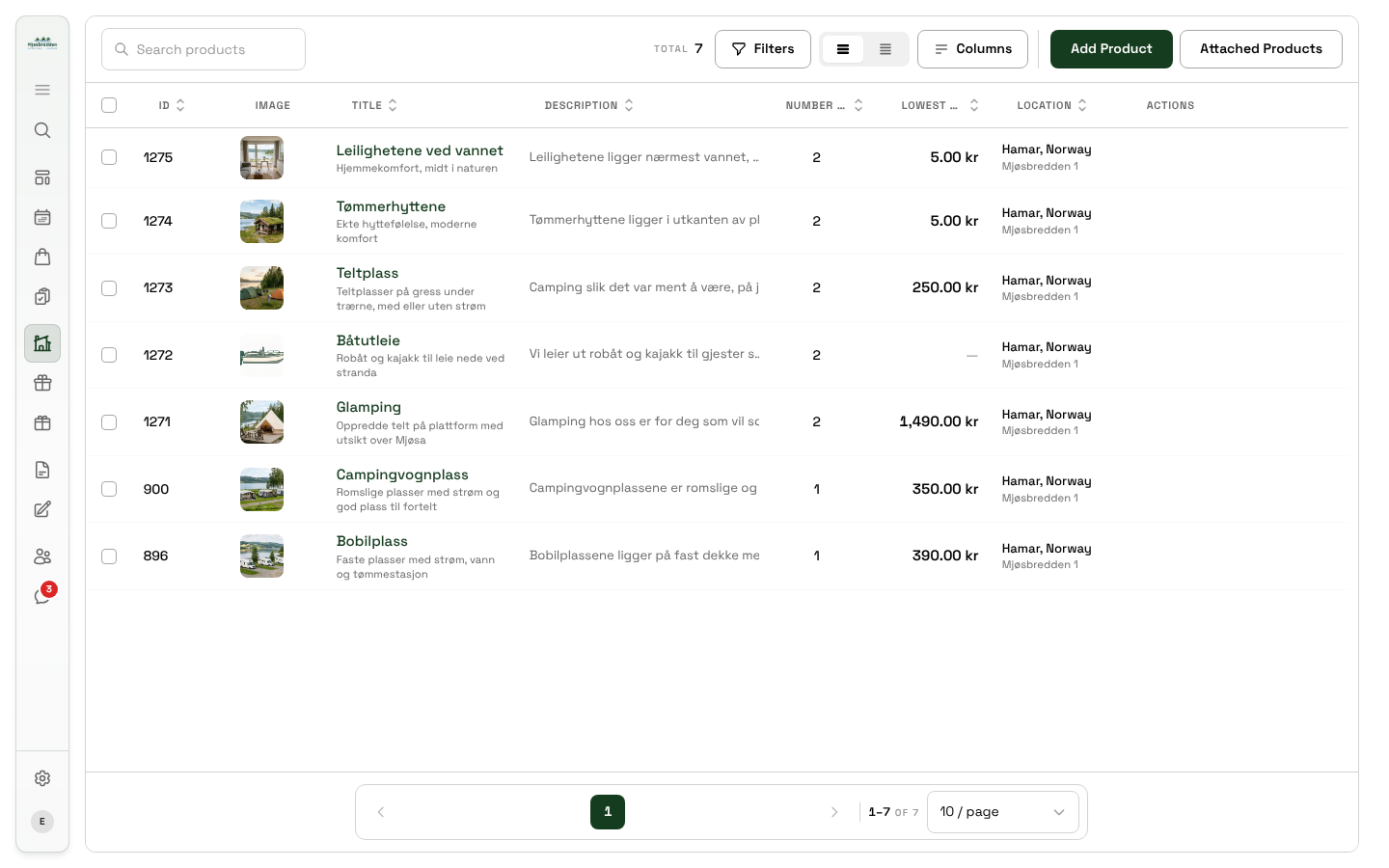
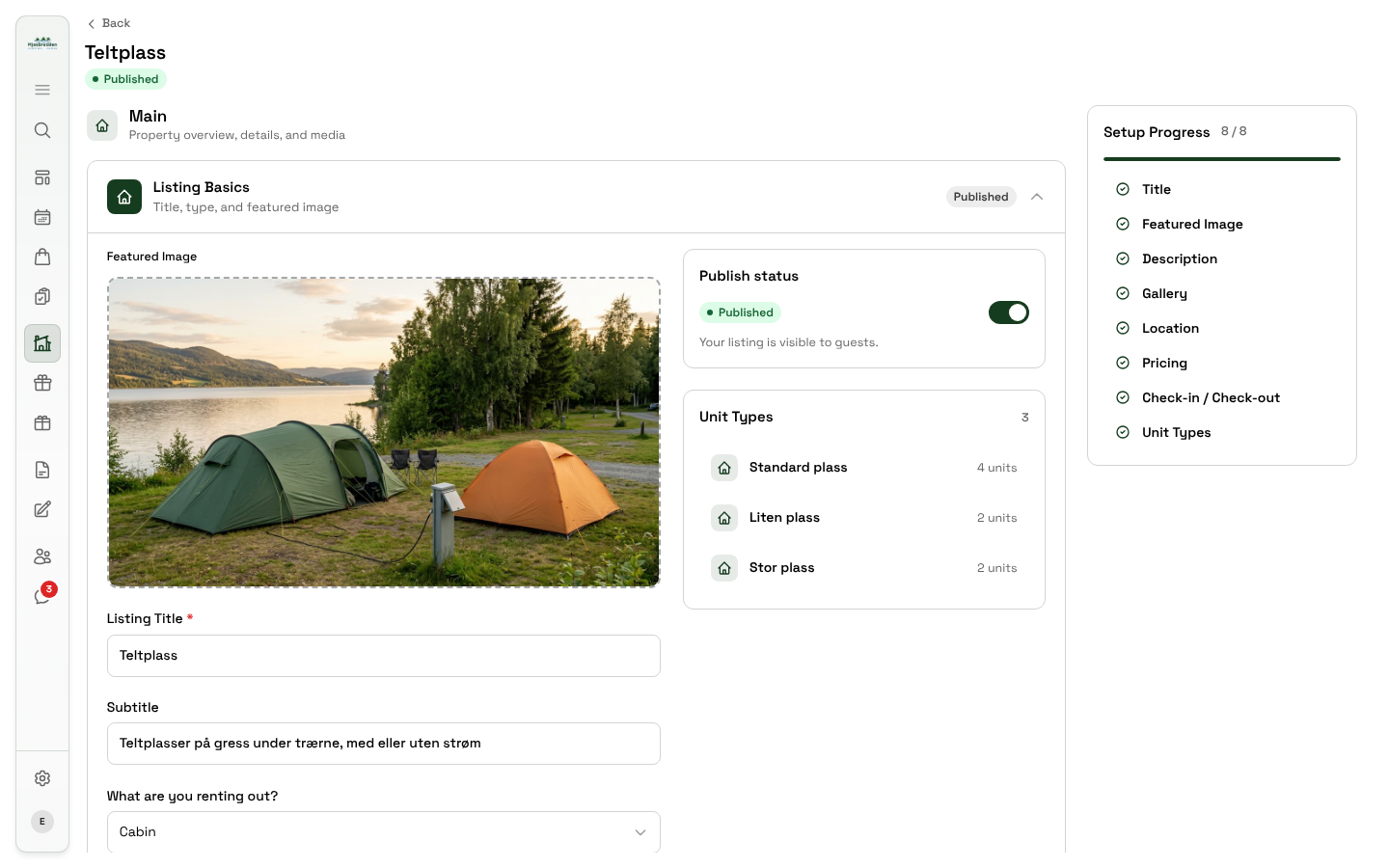
Choose Products in the menu on the left and open the product you want a widget for.
-
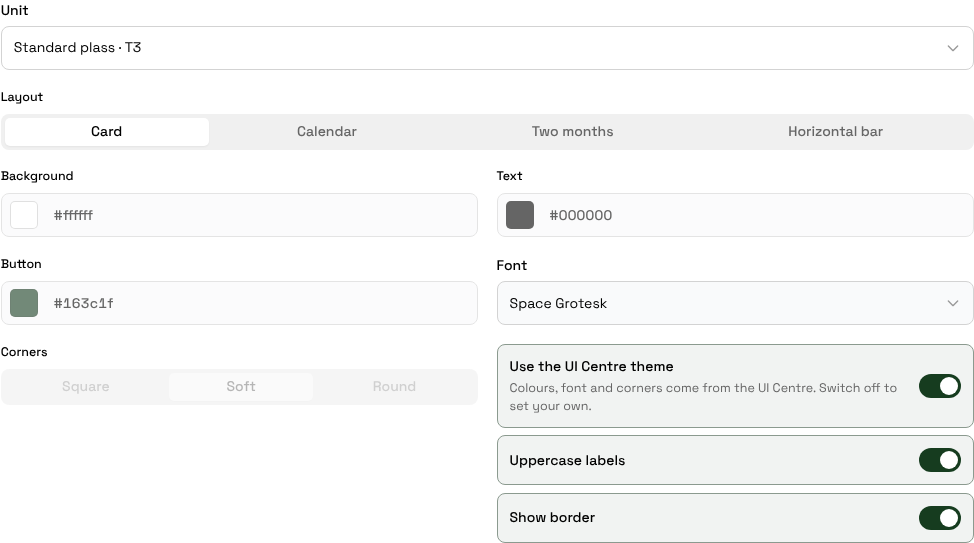
Tap Website widget under Distribution. If the product has more than one unit, pick it under Unit.

-
Pick a layout: Card, Calendar, Two months or Horizontal bar.

-
With Use the UI Centre theme on, the widget gets the same colours, font and corners as your storefront. Switch it off if you want to set Background, Text, Button, Font and Corners yourself.
-
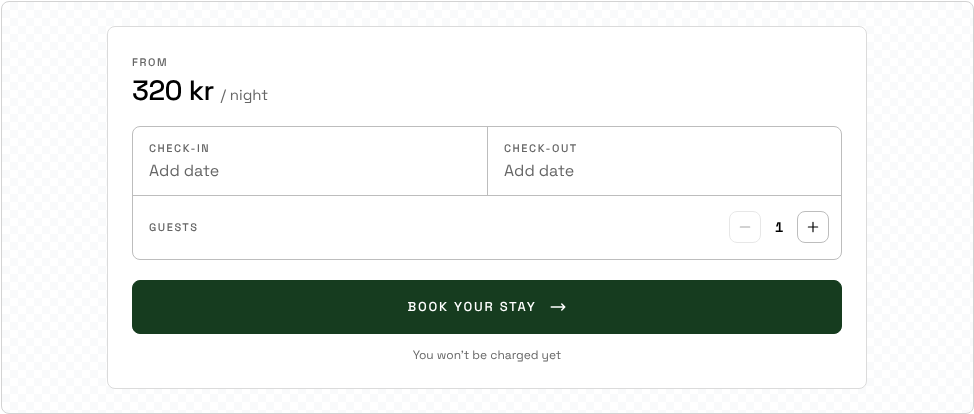
See how the widget looks under Preview. Switch between Desktop and Phone.
-
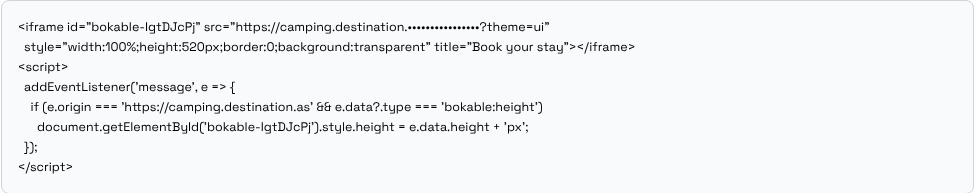
Tap Copy code under Widget code.

-
Paste the code on your website. In Framer, add an Embed in HTML mode and paste the code there. Any other site that accepts HTML works the same way.
Good to know
- These choices are not saved in Bokable. They are part of the code you copy, so if you want to change something later, make new code and paste it again.
- If the product has no units yet, you need to add a unit before you get a widget code.
- Reset above the preview sets the choices back to the defaults.