Choose colours and font for your website
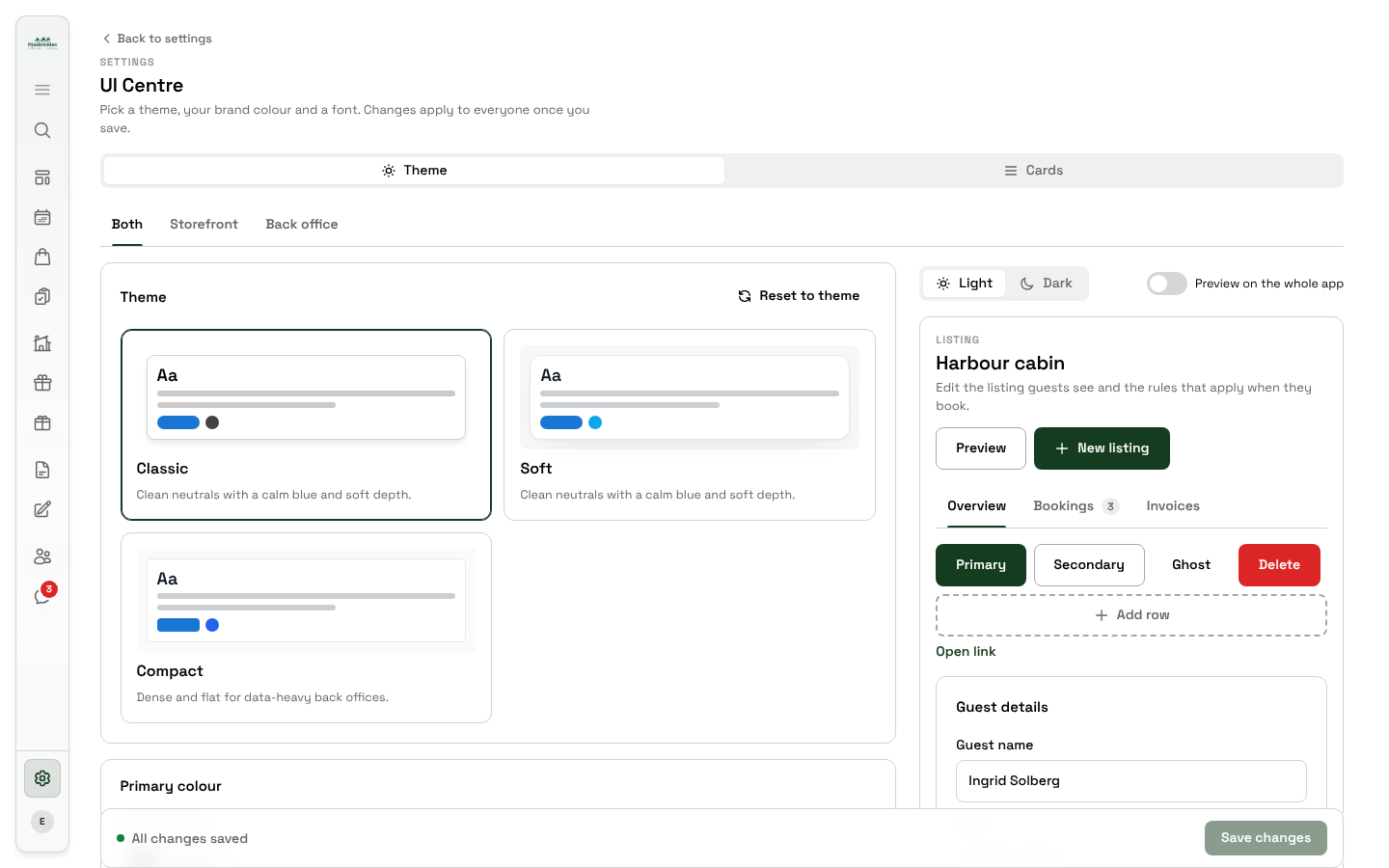
In the UI Centre you decide how your storefront and back office look: theme, brand colour and font. This is also where you choose what is shown on the cards for your accommodation. The changes apply to everyone once you save.
How to do it
-
Tap the gear at the bottom of the menu on the left to open Settings.
-
Choose Storefront and tap Open UI Centre.

-
At the top, choose whether the change applies to Both, only Storefront or only Back office.

-
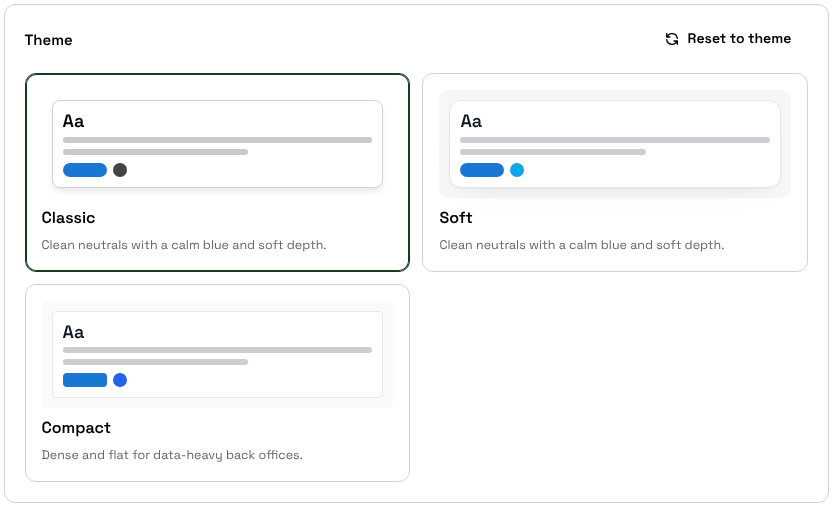
Pick a theme, for example Classic, Soft or Compact.
-
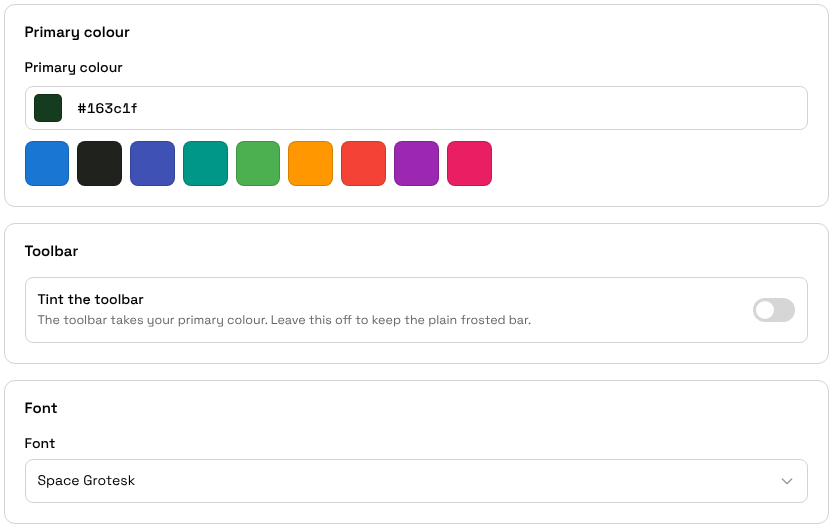
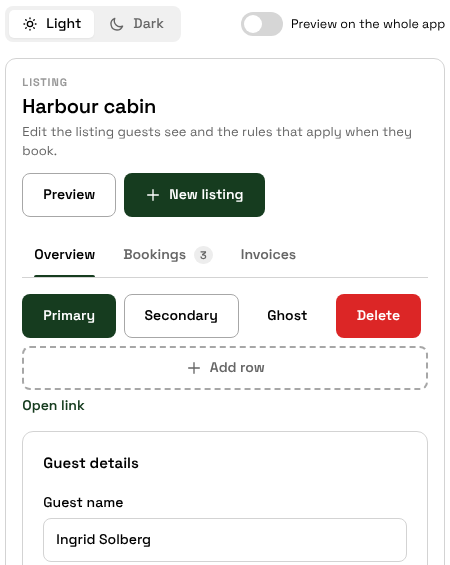
Further down, choose Primary colour and Font. The Tint the toolbar switch gives the toolbar your primary colour.
-
Check the result in the preview on the right. You can switch between Light and Dark, and turn on Preview on the whole app.
-
Tap Save changes at the bottom.

Choose what is shown on the cards
-
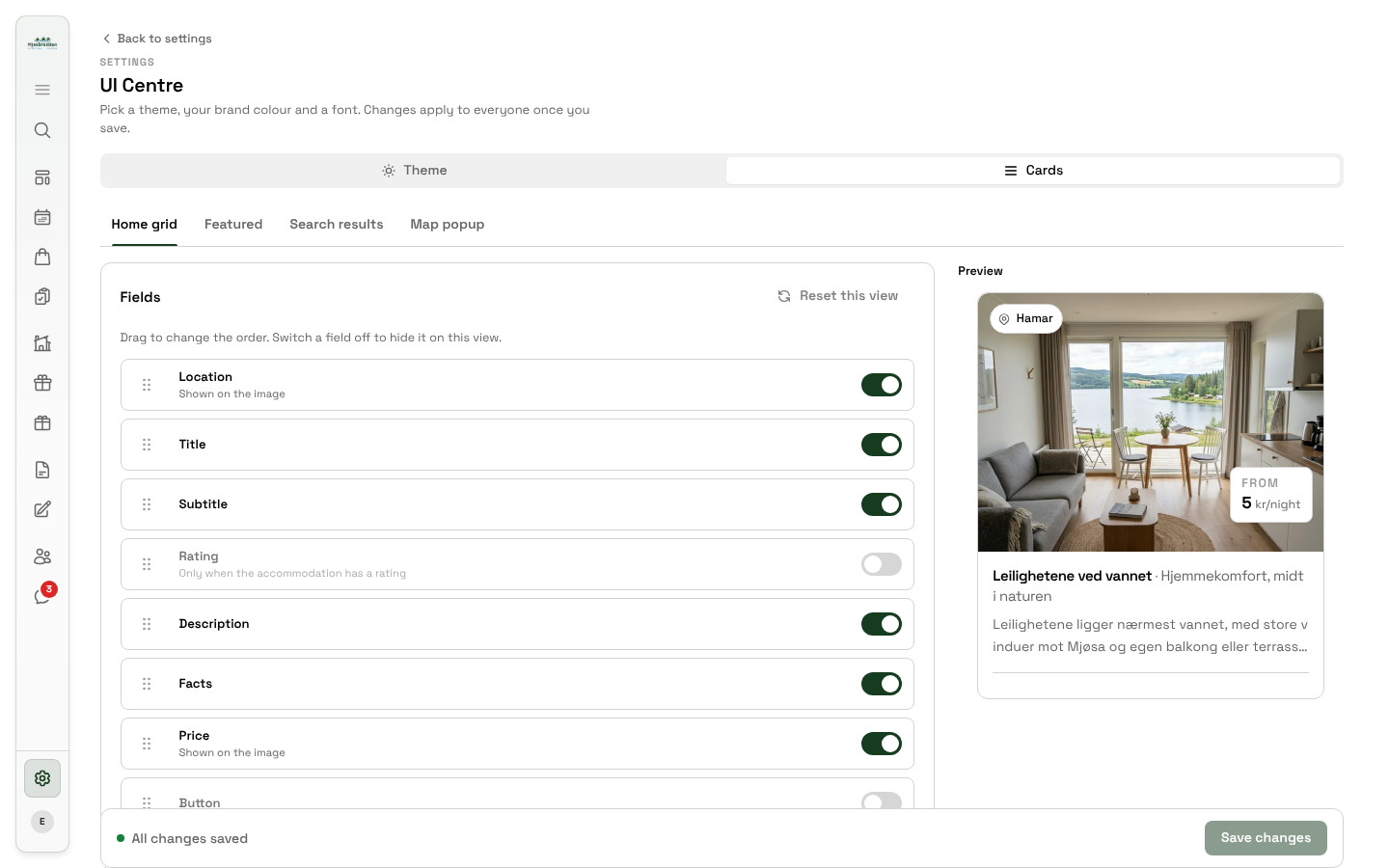
Choose the Cards tab at the top of the UI Centre.
-
Pick the view you want to change: Home grid, Featured, Search results or Map popup.

-
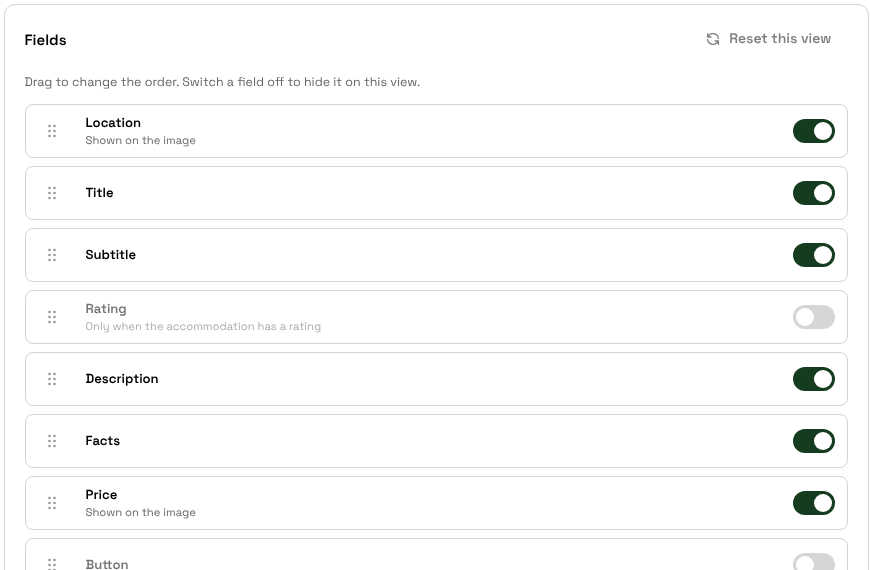
Switch fields on or off, and drag them to change the order.
-
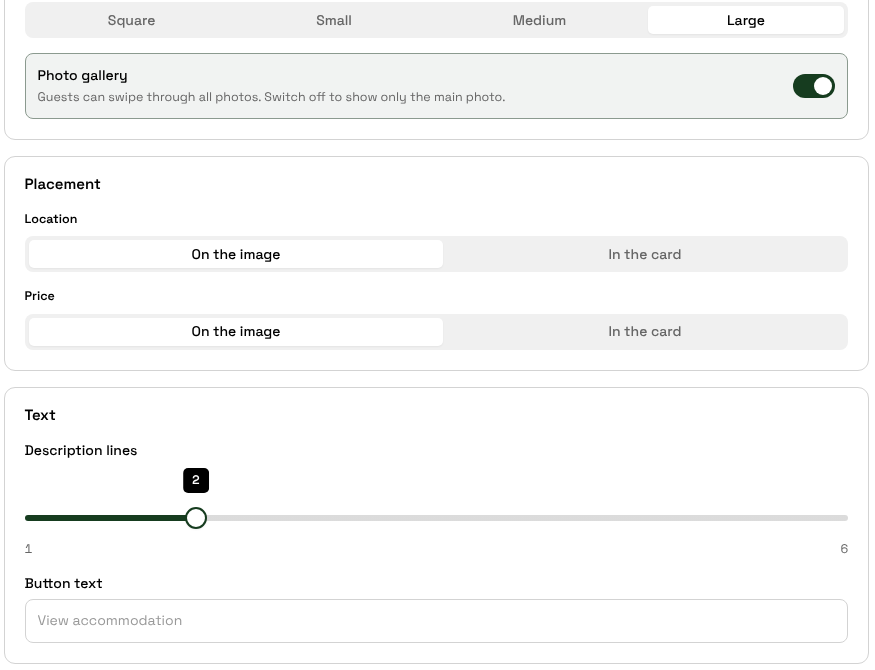
Further down, choose the corners, where the location and price are placed and how many lines of the description are shown.
-
Tap Save changes at the bottom.
Good to know
- All changes saved is shown at the bottom when nothing is left unsaved.
- The Photo gallery switch under Cards lets guests swipe through all photos. If you switch it off, only the main photo is shown.