Change the footer on your website
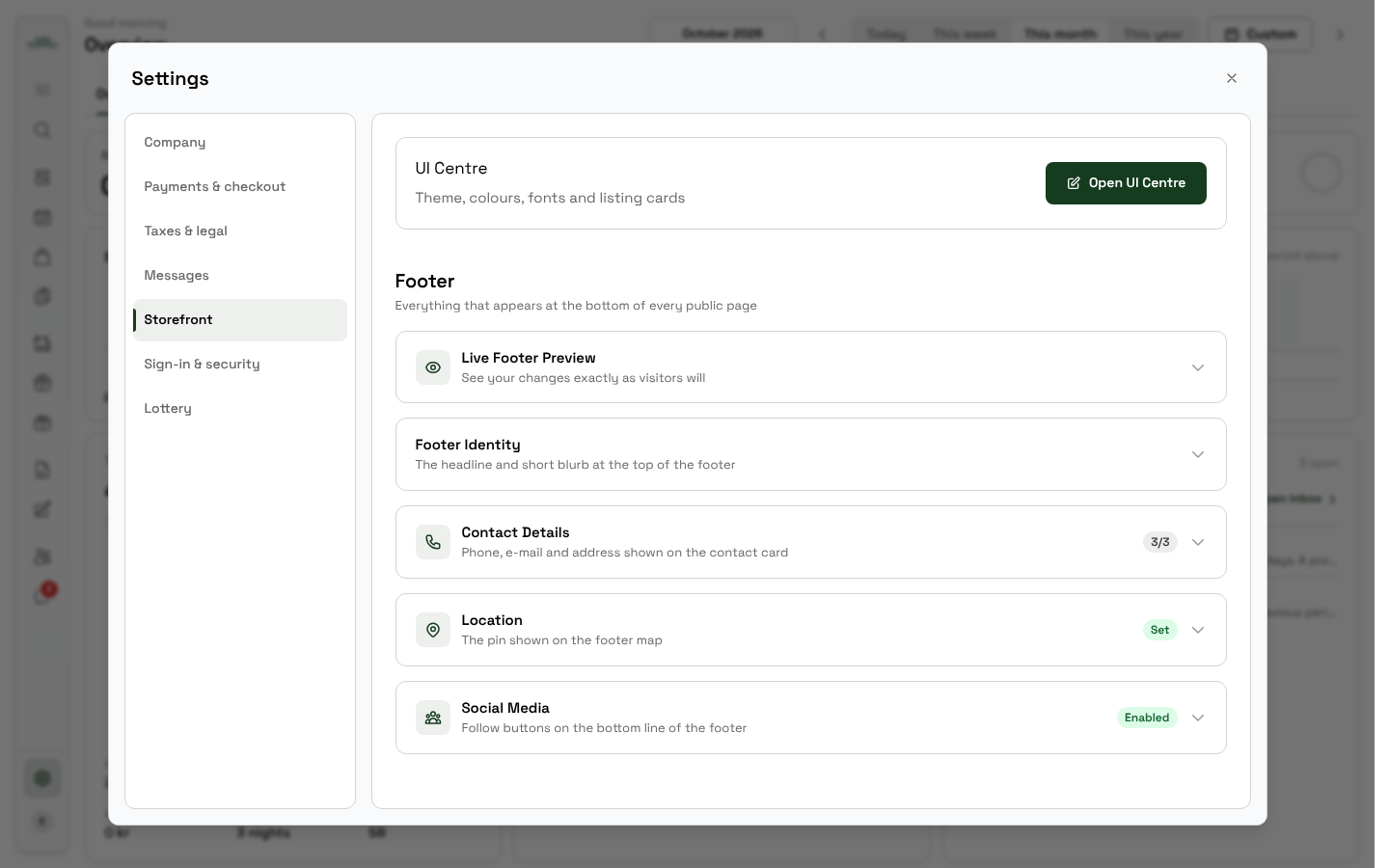
The footer is what appears at the bottom of every public page: a name, a short text, contact details, a map and links to social media.
How to do it
-
Tap the gear at the bottom of the menu on the left to open Settings.
-
Choose Storefront. Under Footer you find the parts Footer Identity, Contact Details, Location and Social Media.
-
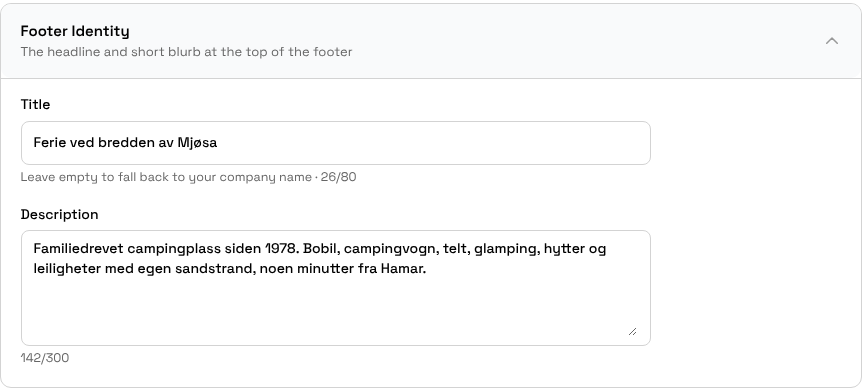
Tap Footer Identity to change the headline and the short text at the top of the footer. If you leave the title empty, your company name is used.
-
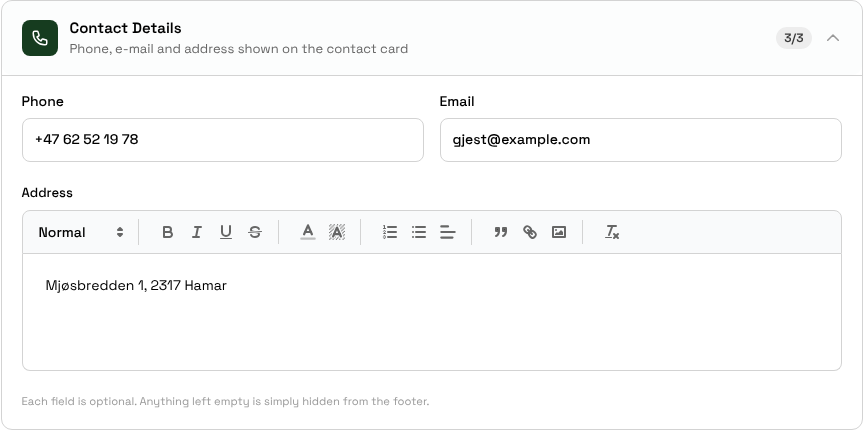
Tap Contact Details to change the phone number, email and address.
-
Tap Location to move the pin shown on the map.

-
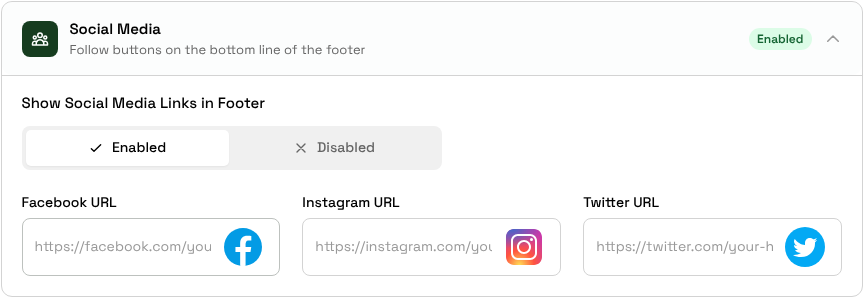
Tap Social Media to turn the follow buttons on or off and add your links.
-
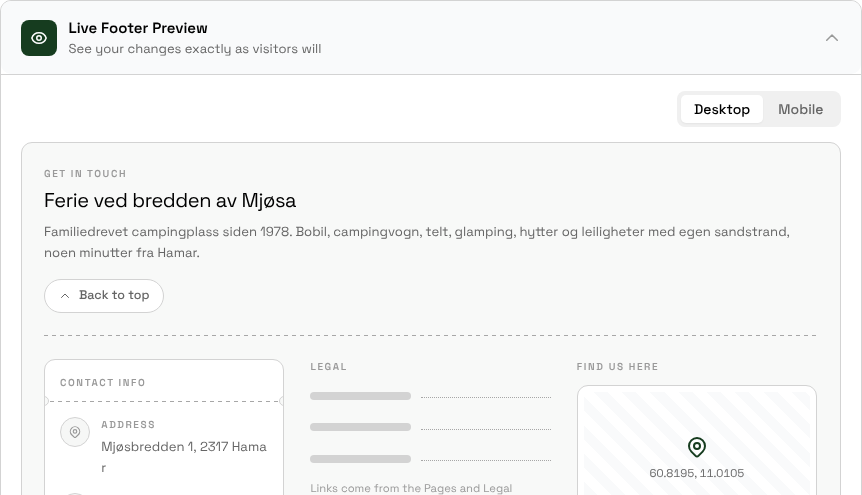
Open Live Footer Preview to see the footer the way visitors see it.
-
Tap Save changes at the bottom. If you would rather undo your changes, tap Discard.

Good to know
- All parts of the footer are saved together when you tap Save changes.
- If an email address, the map position or a social media link has the wrong format, the part with the mistake opens when you try to save. Empty fields are simply left out of the footer.