Translate your pages into more languages
Your website can be shown in more than one language. Each page in Studio has its own version per language, and you can translate from one language into the others.
How to do it
-
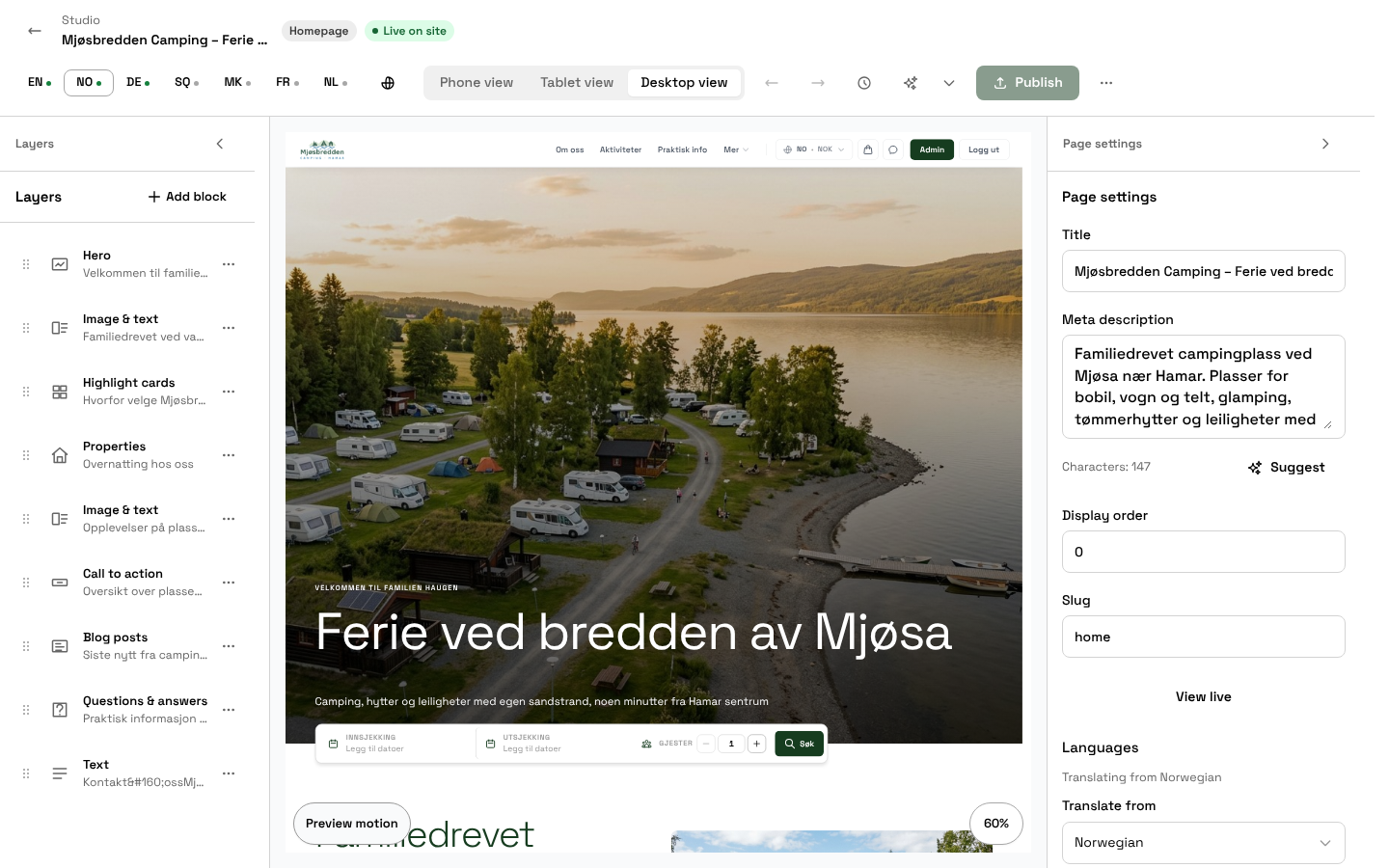
Open the page in Studio. Choose Pages in the menu and tap Open in Studio or Edit.
-
The languages are at the top left, for example EN, NO and DE. Tap a language to see and edit that version of the page. The default language comes first, marked with a star. A dot on each language shows whether it is written, translated, missing or out of date.

-
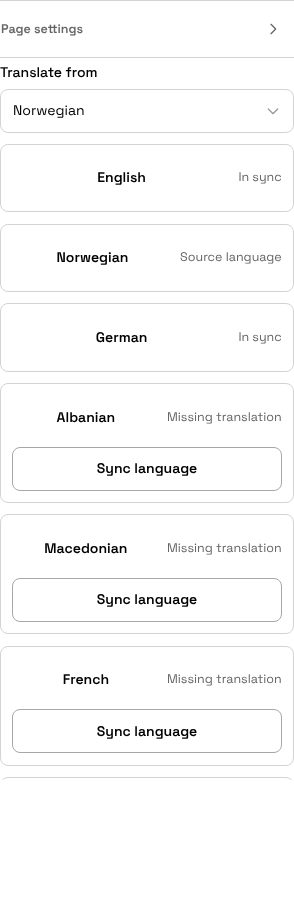
When no block is selected, Page settings is shown on the right. Under Languages you see the status of each language: Source language, In sync or Missing translation.
-
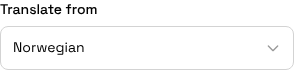
In Translate from, choose which language the others are translated from.
-
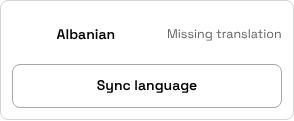
Tap Sync language next to the language you want to fill in. The text is translated from the source language.
-
Read through the translation and fix anything you like. Tap Publish when you are happy with it.

Good to know
- Bokable sets up which languages your website has. Contact us if you want to add or remove a language.
- If you change the text in the source language after a translation has been made, Studio shows that the translation needs updating.
- Two languages with AI translation are included in the base package. You can add more languages for an extra fee. Without AI translation you can still write and correct the text in each language yourself.