Edit the pages on your website in Studio
You edit your homepage and the other pages on your website in Studio. Your changes are saved as a draft while you work, and visitors only see them when you publish.
How to do it
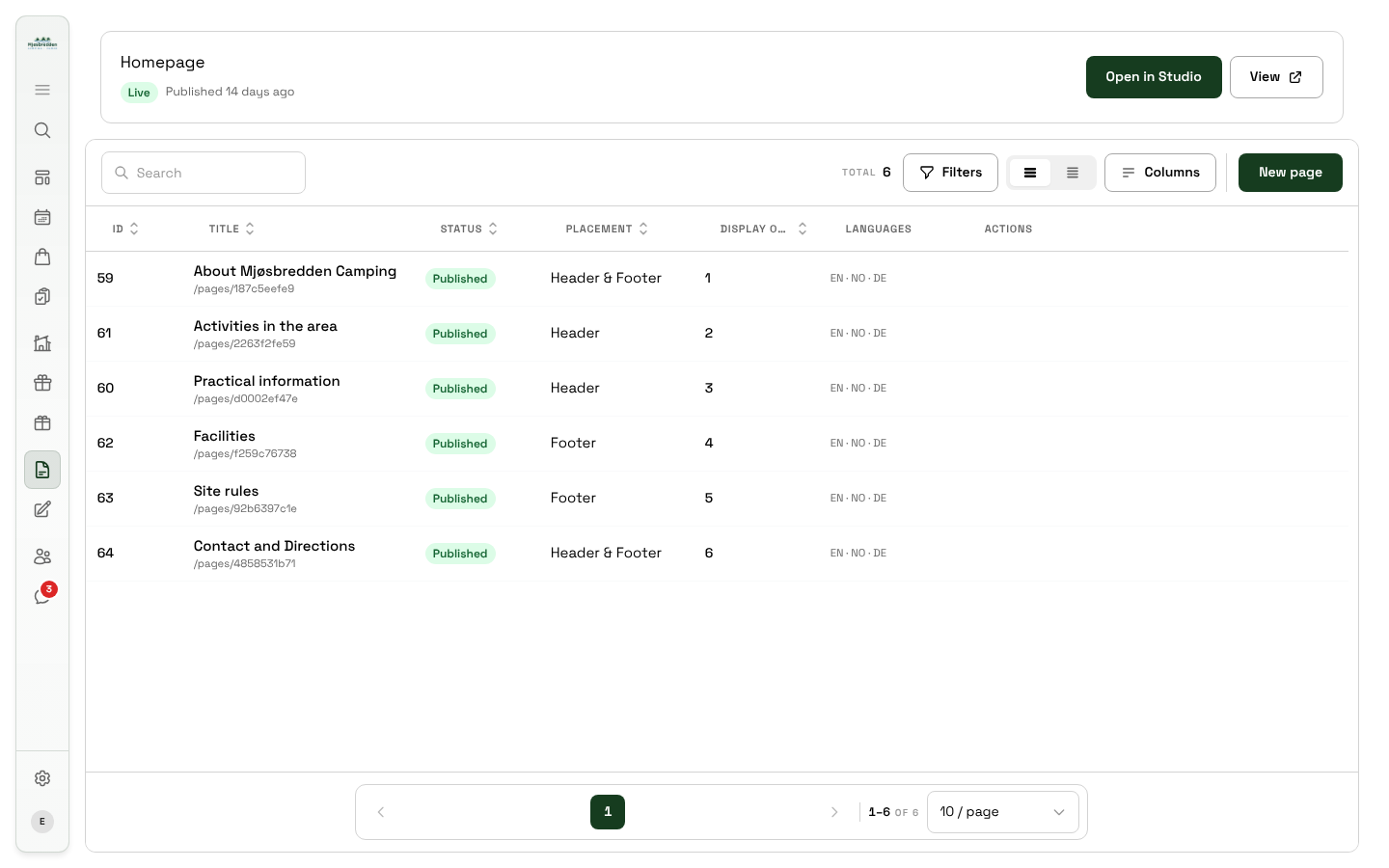
- Choose Pages in the menu on the left. Your homepage (Homepage) is at the top, with the other pages listed below it.
-
Tap Open in Studio to edit the homepage, or Edit on the row of another page. To make a new page, tap New page.

-
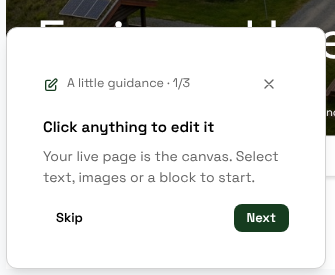
Studio shows a short guide until you close it. After that it does not appear again in that browser. Tap Next to go through it, or Skip.
-
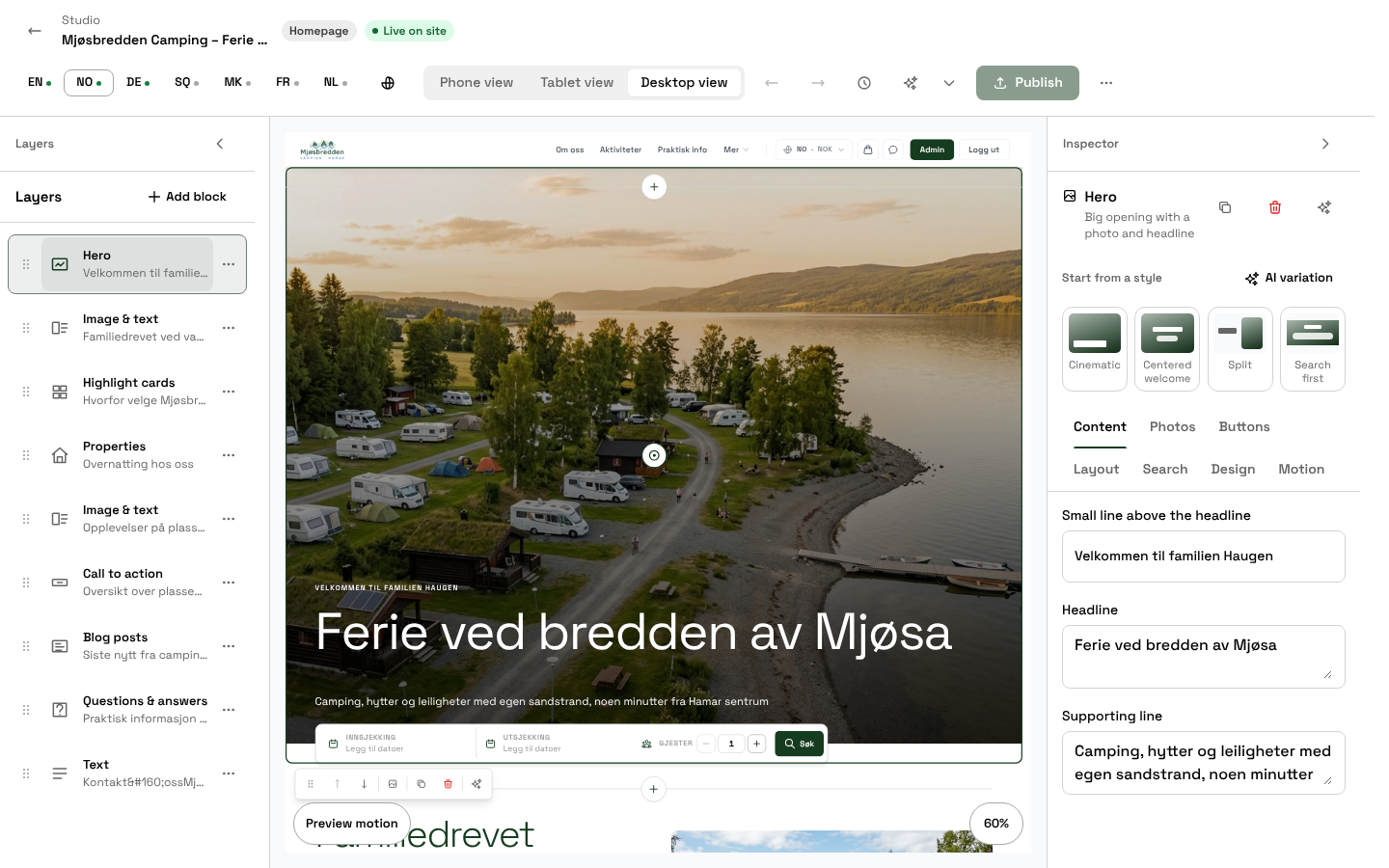
Click a text, an image or a block on the page, or pick the block in the Layers list on the left.
-
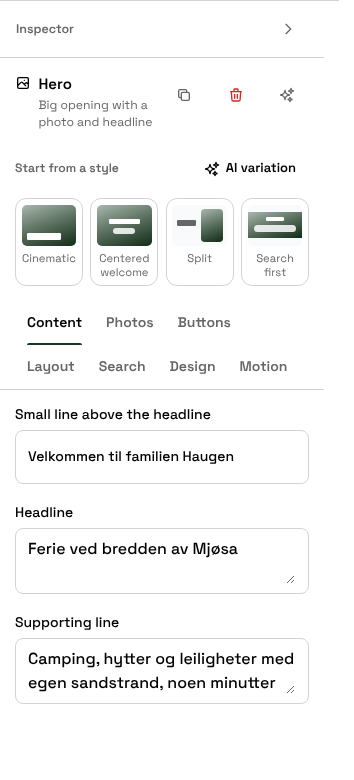
Edit the block under Inspector on the right.
-
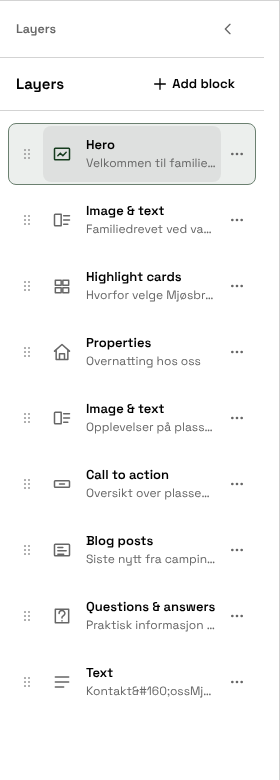
Drag the blocks in Layers to change the order. Tap Add block to add a new one.
-
Check how the page looks with Phone view, Tablet view and Desktop view at the top.

-
Tap Publish when you want visitors to see your changes.

Good to know
-
The status is shown next to the page title. Draft saved and Unpublished changes mean you have changes that are not on the website yet. Live on site means visitors see this version.

-
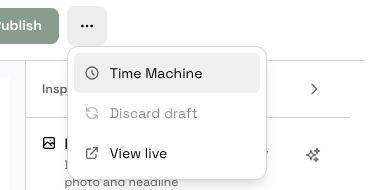
Under ... at the top right you find Time Machine, Discard draft and View live. Discard draft replaces your changes with the version that is live now.
-
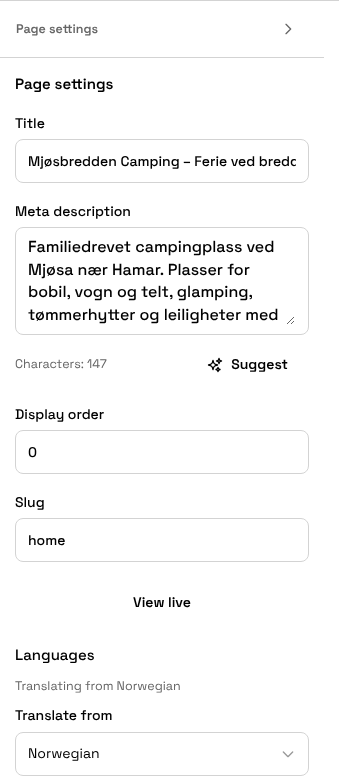
The page title, meta description and slug are under Page settings on the right when no block is selected.
-
You can also describe a change in your own words. Press Ctrl+K on Windows or ⌘K on a Mac.