Create an add-on product
The video was checked against the admin on 5 November 2026.
Add-on products are extras a guest can add to a booking, such as bed linen, firewood or late checkout. You create the add-on first and link it to your unit types afterwards.
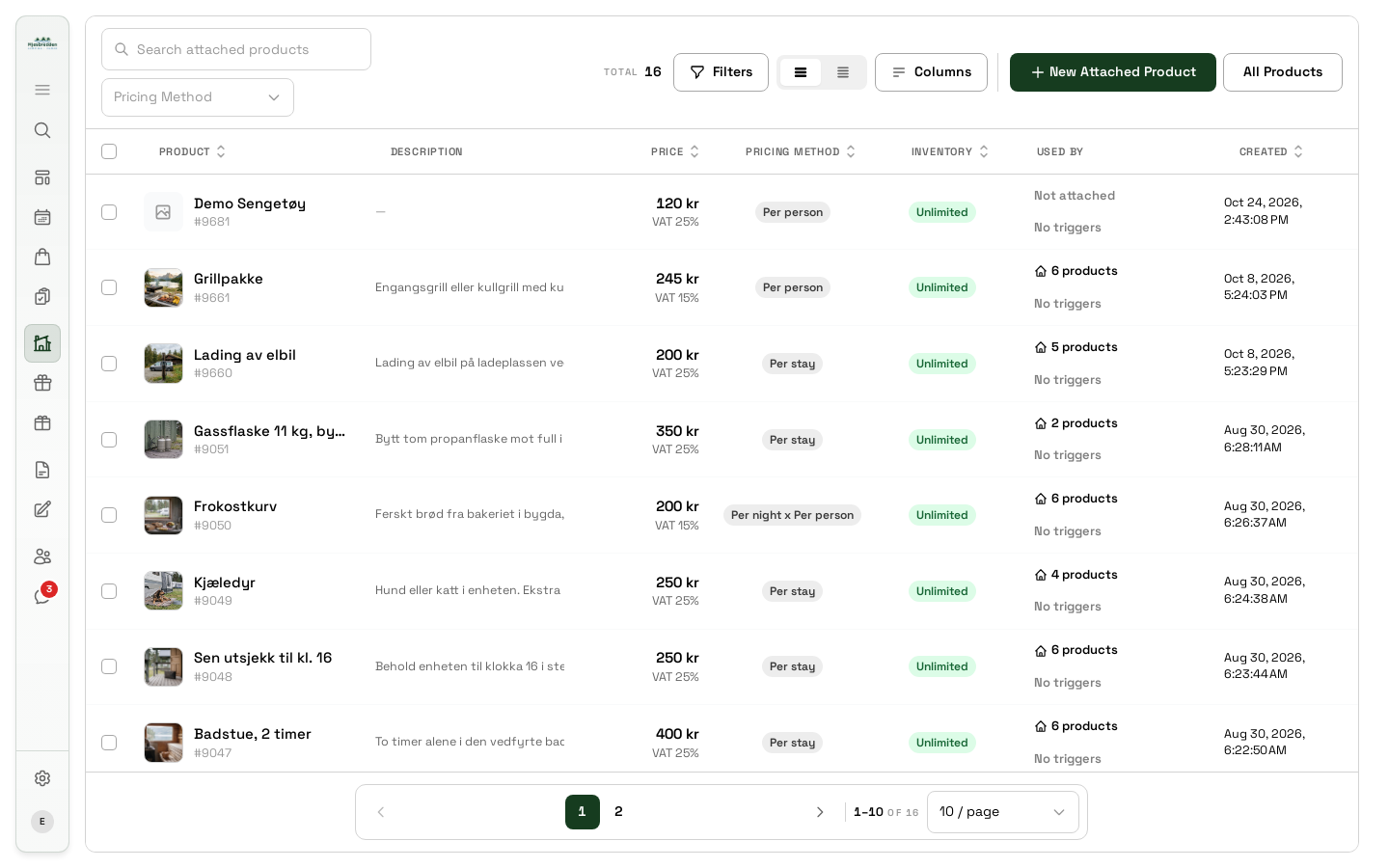
This is the Addons page:
How to create the add-on
-
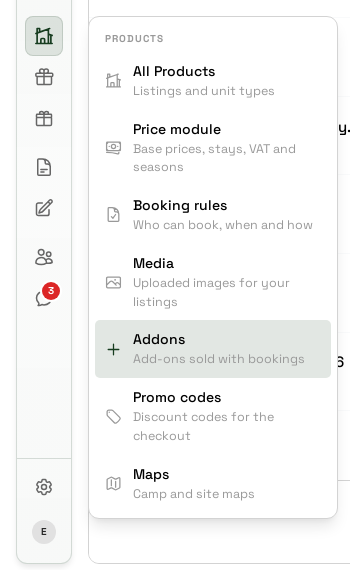
Hover over Products in the menu on the left and choose Addons.
-
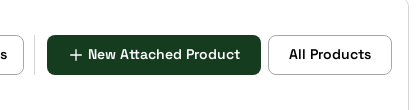
Click New Attached Product at the top right.
-
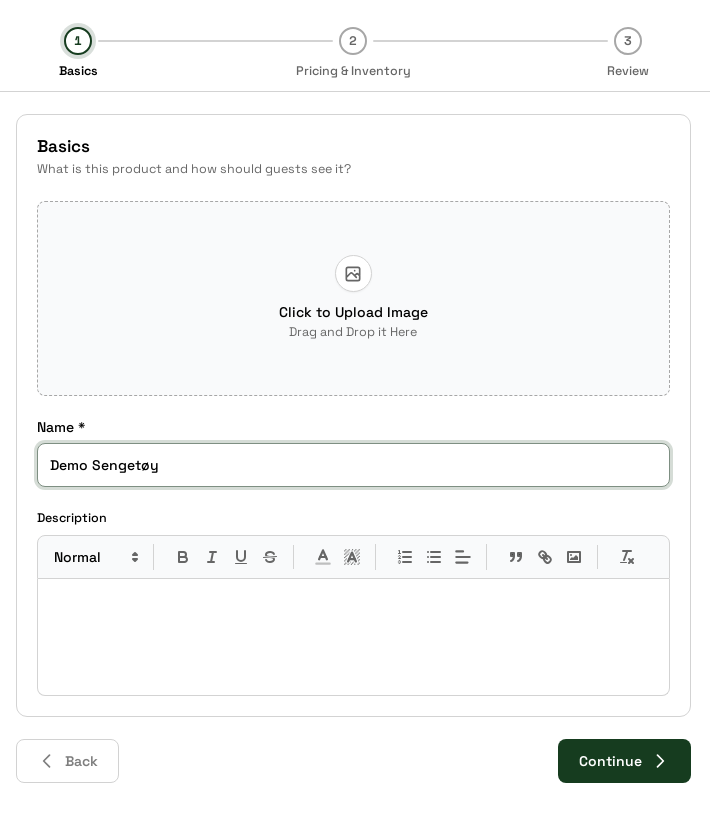
Enter a Name. You can also upload an image and write a Description that guests will see. Click Continue.
-
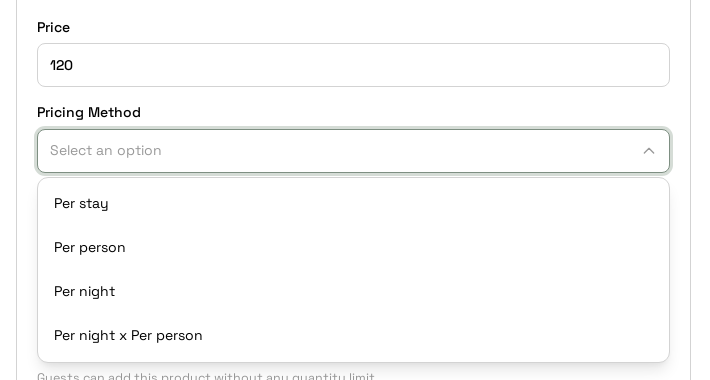
Enter the Price and choose a Pricing Method from the list.
-
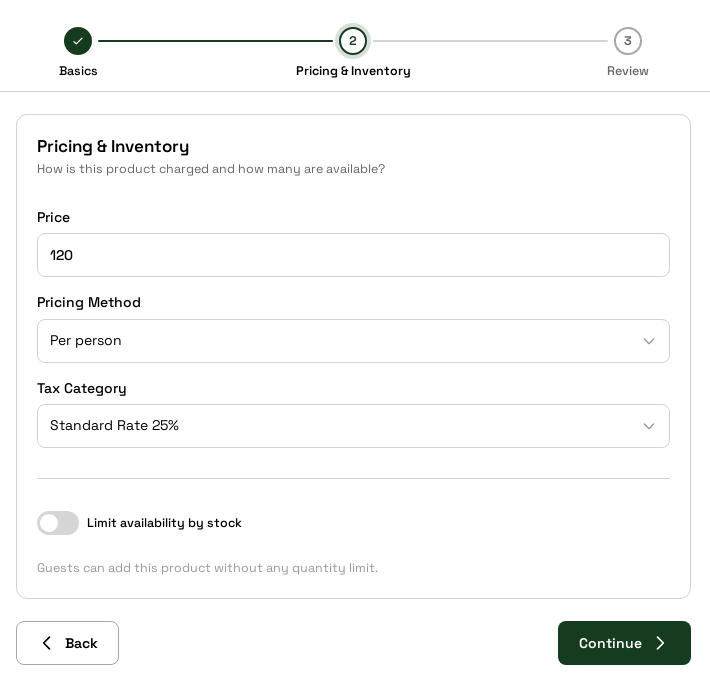
Choose a Tax Category and click Continue.
-
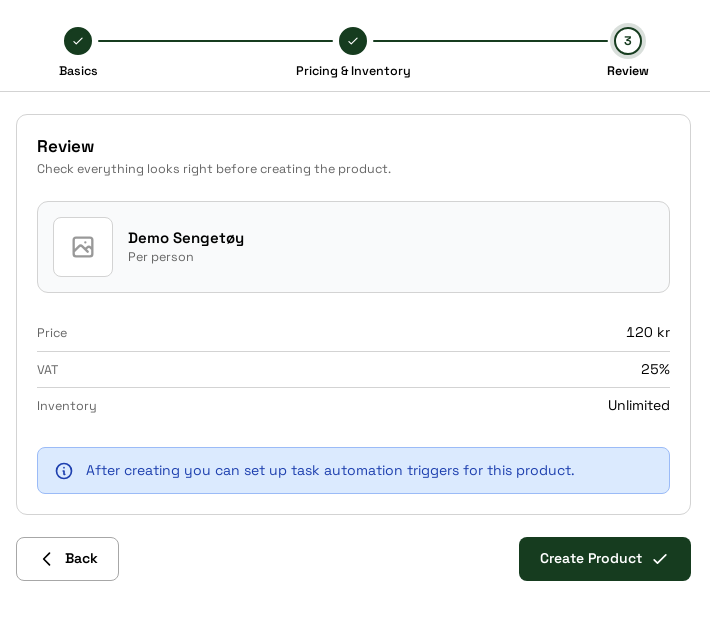
Check the summary and click Create Product.
How to link the add-on to a unit type
A new add-on isn't linked to anything yet. You link it to one unit type at a time.
- Choose Products → All Products and open the listing.
-
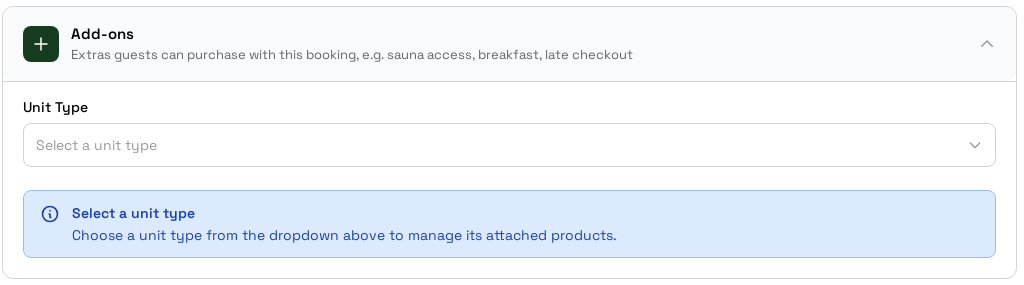
Scroll down to Finance and open Add-ons.
-
Choose the unit type under Select a unit type.
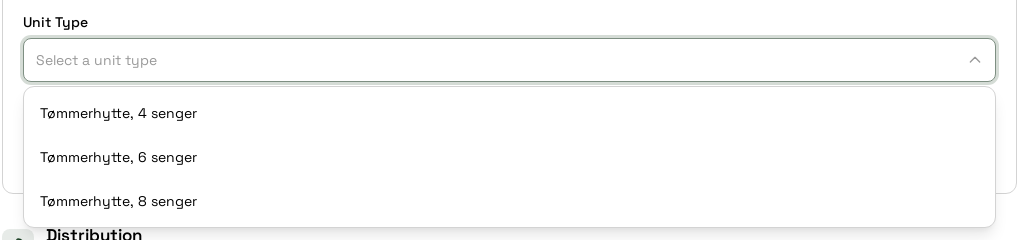
-
You now see the add-ons already linked to that unit type. Click Add Product.
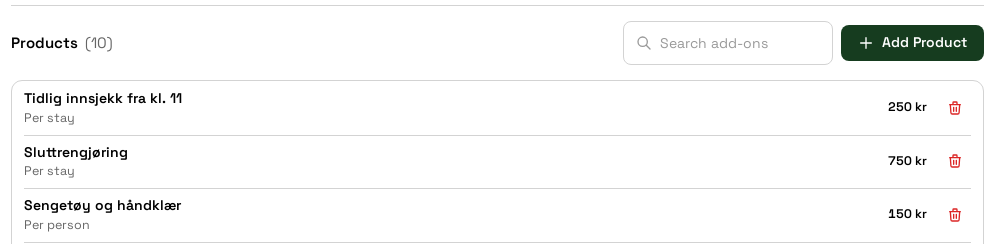
-
Tick the add-on and click Save Changes.
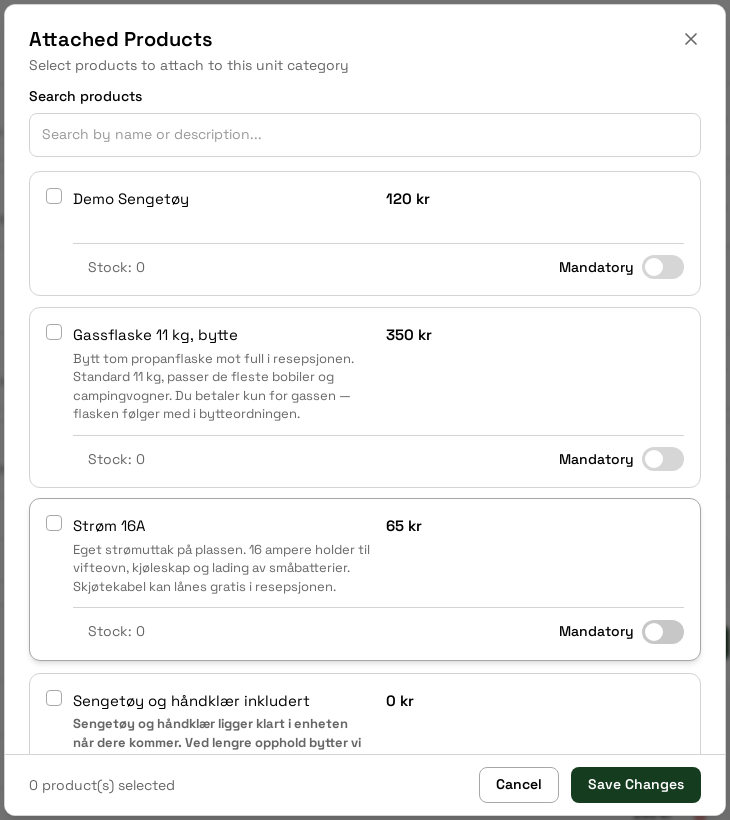
The pricing methods
- Per stay: one price for the whole stay.
- Per person: the guest pays for each person in the booking.
- Per night: the amount is added for each night.
- Per person per night: each guest pays for each night.
Good to know
- The Used by column in the add-on list shows how many products the add-on is linked to.
- If you turn on Limit availability by stock, you can set how many can be sold. With the switch off, guests can add the add-on without any quantity limit.
- Once the add-on is created, you can set up triggers that create operations tasks automatically.