Create tasks automatically when an add-on is booked
A trigger creates an operations task on its own when a booking with a particular add-on comes in. For example, the cleaner can be told to make up the beds when a guest has ordered bed linen.
The feature must be switched on for your account (Operations).
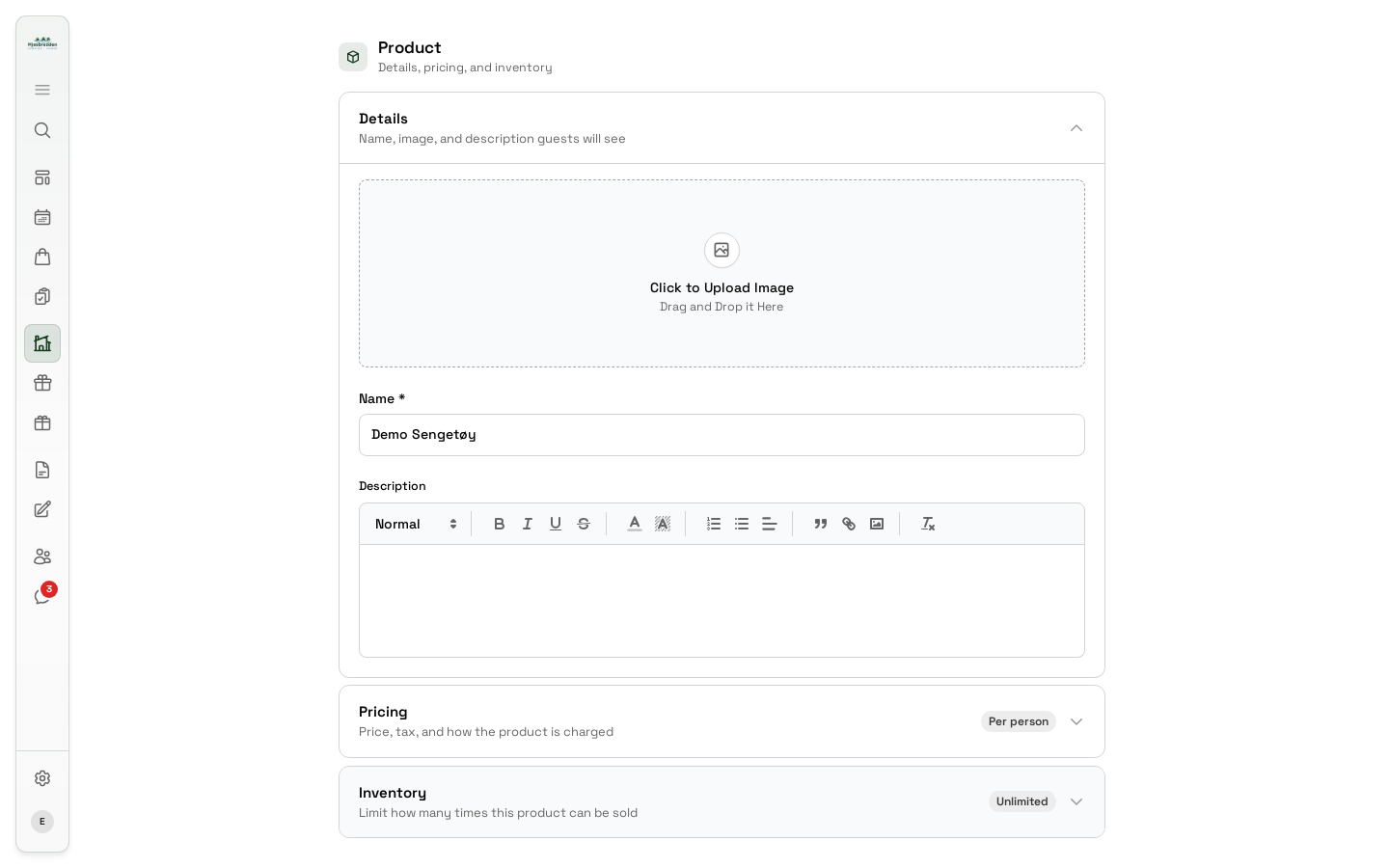
This is what an add-on product looks like when you open it:
How to do it
- Hover over Products in the menu on the left, choose Addons and open the add-on.
-
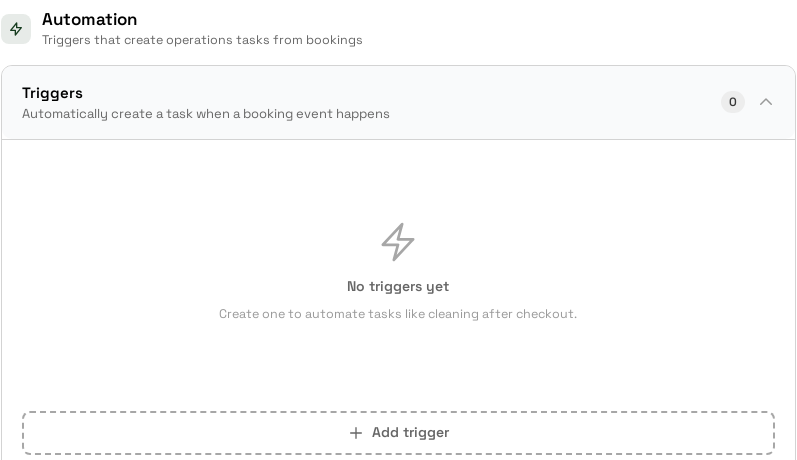
Scroll down to Automation. Open Triggers and click Add trigger.
-
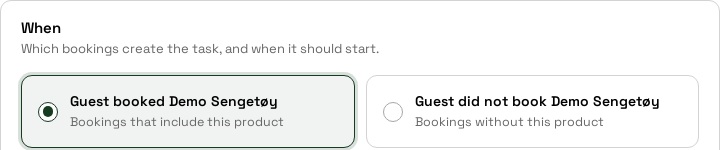
Under When, choose whether the task is created for bookings that include the add-on or for bookings without it.
-
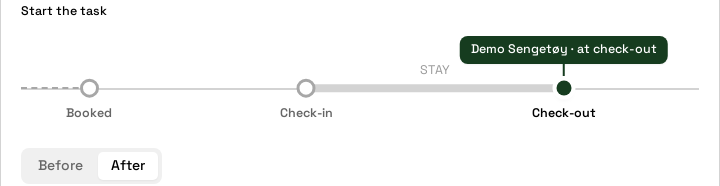
Under Start the task, click Booked, Check-in or Check-out on the timeline. Then choose Before or After.
-
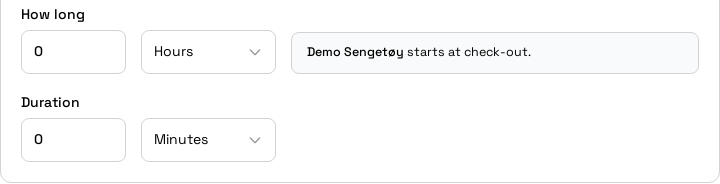
Fill in How long before or after the task should start, and the Duration, which is how long the task takes. The box on the right shows when the task starts.
-
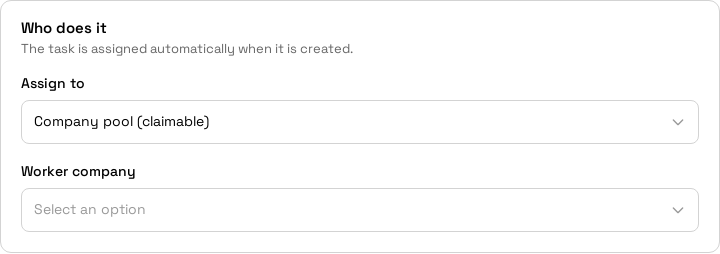
Under Who does it, choose who the task is assigned to and which Worker company.
-
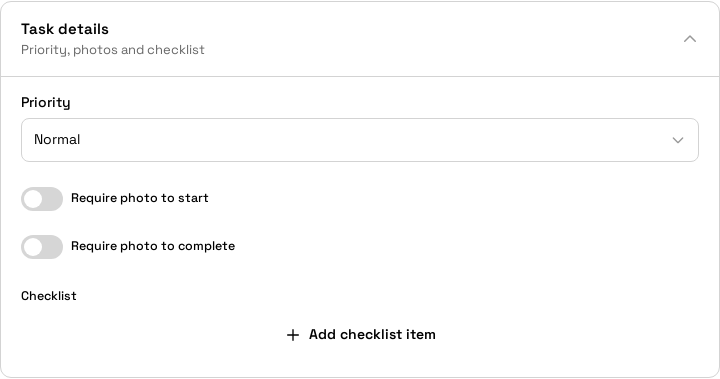
Open Task details if you want to set a priority, require a photo to start or complete, or add a checklist.
-
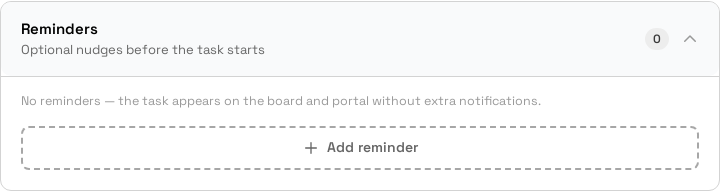
Open Reminders if you want notifications before the task starts, and click Add reminder.
-
Click Save at the bottom.

Good to know
- The task is assigned automatically when it is created.
- Tasks created for an add-on are listed under Tasks on the add-on.
- If no worker companies are linked to your property, the page shows the message below. A worker company then has to be linked before tasks can be assigned to a company.
