Issue a gift card
This feature must be turned on for your account.
You can create a gift card yourself, for example when someone buys one at reception or when you want to compensate a guest. Each gift card gets a code that the guest uses when paying.
The feature must be switched on for your account.
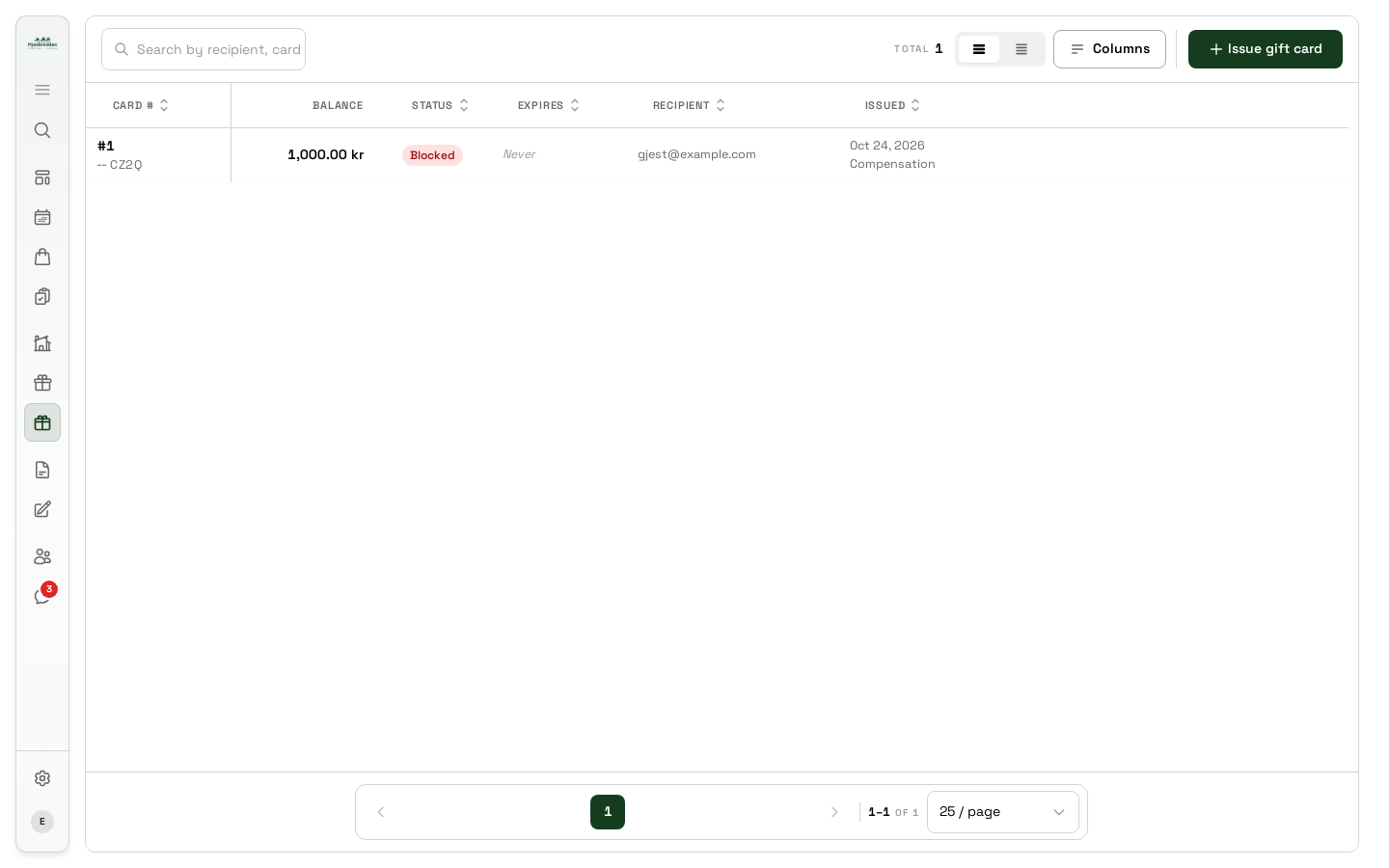
This is the Gift cards page:
How to do it
-
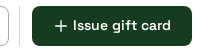
Choose Gift cards in the menu on the left and click Issue gift card at the top right.
-
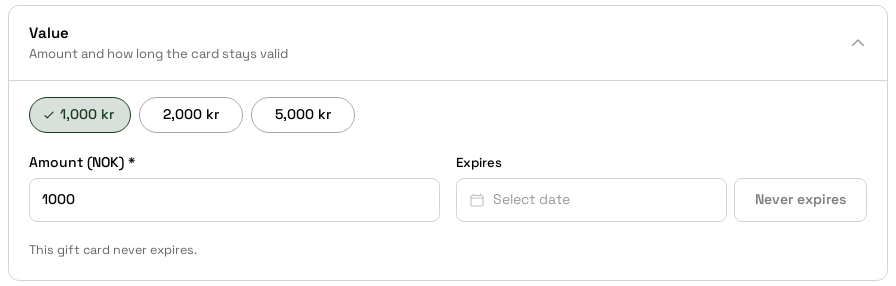
Under Value, click one of the set amounts or enter an amount in Amount (NOK). Choose a date under Expires, or click Never expires.
-
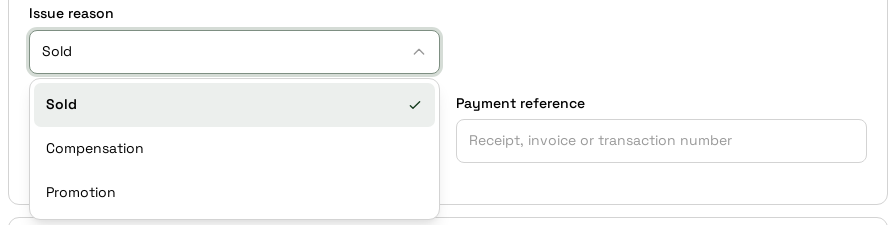
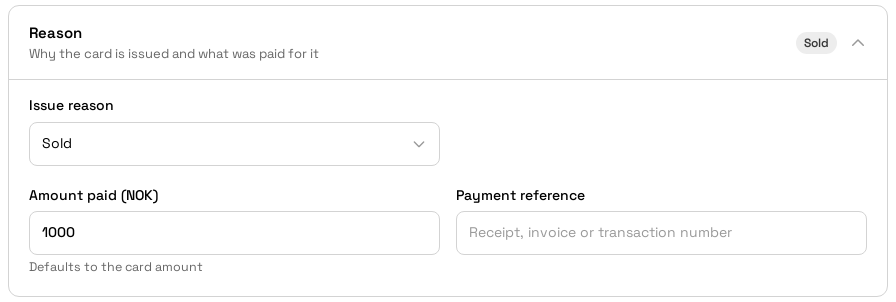
Under Reason, open Issue reason and choose Sold, Compensation or Promotion.
-
If the card was sold, fill in Amount paid and ideally a Payment reference, such as a receipt number. These fields aren't shown for compensation and promotion.
-
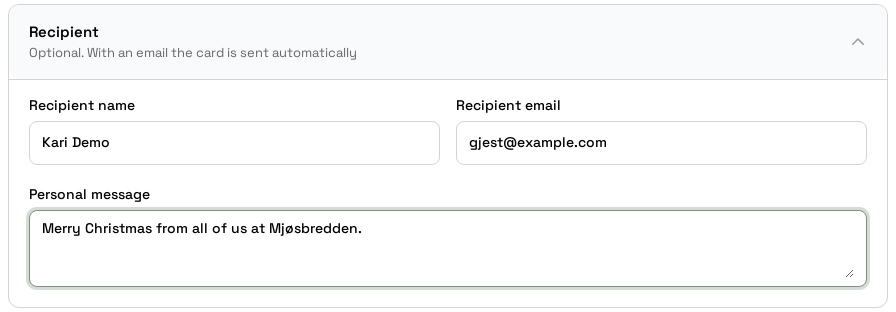
Fill in Recipient if you like. With an email address, the card is sent automatically by email together with your personal message.
-
Click Issue gift card at the bottom.

-
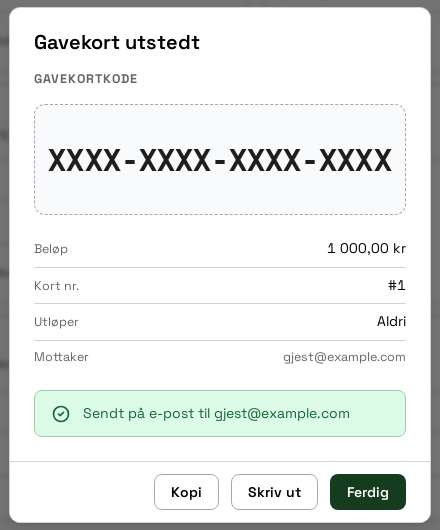
A separate window shows the code. Click Copy or Print before you click Done.
After the card is issued
When you open a gift card from the list, you see the balance, the recipient and everything that has happened to the card under Ledger.
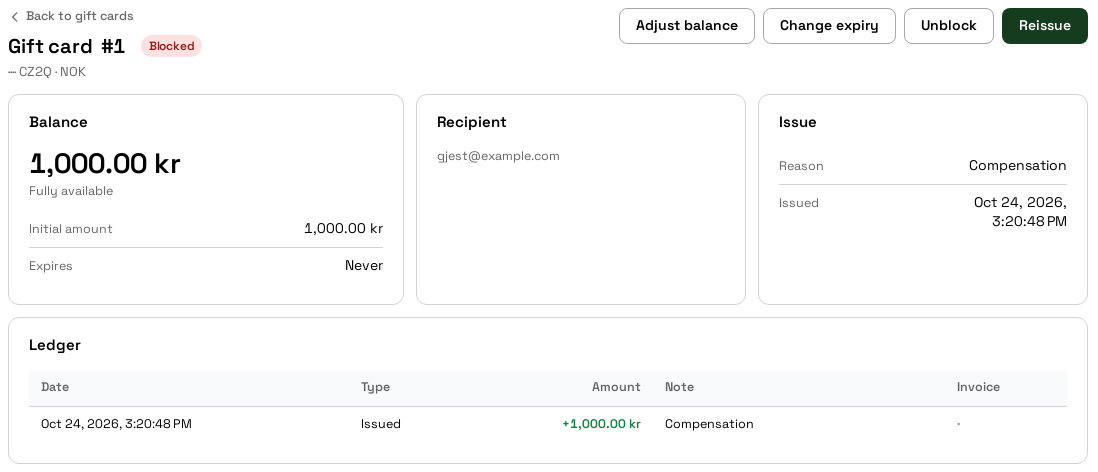
At the top right you can Adjust balance, Change expiry, Block the card or Reissue it. When the card is blocked, the button says Unblock instead of Block.

Good to know
- Keep the code when it is shown. Afterwards you only see the last four characters on the card.
- A blocked card can't be used at checkout until you click Unblock. Its balance is kept.
- The expiry date is filled in automatically if you have set a default validity under Settings → Payments & checkout → Promotions. You can change it for each card.