Choose payment methods and checkout steps
Here you decide what guests go through at checkout on your website, which payment methods are offered, and how long an unpaid booking holds the unit.
How to do it
-
Tap Settings (the gear) at the bottom of the left-hand menu.

-
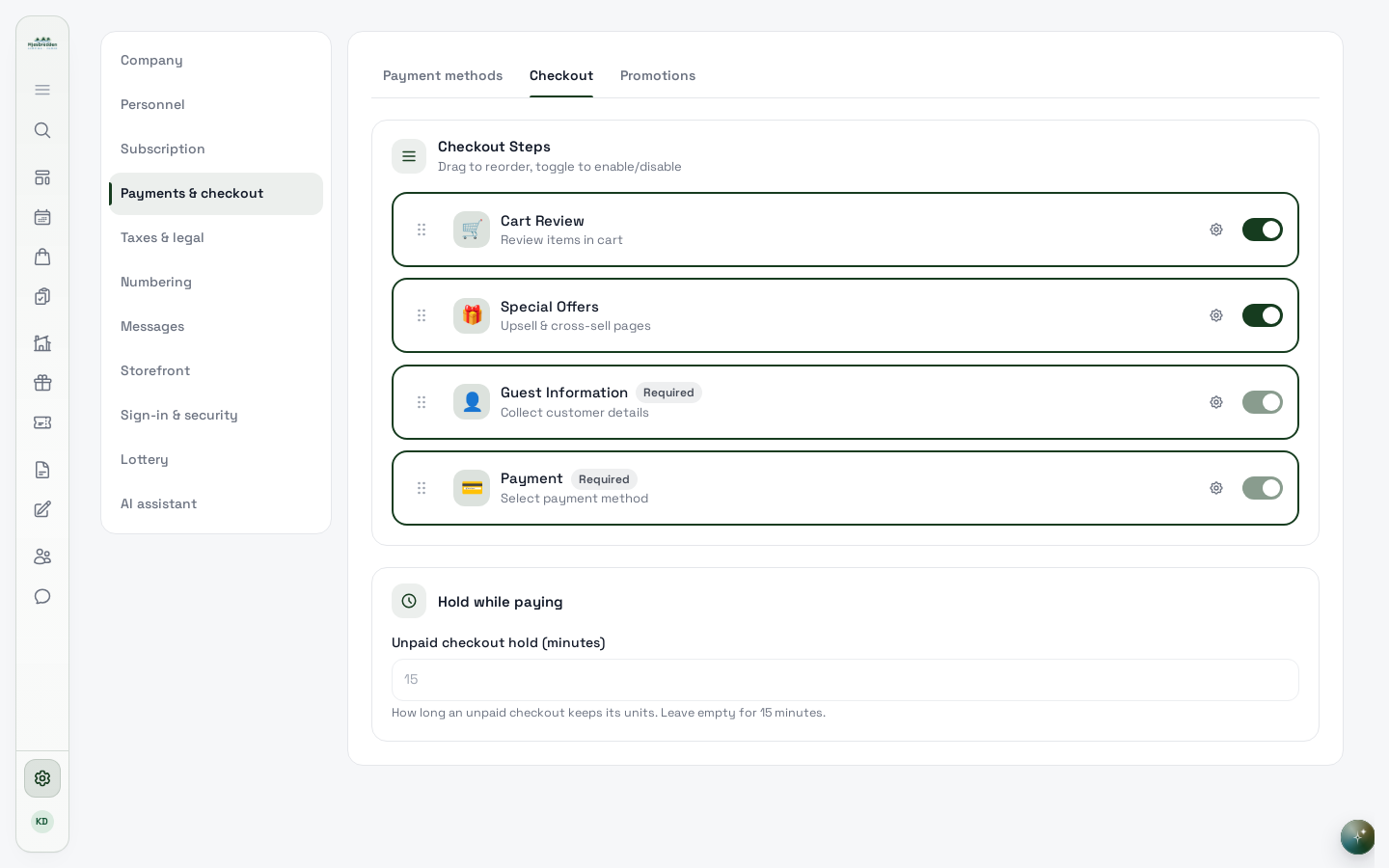
Choose Payments & checkout. At the top there are three tabs: Payment methods, Checkout and Promotions.
-
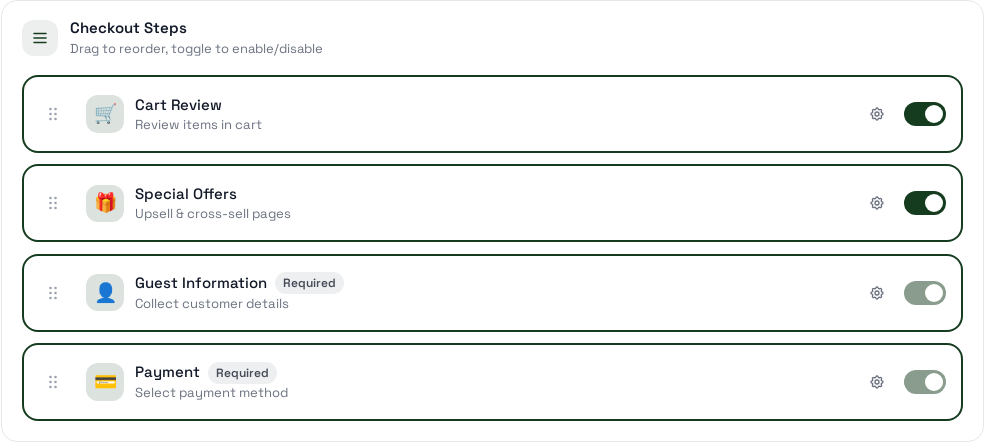
Choose the Checkout tab. Under Checkout Steps, switch steps on or off, and drag the handle to change the order. Steps marked Required cannot be switched off.
-
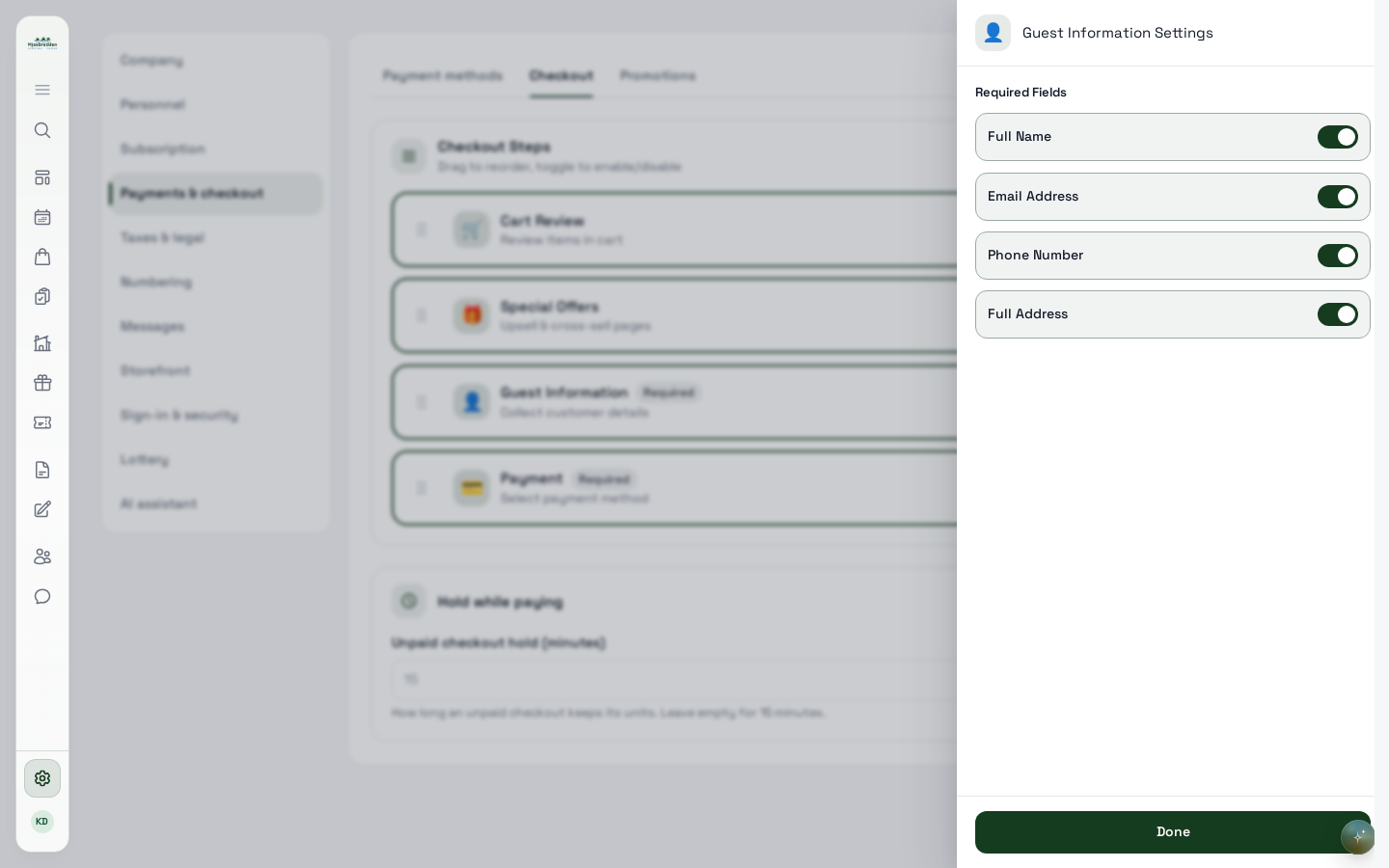
Tap the gear on a step to see its settings. On the guest information step you choose which fields the guest must fill in. Tap Done at the end.
-
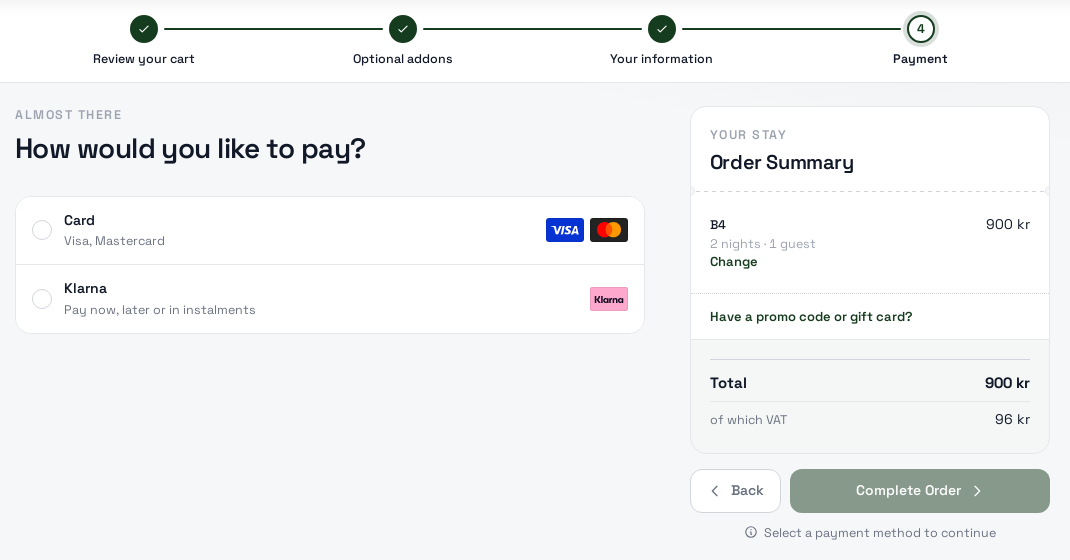
Choose the Payment methods tab and switch on the methods you want to offer: Stripe (card), Klarna, Apple Pay and Google Pay, Vipps, Nets / Nexi or Invoice. On the right, under What your customers see, you see how the choice looks to the guest.
-
On the Checkout tab, under Hold while paying, fill in Unpaid checkout hold (minutes) if you want to change how long an unpaid booking holds the unit. If the field is empty, 15 minutes applies. You can choose from 5 to 4320 minutes (three days).

-
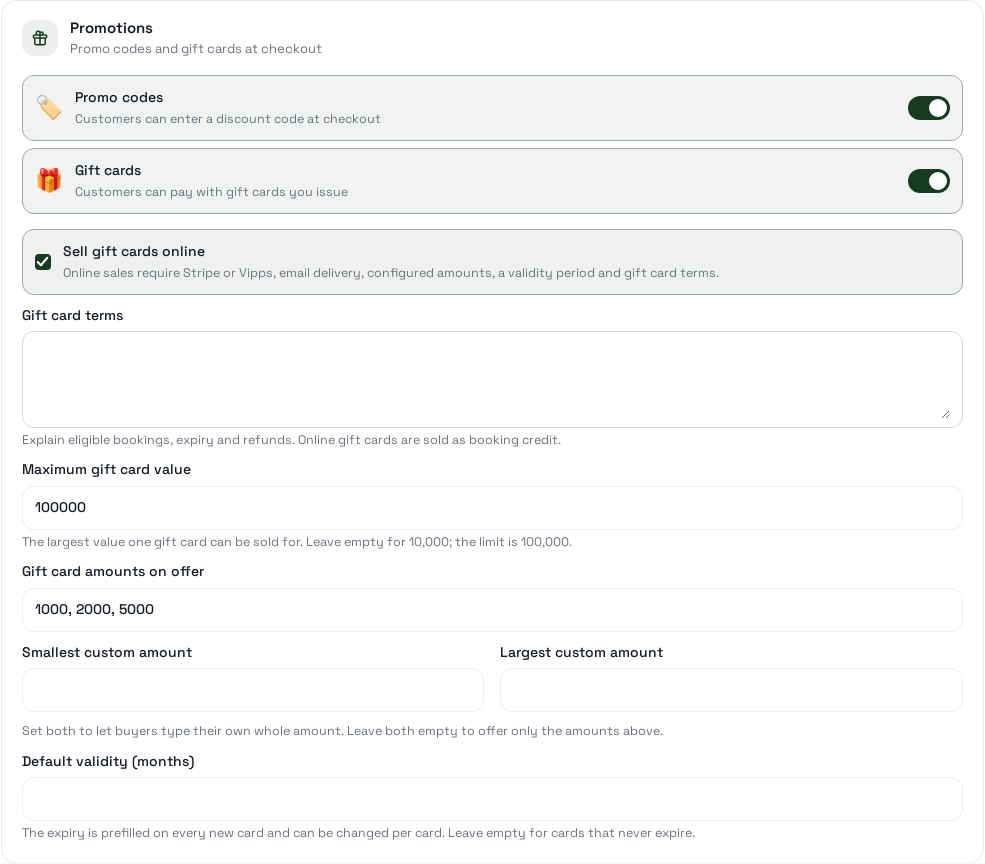
Choose the Promotions tab if you want to switch on promo codes and gift cards at checkout.
-
Tap Save changes at the bottom.

What the guest sees
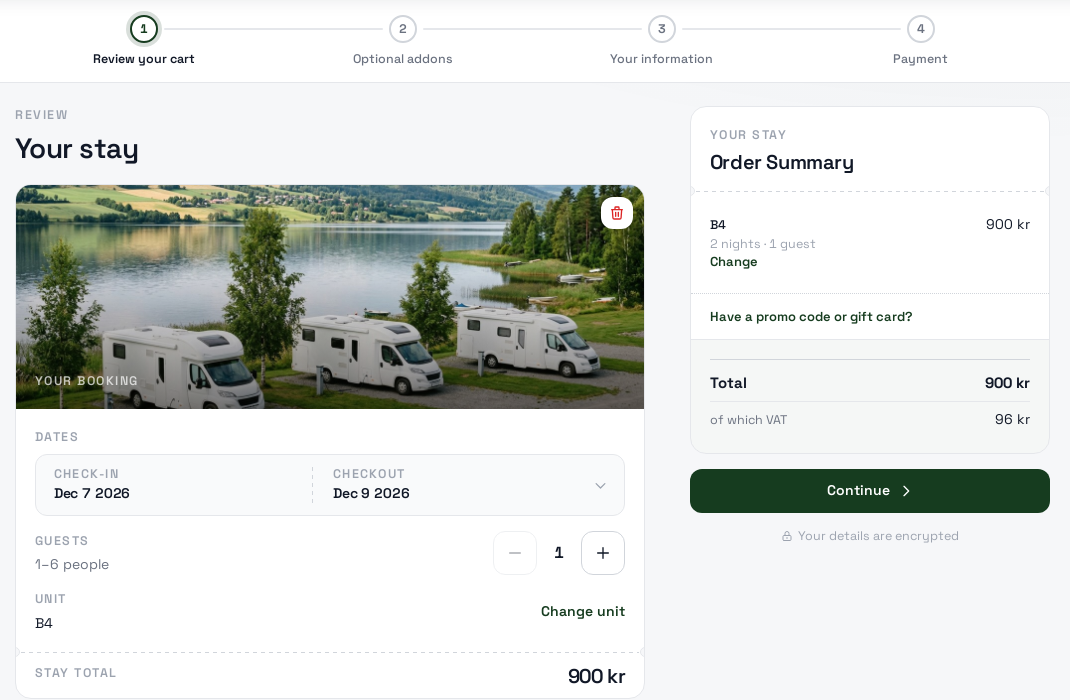
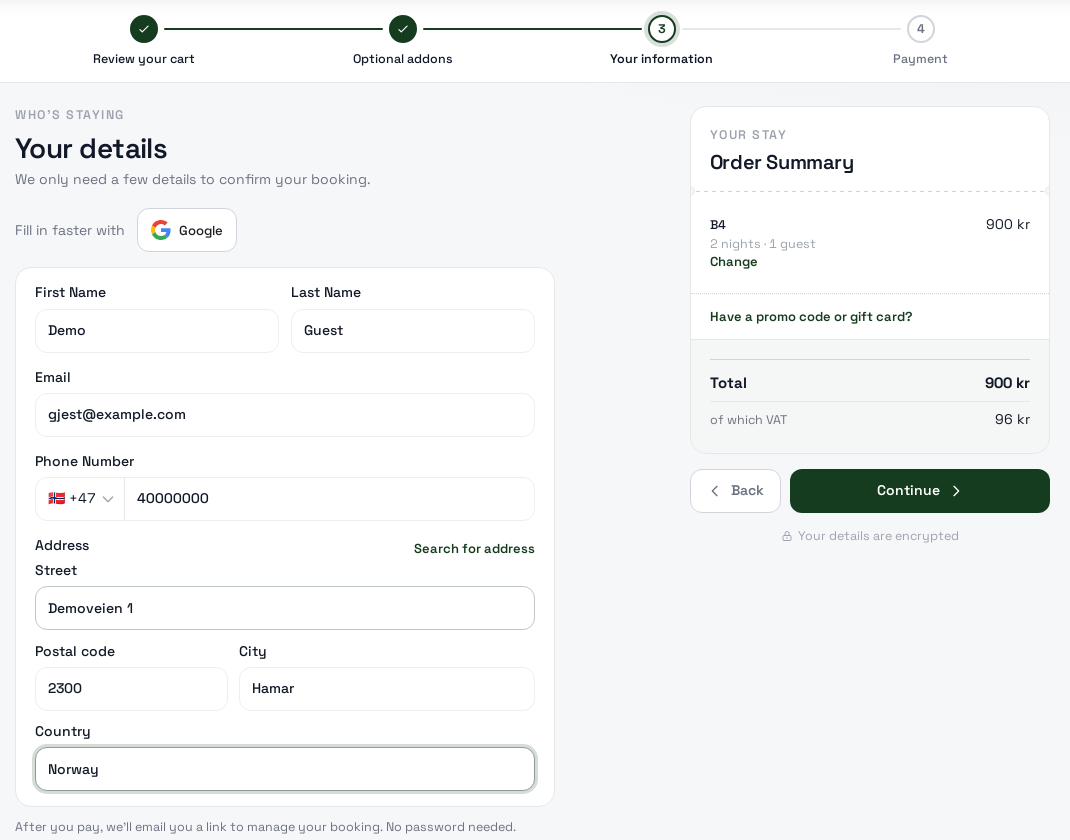
The guest goes through the steps you have turned on, in the order you chose, for example Review your cart, Optional addons, Your information and Payment.
At checkout the guest can switch to another free unit and sees the price of the alternatives. When the payment is done, the booking is confirmed on the same page.
On the last step the guest only sees the payment methods you have turned on.
Good to know
- Klarna, Apple Pay and Google Pay require Stripe.
- Invoice means the guest pays within 14 days.