Add your company name, logo and basic settings
Under Company in the settings you add your company name and logo, the name and description of your website, and a few basic choices for your booking site.
How to do it
-
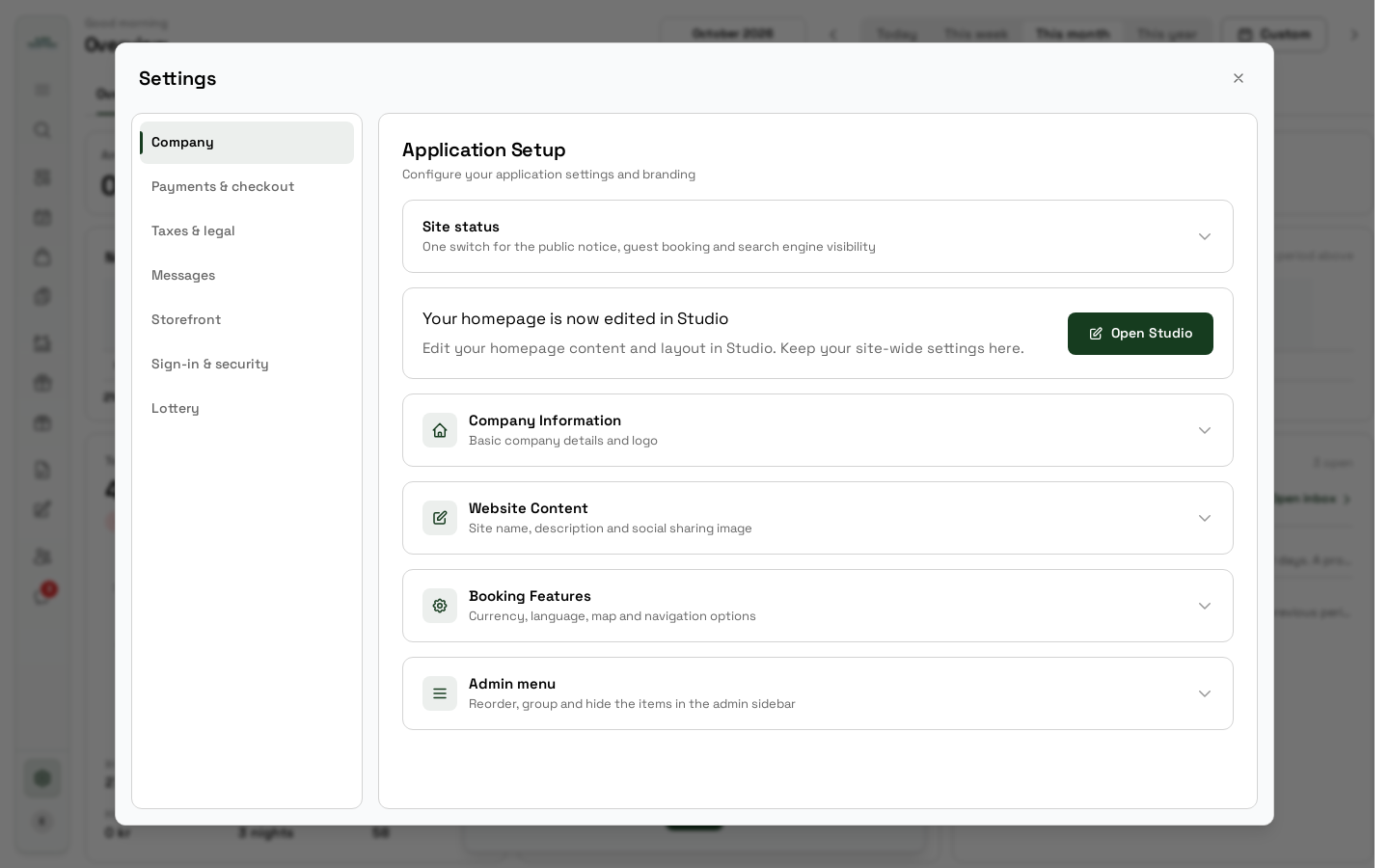
Tap Settings (the gear) at the bottom of the left-hand menu.

-
Choose Company.
-
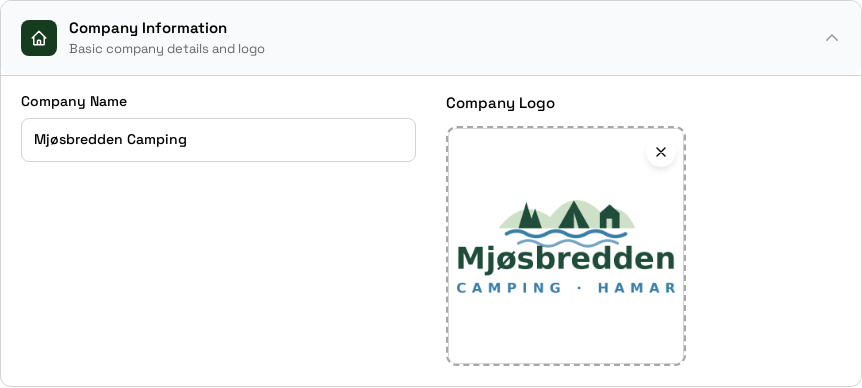
Open Company Information. Enter your company name and upload your logo.
-
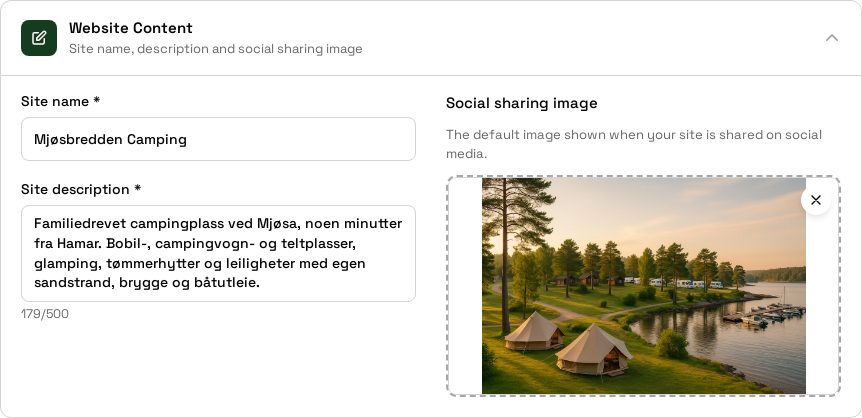
Open Website Content. Fill in Site name and Site description (up to 500 characters) and upload a Social sharing image. All three are required. The image is shown when someone shares your website, and 1200 × 630 pixels works well.
-
Tap Save changes at the bottom. To undo, tap Discard.

Site status
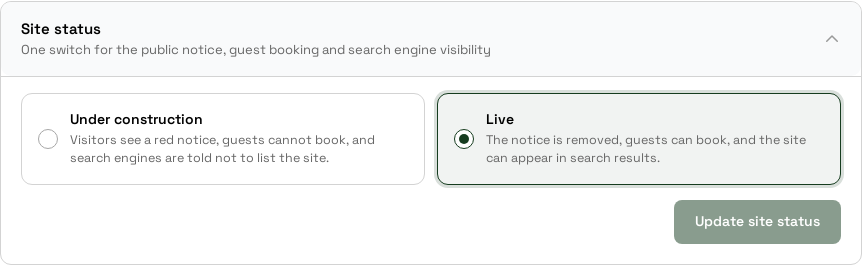
- Open Site status.
- Choose Under construction while you are setting up. Visitors then see a red notice, guests cannot book, and search engines are told not to list the site. Live means you are ready to take bookings.
-
Tap Update site status. The status is saved with this button, not with Save changes.
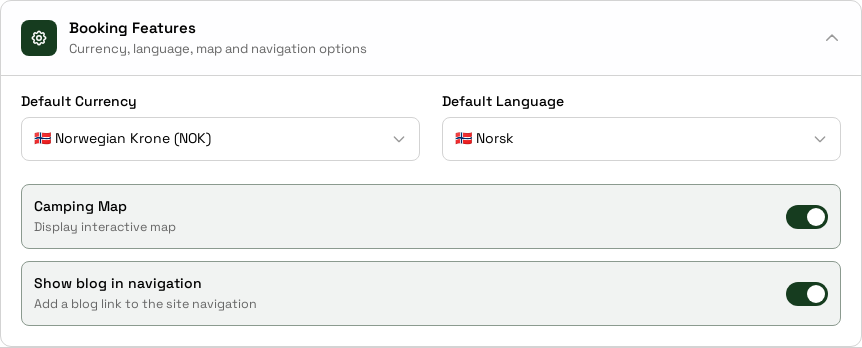
Booking Features
Here you choose the Default Currency and Default Language, whether the Camping Map is shown, and whether the blog appears in the menu on your website. Tap Save changes when you have changed something.
Good to know
- You change the homepage in Studio. Tap Open Studio.
- Admin menu lets you decide what appears in the left-hand menu.