Check-in and check-out with the guest guide
This feature must be turned on for your account.
The guest guide is the guest's own page for check-in and check-out. On it, guests find directions, the key or access code, Wi-Fi and house rules, and they confirm check-in and finish check-out there. Guests can also do tasks you set up, report damage with a photo and rate their stay. You see everything the guest does on the booking.
Write the guide
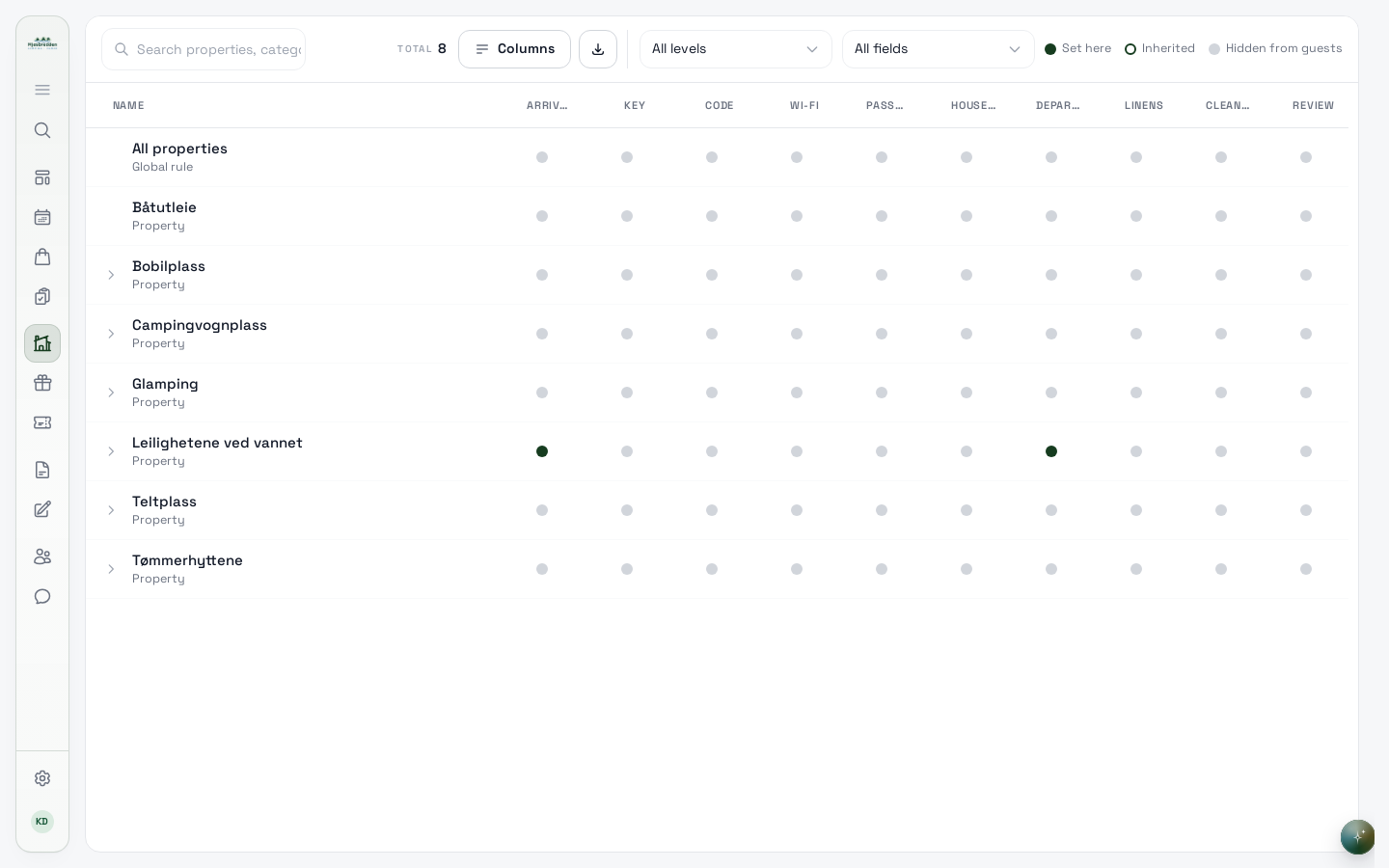
The guide has one level for All properties and one for each property, with its units below. Each field follows the level above until you set it here. That way you write the shared text once, and only what differs for a property or unit. A dot in the table shows whether the field is set here, inherited from the level above or hidden from guests.
- Hover over Products in the menu on the left.
-
Choose Guest guide.
-
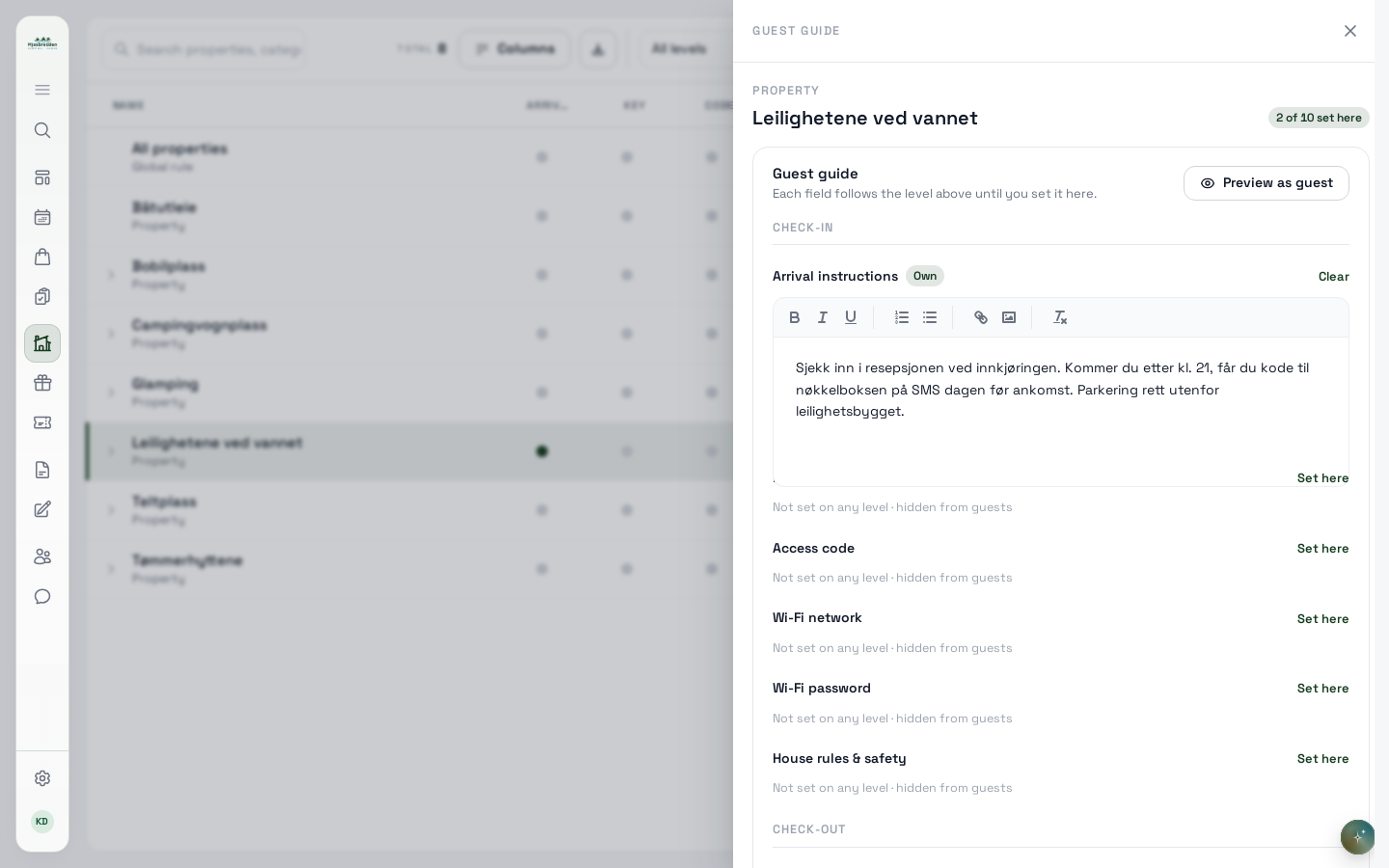
Click the row for the level. A panel opens on the right with all the fields. At the top you see how many fields are set on this level.
-
Click Set here next to the field you want to fill in.
-
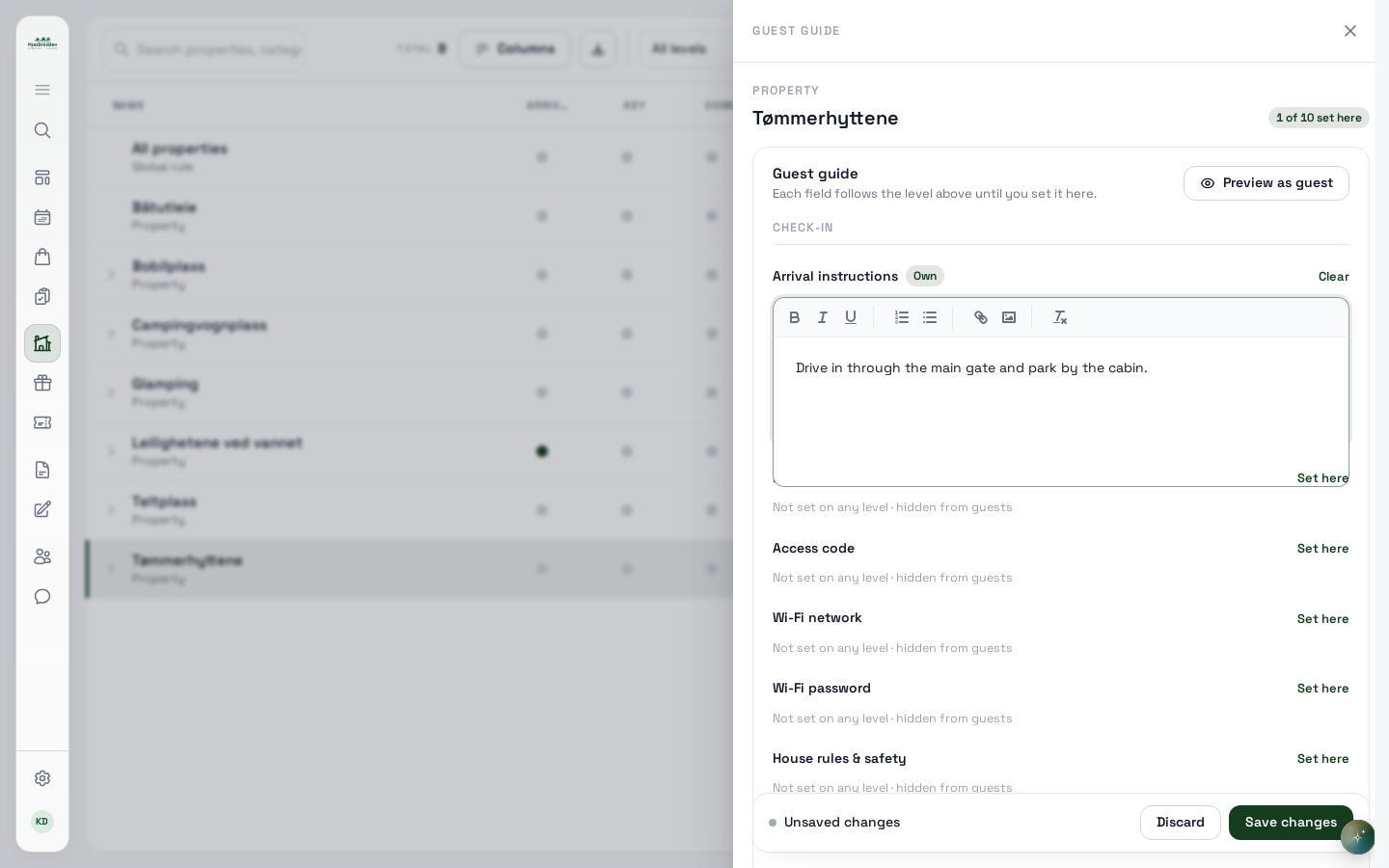
Type the text.
-
Click Save changes.
Clear removes the text, and Use inherited goes back to the text from the level above. Discard removes changes you have not saved. Preview as guest shows the guide the way the guest sees it.
The fields
Check-in - Arrival instructions: directions and what the guest does on arrival. - Key location: where the key is. - Access code: the code for the door or barrier. Shown to the guest from the arrival day only. - Wi-Fi network and Wi-Fi password: the guest can copy them with one tap. - House rules & safety: quiet hours, smoking, pets, fire safety and emergency numbers. The guest must tick that they have read them before checking in.
Check-out - Departure instructions - Linens & towels - Final cleaning - Google review link: shown on the thank-you screen after check-out to guests who rate the stay 4 or 5 stars. Leave it empty to hide the button.
A field that is not set on any level is hidden from guests. Which fields you see can depend on the type of unit.
What the guest sees
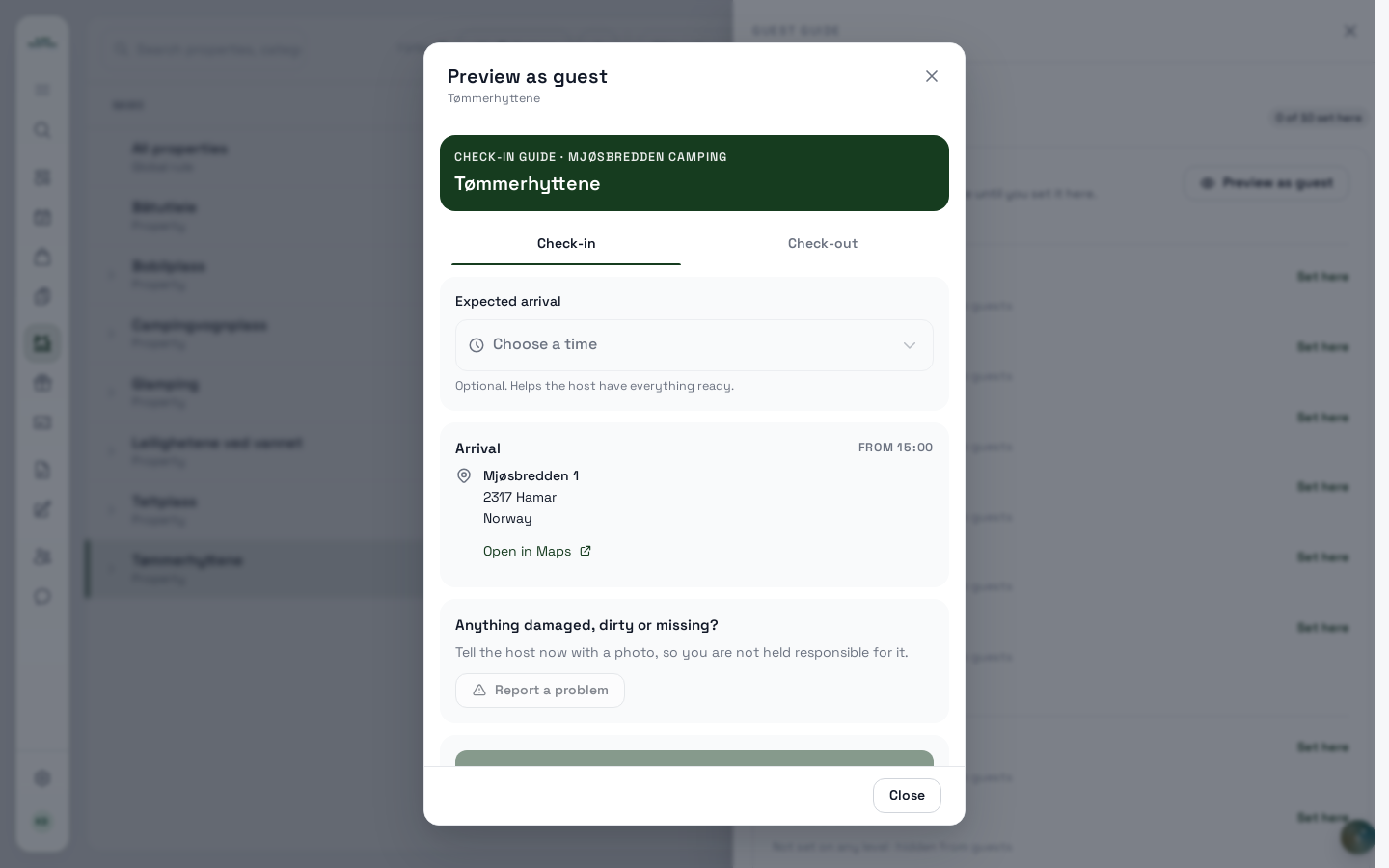
Check-in 1. The guest can pick an Expected arrival time, so you have everything ready. 2. The guest reads the arrival instructions, sees the access code and Wi-Fi, and ticks I have read the house rules and safety information. 3. If you have given the guest check-in tasks, they must be done first. 4. The guest clicks Confirm check-in.
Check-out 1. The guest can pick an Expected departure time. It tells the cleaner when the unit is free. 2. Next, they read the departure instructions and do any check-out tasks. 3. Under Anything damaged, dirty or missing? the guest can click Report a problem and add a photo. You get it as a task with the photos. The same option is also there at check-in. 4. The guest can rate the stay from 1 to 5 with a comment. This is optional. 5. The guest clicks Finish check-out and sees a thank-you screen.
Tasks for the guest
You can give the guest tasks in the guide, for example taking out the rubbish or taking a photo of the fridge. Check-in tasks go on the Check-in tab and check-out tasks on the Check-out tab. The guest must do them before confirming. A task can have a checklist and require a photo.
You create guest tasks as an automation rule under Operations → Automation rules. Under Assignment, choose that the task goes to the guest, and choose whether it comes at check-in or check-out. See Create tasks automatically from bookings.
Follow it on the booking
Open the booking. Under Check-in & check-out you see everything the guest did in the guide, with times: expected arrival and departure, confirmed check-in, completed tasks with photos, reported problems, the rating and finished check-out. Here you can also Copy guide link and Open guest guide.
Good to know
- The guest gets the link to the guide by email. In the emails you choose when they go out, for example one day before check-in or at the check-out time.
- If the link is old, the guest is told to open the guide from the latest email.
- Atlas can suggest texts for the guide.