Create a booking manually
The video was checked against the admin on 5 November 2026.
If a guest phones or comes to reception, you create the booking yourself. You start by dragging over the dates in Calendar. An invoice is created, and the guest gets the confirmation by email.
How to do it
-
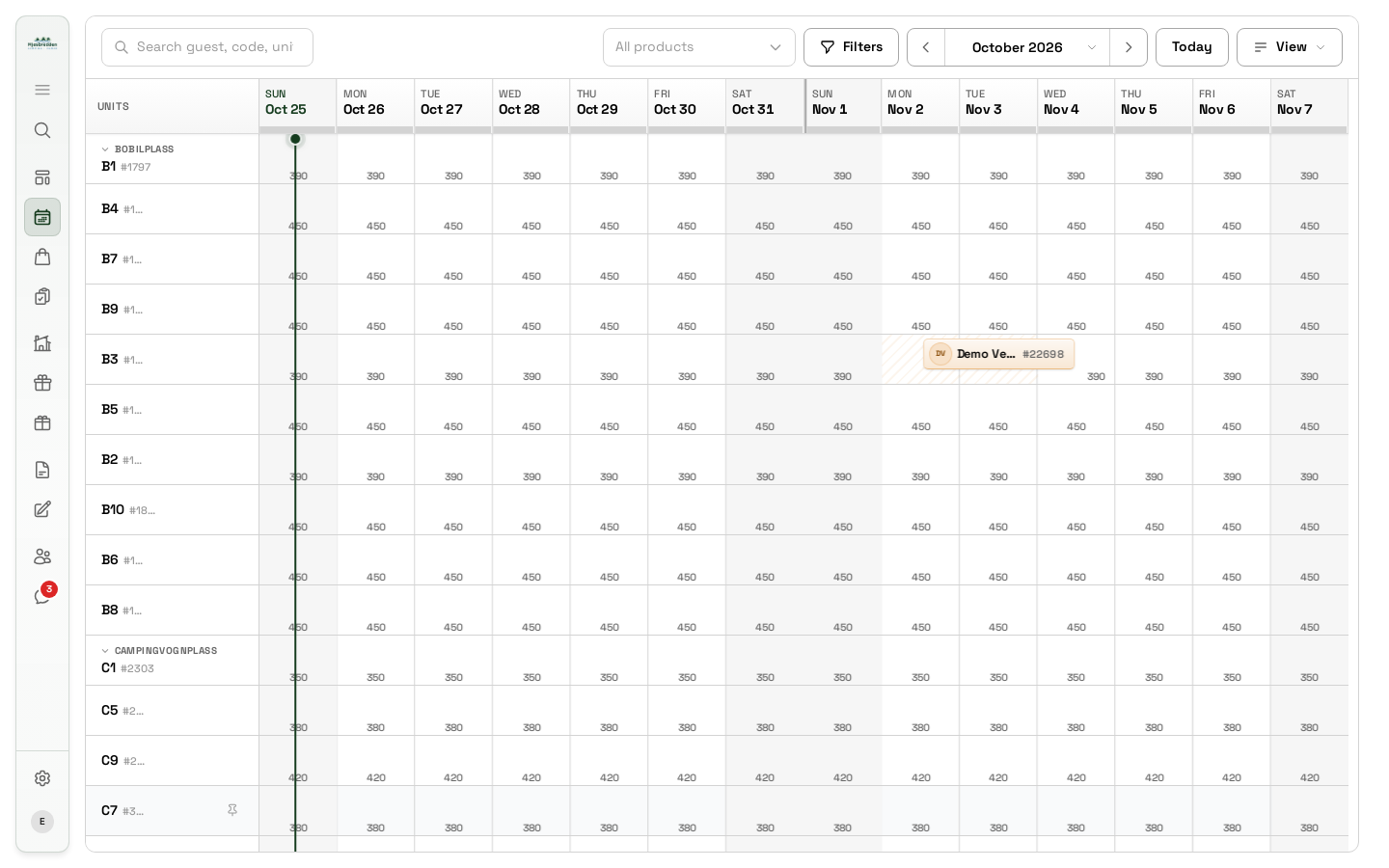
Choose Calendar in the menu on the left.
-
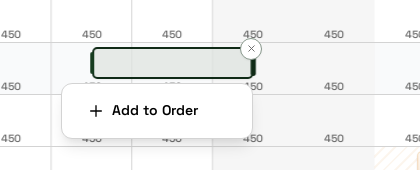
Find the unit the guest will stay in. Press on the check-in day and drag across to the check-out day. Then tap Add to Order.
-
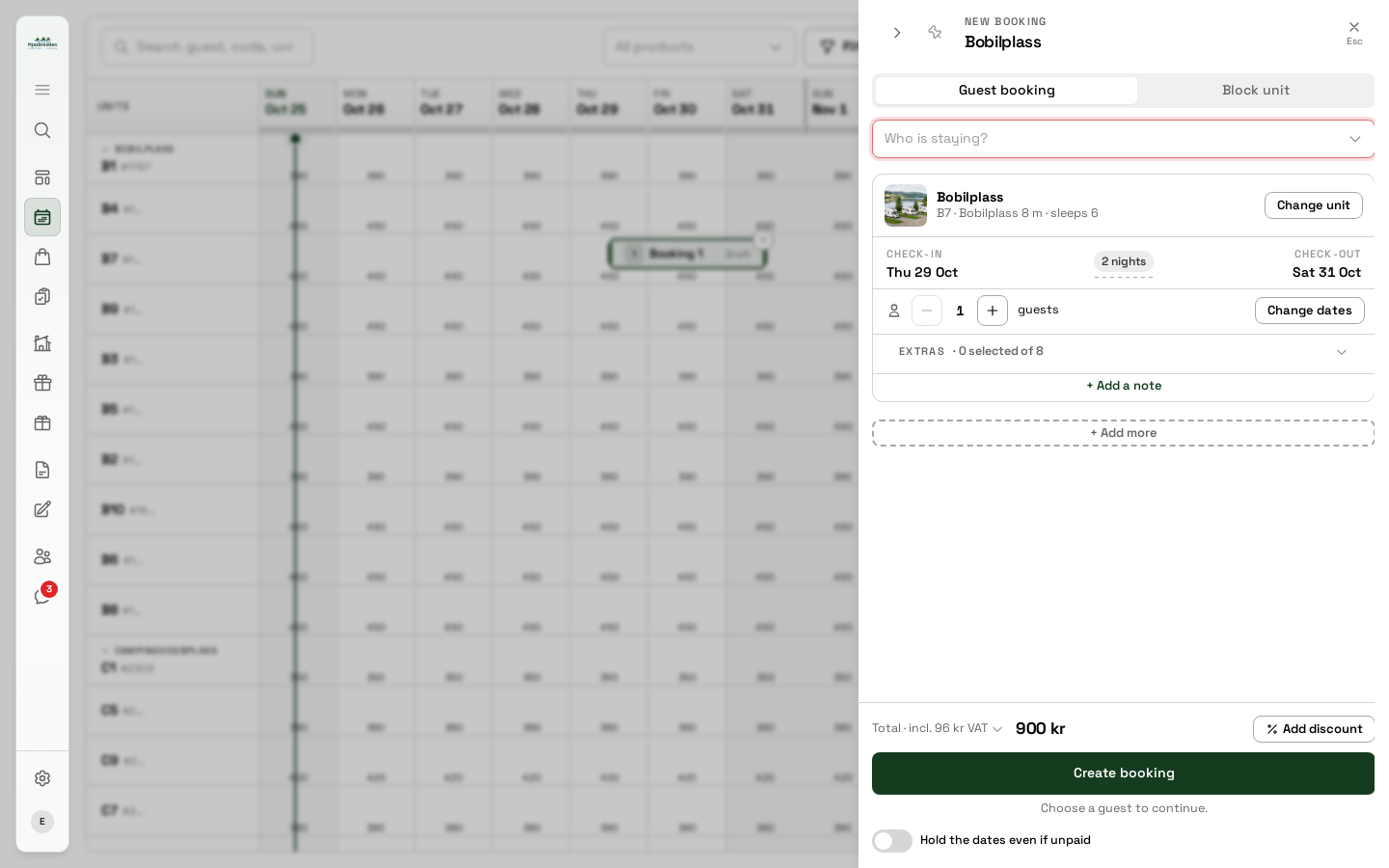
The panel for the new booking opens on the right.
-
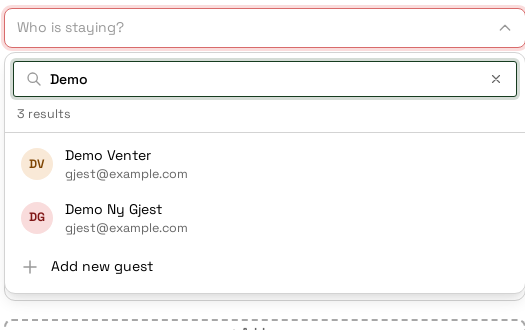
Tap the Who is staying? box and type the guest's name. The list shows guests who are already registered. At the bottom of the list is Add new guest.
-
Choose the guest in one of two ways:
If the guest is already registered, tap the name in the list.

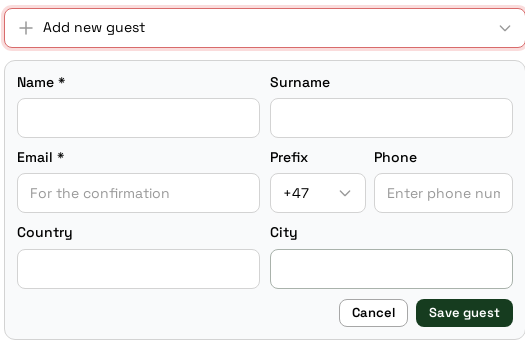
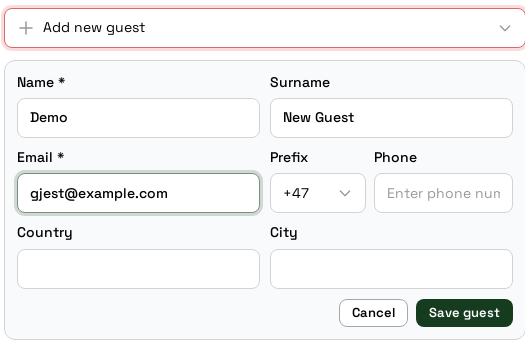
If the guest is new, tap Add new guest (with the plus sign) at the bottom of the list. Fill in Name and Email, which are required. Surname, phone, country and city are optional. Then tap Save guest.

-
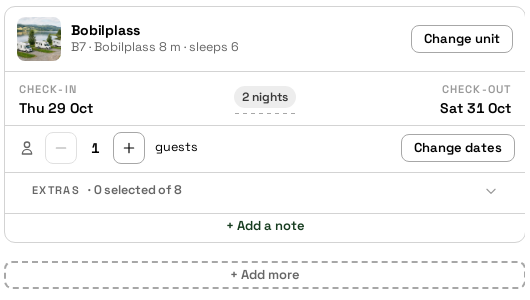
Check the unit, the dates and the number of guests. Under Extras you can add extra products.
-
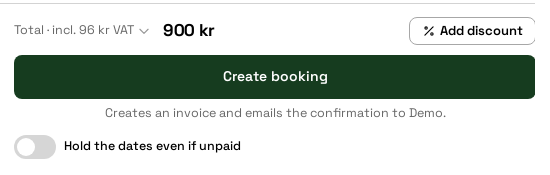
Check the price next to Total. With Add discount you can lower the price. Then tap Create booking.
Select several units at once
If several units need the same nights, you can select them all at once.
- Hold down the Shift key.
- Press on the first day in the row of the first unit, and drag across and down to the last unit.
-
Let go. All the rows you dragged over get the same selection. At the bottom you see how many nights and units you have selected.
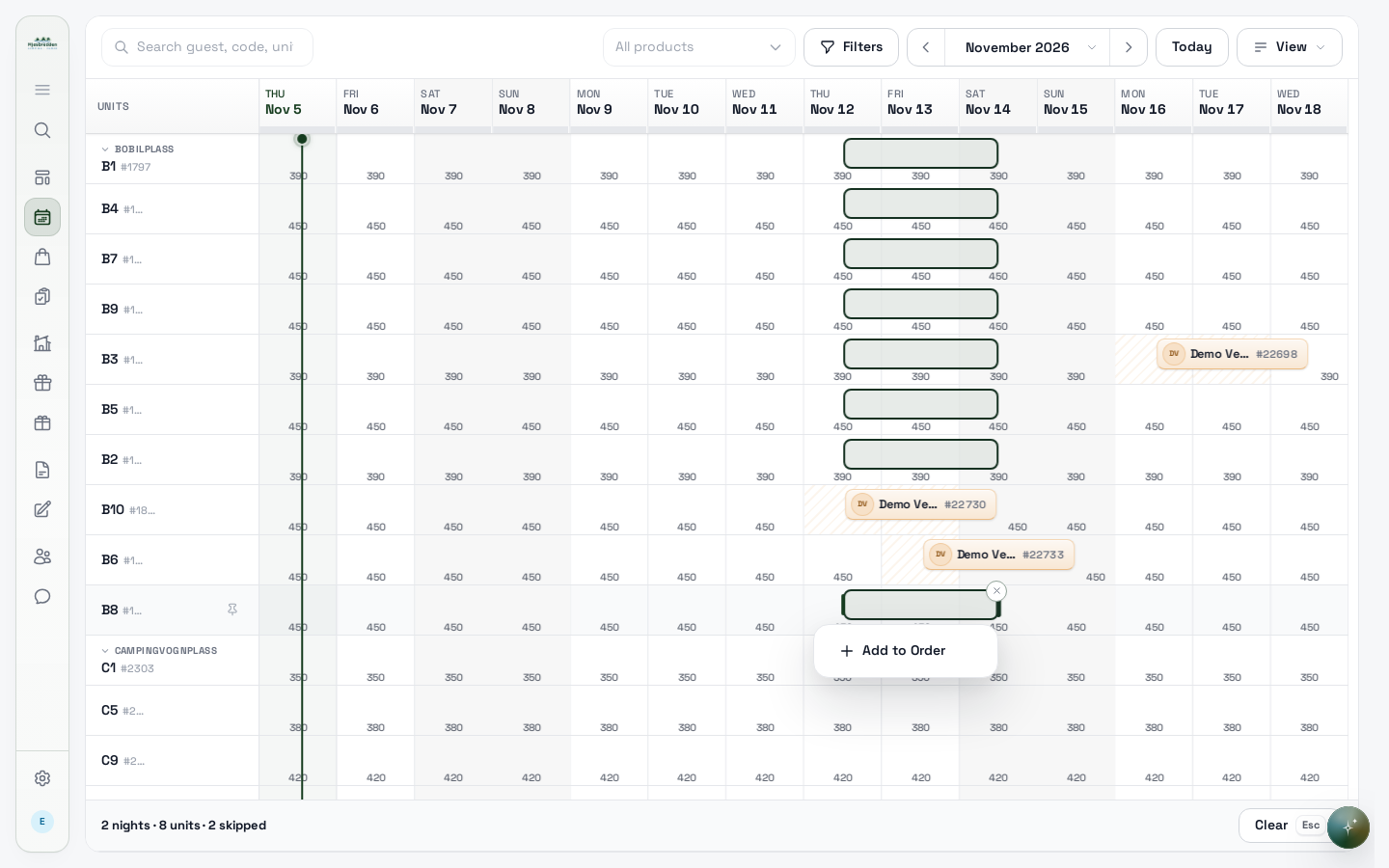
Units that are taken on any of the nights are skipped. The bottom of the screen says how many were skipped, for example "2 nights · 8 units · 2 skipped".

Click Clear or press Esc to remove the selection.
- If you hold down Shift and click another row, the selection grows to that row.
- This doesn't work on a phone, or for units rented out by the hour.
Good to know
- When you tap Create booking, an invoice is created and the confirmation goes by email to the guest.
- A booking that is not paid is only held for a limited time. If the dates should be held anyway, turn on Hold the dates even if unpaid before you create the booking.
- To close the unit without taking in a guest, choose Block unit at the top of the panel instead of Guest booking.